

How SSO sign-in works
With SSO, rConfig hands authentication to your identity provider. The identity provider checks the password, applies MFA and conditional access, and tells rConfig who the user is. rConfig still decides whether that person gets in, and with what role. How that second decision is made is the main design choice.
The sign-in
- The user chooses SSO on the rConfig sign-in page.
- rConfig redirects them to the identity provider.
- They sign in there, under the identity provider’s own policies: MFA, device checks, location rules.
- The identity provider sends them back with a SAML assertion or an OAuth token.
- rConfig validates it, then finds or creates the user’s account.
- rConfig decides whether to let them in, and with which roles.
Steps 1 to 5 are the same for every provider. Step 6 has two paths.
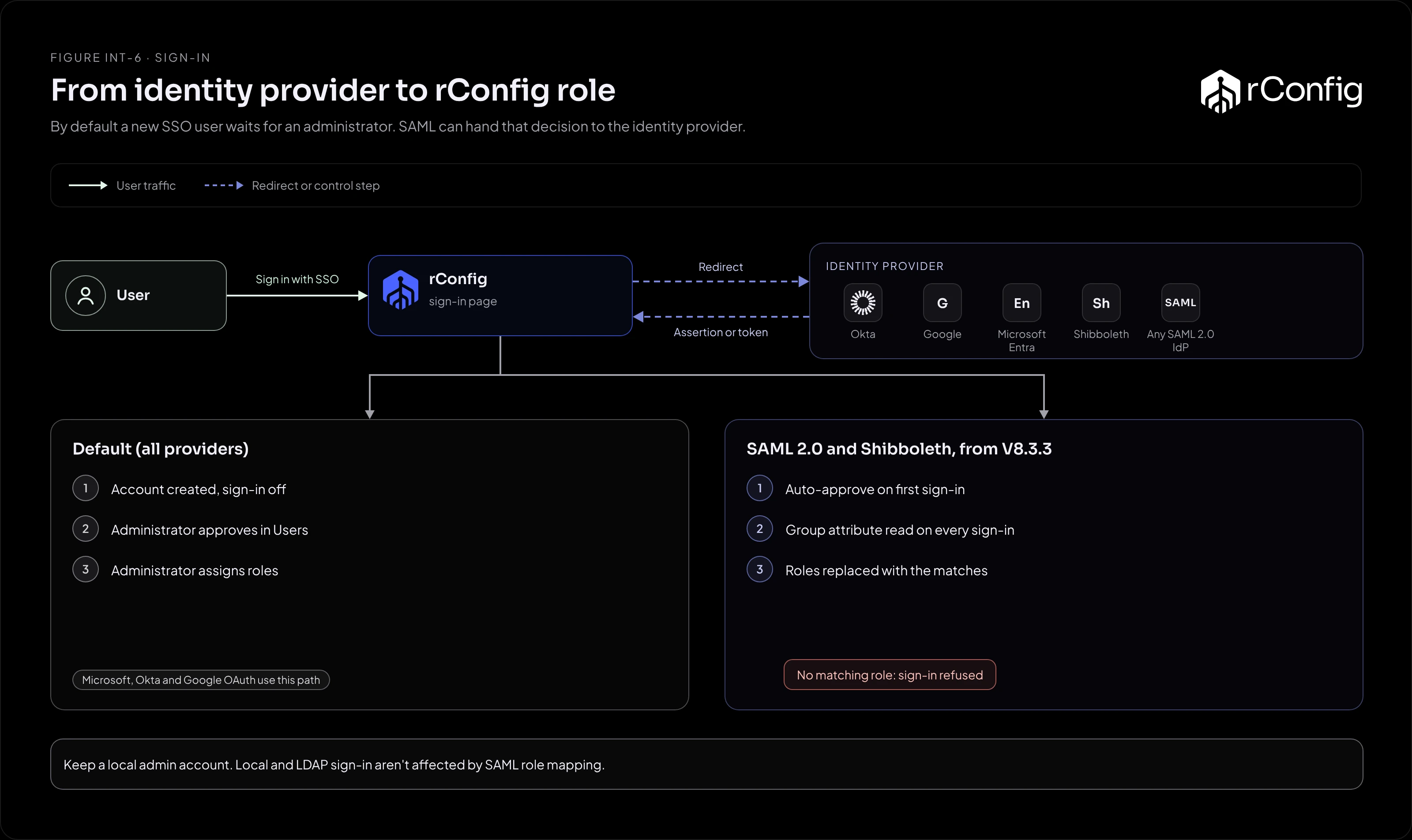
Path 1: an administrator approves (every provider)
By default a first-time SSO user gets an account with SSO sign-in switched off and no roles. They see a message that an administrator must approve them. An administrator then switches SSO sign-in on for them in Users and assigns a role.
- Good for: small teams, and any deployment where rConfig access is a deliberate grant.
- Cost: a manual step per new user, and roles maintained by hand in rConfig.
- Applies to: every provider. It’s the only path for the OAuth providers (Microsoft Entra ID, Okta and Google).
Path 2: the identity provider decides (SAML 2.0 and Shibboleth, V8.3.3 and later)
Two settings on the SAML2 / SSO page hand the decision to the identity provider:
- Auto-approve approves a new account at its first successful sign-in.
- Role mapping reads a group attribute from the assertion at every sign-in and replaces the user’s roles with the ones that match.
With both on, access is managed entirely in the identity provider: add someone to the rconfig-netops group and they can sign in with the Network Operations role; remove them and they lose it at their next sign-in.
- Good for: larger teams, joiners and leavers handled centrally, and audits that ask “who can access rConfig?” with one answer.
- Cost: the identity provider becomes authoritative. Roles changed by hand in rConfig are overwritten at the next sign-in, and a user whose groups match no role is refused, administrators included.
The details are in Role mapping patterns.
What the identity provider controls, and what it doesn’t
| Concern | Who controls it |
|---|---|
| Password, MFA, conditional access | The identity provider |
| Whether a known user may sign in to rConfig | rConfig (Path 1), or the identity provider’s groups (Path 2) |
| Which rConfig roles a user has | rConfig (Path 1), or the identity provider’s groups (Path 2) |
| What each role can see and do | rConfig, always. Roles and permissions are defined in rConfig |
| Local and LDAP accounts | rConfig. SSO and role mapping don’t affect them |
Removing someone from the identity provider stops them signing in through SSO, because the identity provider refuses them. Their rConfig account record stays. With Path 1, also switch off their SSO sign-in in Users, so the account can’t be used if they come back under the same identity.
Don’t lock yourself out
- Certificates expire. SAML signing certificates on both sides have a lifetime. Put the renewal dates in the same calendar as your TLS certificates.
- Test changes with a second browser session still signed in as an administrator, so a bad change can be reverted.
- Every mapped sign-in is logged. The Application Log records the attribute read, how each value was reduced and the roles granted, which makes “why can’t I get in?” quick to answer.