

Comments & Activity — User Guide
Comments & Activity — User Guide
Section titled “Comments & Activity — User Guide”From V8.1.2, rConfig’s Activity system lets your team collaborate directly on Devices, Configurations, and Policy Definitions, without switching to email or external tools. After reading this page, you can start and reply to threaded discussions, mention users or roles, react to messages, and manage everything from the Activity Inbox.
You can:
- Start discussions on any supported object
- Reply in threaded conversations
- Mention users or roles to notify them
- React to messages
- Attach files and screenshots (roadmap)
- Track everything from a centralized Activity Inbox
1. Where Activity Lives
Section titled “1. Where Activity Lives”Activity is available on:
- Devices
- Configurations
- Policy Definitions
Each of these objects includes an Activity panel, where conversations related to that object are displayed.
Think of it as a contextual discussion thread tied directly to the object itself.
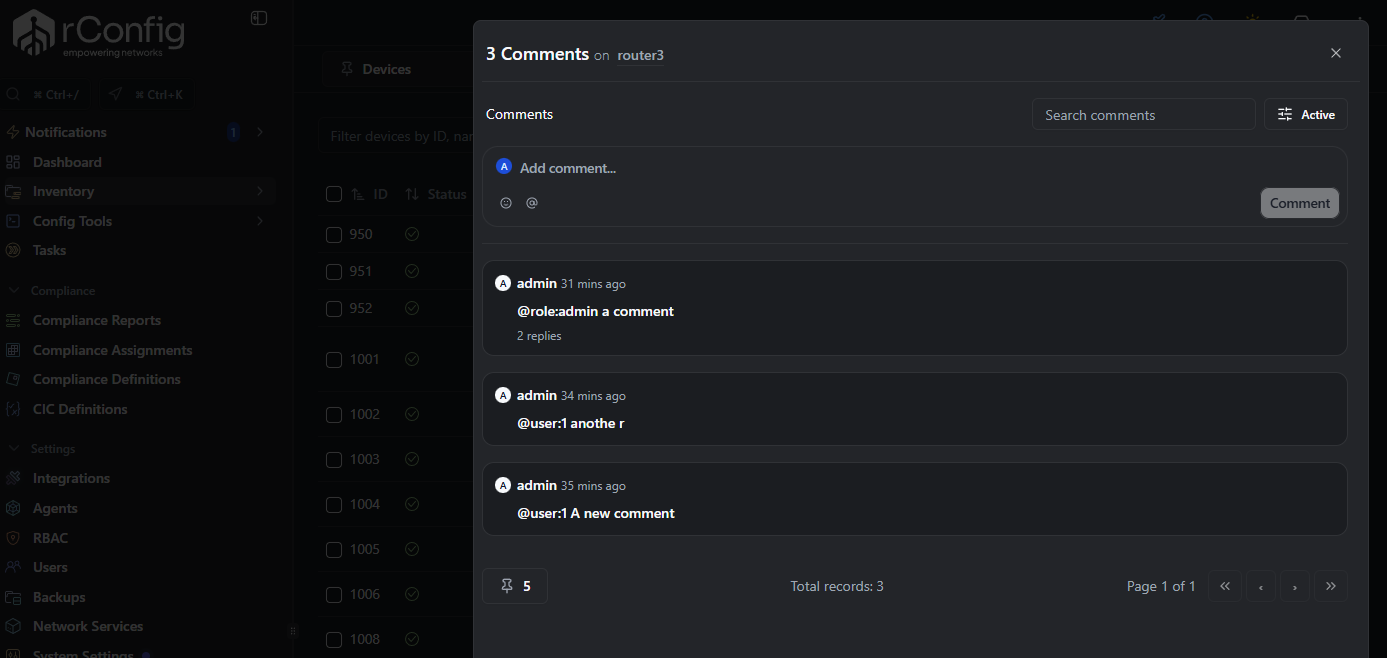
2. Starting a Discussion
Section titled “2. Starting a Discussion”To create a new activity item:
- Open the Activity panel on the object.
- Choose whether you’re adding a Comment or a Note.
- Write your message using Markdown formatting (headings, lists, code blocks supported).
- Optionally:
- Mention users or roles
- Add tags
- Attach files or paste images (roadmap)
- Click Post.
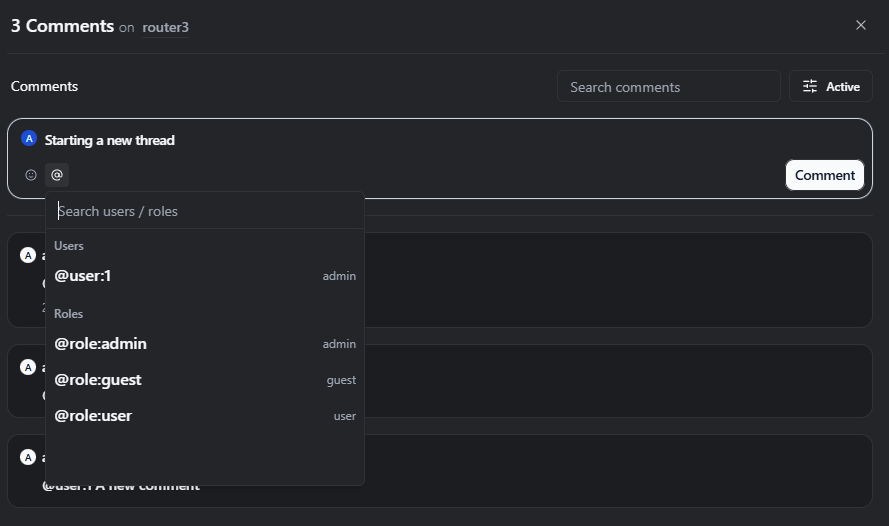
Comments vs Notes
Section titled “Comments vs Notes”- Comments are general collaborative messages.
- Notes are intended for documentation or structured information.
Today, both behave the same way technically, but separating them helps keep discussions organized. Deeper distinctions between the two are planned for a future release.
3. Threaded Replies
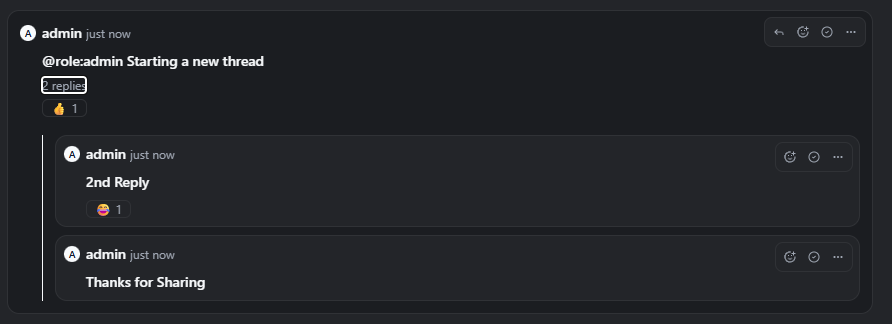
Section titled “3. Threaded Replies”Every top-level comment or note forms a thread.
- Click Reply under any activity item to respond.
- Replies are grouped under the original item.
- Threads load newest replies first for fast scanning.
- Deleted top-level items appear as a placeholder if replies still exist.
Replies inherit the visibility of the original thread and cannot override it.
4. Mentions: Notifying the Right People
Section titled “4. Mentions: Notifying the Right People”Mentions allow you to bring specific users or roles into a discussion.
When writing a message, use:
@User Name— to notify a specific user@role:netops— to notify all users assigned to a role
As you type @, an autocomplete picker appears.
When you post:
- Mentioned users receive an in-app notification.
- They may also receive an email (depending on system configuration).
- The message is highlighted for them in the thread.
Mentions always respect permissions — users are only notified if they have access to the object.
5. Reactions
Section titled “5. Reactions”You can react to any activity item using emoji-style reactions.
Reactions:
- Are grouped by type (e.g. 👍 ❤️ 🔍)
- Show a count of users per reaction
- Indicate which reactions you’ve added
- Can be removed by clicking again
Reactions are tied to the activity item itself (not individual edits).
This allows quick acknowledgement without adding noise to the thread.
6. Attachments & Pasting Images
Section titled “6. Attachments & Pasting Images”Attaching files and pasting images directly into activity items is planned for a future release. The roadmap includes:
- Uploading files via an attachment button
- Pasting images directly from the clipboard
- Downloading attachments securely, subject to permission checks
- Version-aware attachments, so previous attachments remain in history when an activity item is edited
7. Editing & History
Section titled “7. Editing & History”Activity items are versioned.
When you edit a comment or note:
- A new immutable version is created
- The thread shows an “edited” indicator
- Full history is available via the View History option
Search applies to the latest version only.
8. The Activity Inbox
Section titled “8. The Activity Inbox”The Activity Inbox helps you manage everything you’re involved in.
You can access it via the Inbox icon in the top navigation bar.
Navbar Features
Section titled “Navbar Features”- Unread count badge
- Animated indicator when new activity arrives
- Hover preview of your latest unread threads
- Quick link to full Inbox page
Inbox Page Overview
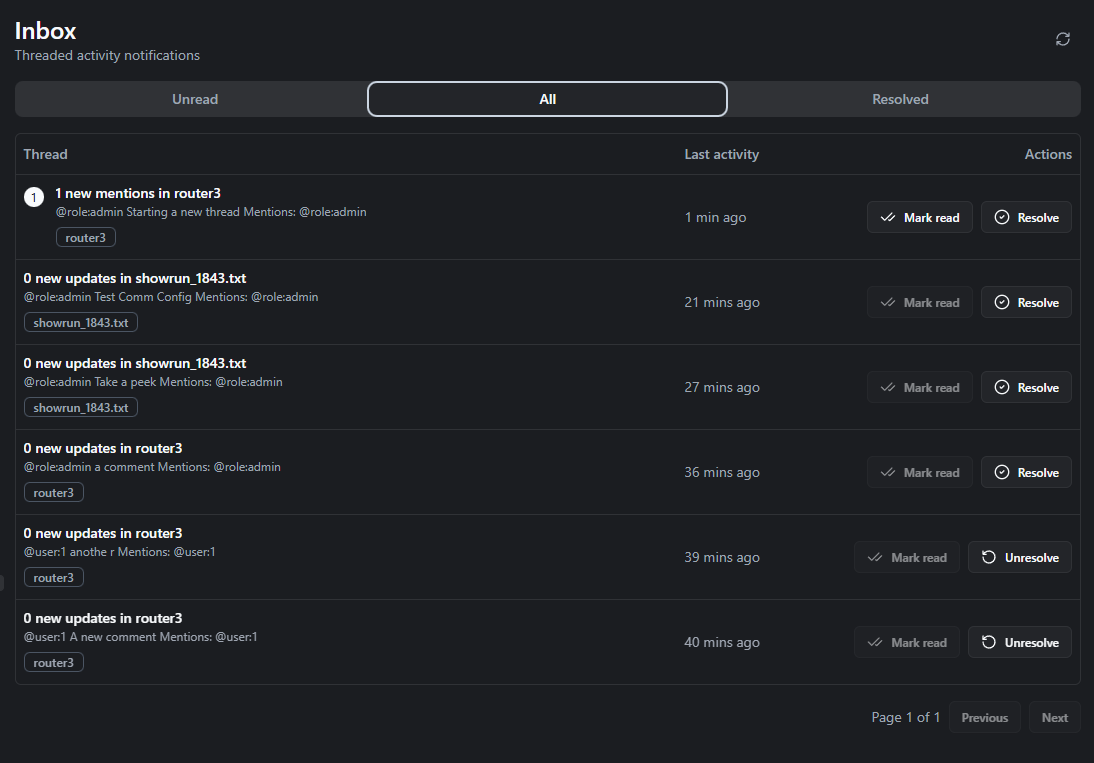
Section titled “Inbox Page Overview”The Inbox is designed as a task-style activity queue, not just a raw notification list.
Activity is grouped by thread, not by individual event.
Tabs:
- Unread — Threads with new activity
- All — Everything you’re involved in
- Resolved — Threads you’ve marked complete
Each row shows:
- A summary (e.g., “3 new replies in Device ABC”)
- Subject type badge (Device / Config / Policy)
- Snippet of latest message
- Relative timestamp
- Unread indicator
Clicking a row:
- Opens the relevant object
- Scrolls directly to the thread
- Marks it as read
You can also:
- Mark a thread as resolved
- Return resolved threads to active
9. Permissions & Visibility
Section titled “9. Permissions & Visibility”Activity always respects RBAC and object permissions.
- Users must have access to the object to see its activity.
- Private threads are only visible to:
- The author
- Users with
activity.view_private
- Replies cannot widen visibility beyond the original thread.
If an object becomes inaccessible, related inbox entries will no longer open.
10. Searching Activity
Section titled “10. Searching Activity”You can search:
- Within a specific object’s Activity panel
- Across all activity (via unified views)
Search applies to the latest version of each activity item.
11. Best Practices
Section titled “11. Best Practices”To get the most value from Activity:
- Use threads to document context around device changes
- Mention roles (e.g.,
@role:netops) instead of individuals when appropriate - Use reactions for quick acknowledgements
- Resolve threads once an issue is closed
- Keep discussions tied to the relevant object instead of external chat
This keeps audit trails contextual and discoverable.
12. FAQ
Section titled “12. FAQ”Who gets notified when I reply?
Users mentioned in your message. The original author may also receive a notification depending on configuration.
Can I delete activity items?
Soft delete is available depending on permissions. Administrators can permanently purge if required.
Can replies have replies?
Replies are grouped under a top-level thread. Nested reply structures are stored internally but displayed as a single flat thread for clarity.
Are reactions tracked historically?
Reactions are tied to the activity item and reflect the current state.