

PRTG Device Sync V2
PRTG Device Sync V2: End-to-End Setup in rConfig V8.2.0
Section titled “PRTG Device Sync V2: End-to-End Setup in rConfig V8.2.0”The V2 PRTG driver pulls device inventory from a PRTG Network Monitor server using its API v2 REST endpoints and feeds it through the unified V2 pipeline. This guide follows the same model as the Statseeker V2 setup: only the Setup tab fields and upstream-side conventions are different.
| Platform | rConfig V8 Support | Auth supported | V2 Status |
|---|---|---|---|
| PRTG | V8.2.0+ | API token, or session (user + pass / passhash) | Lab tested |
Mental Model: End Goal First
Section titled “Mental Model: End Goal First”The point of setting up a V2 integration is to land in a steady state where rConfig’s device inventory is continuously reconciled against PRTG on a schedule, with no operator in the loop. That end state looks like this:
A Scheduled Task of type Integration V2 Job runs the PRTG instance in Apply mode on a cron, e.g. nightly. It runs the same six-stage pipeline you’ll run interactively in this guide, writes any
createandupdatedecisions to rConfig, leaves any conflicts or ambiguous matches in Problem Devices for review, and notifies you on completion.
To get there, you walk a one-time setup and a sanity-check loop:
- Create the integration instance: PRTG connectivity and auth in the Setup tab. Validate with Test Connection.
- Set up the Device Profiles the synced devices will inherit from. This happens under Inventory → Device Profiles, not in the integration itself.
- Run an Extract Preview to confirm filters return the right PRTG devices.
- Run a Sync Preview to walk the full pipeline (canonicalize → reconcile → decide) without writing.
- Run a Full Sync (Apply) once the preview’s decisions look right.
- Schedule the integration to run on a cron from the rConfig scheduler.
%%{init: {'themeVariables': {'fontSize': '60px'}}}%%
flowchart LR
    A[Create instance<br/>Setup tab] --> B[Test Connection]
    B --> C[Device Profiles<br/>Inventory]
    C --> D[Extract Preview]
    D --> E[Sync Preview]
    E --> F[Full Sync · Apply]
    F --> G[Scheduled Task<br/>recurring sync]

  classDef step font-size:60px,stroke-width:2px;
  class A,B,C,D,E,F,G step;
Prerequisites
Section titled “Prerequisites”PRTG:
- A PRTG Network Monitor server with API v2 enabled. API v2 listens on a separate port from the main web UI: by default
1616. Confirm this in your PRTG admin settings (System Administration → Core & Probes). - An API key (preferred) or a service-user username + password (or legacy passhash) with read access to devices.
- Network connectivity from rConfig to PRTG on the API v2 port.
- Devices labelled with a PRTG tag carrying the
rconfig::device_profile::<slug>prefix (or a default profile set on the instance).
rConfig V8.2.0+:
- Administrator access
- A clear answer to: which Device Profile (vendor, category, template, credential set, optional SNMP group / Vector agent) every synced device should adopt by default
Step 1: Create the Integration Instance (Setup Tab)
Section titled “Step 1: Create the Integration Instance (Setup Tab)”1.1 Open the V2 driver picker
Section titled “1.1 Open the V2 driver picker”Navigate to Platform → Integrations. Scroll to the Device Sync section and click + Add Driver under V2 Drivers.
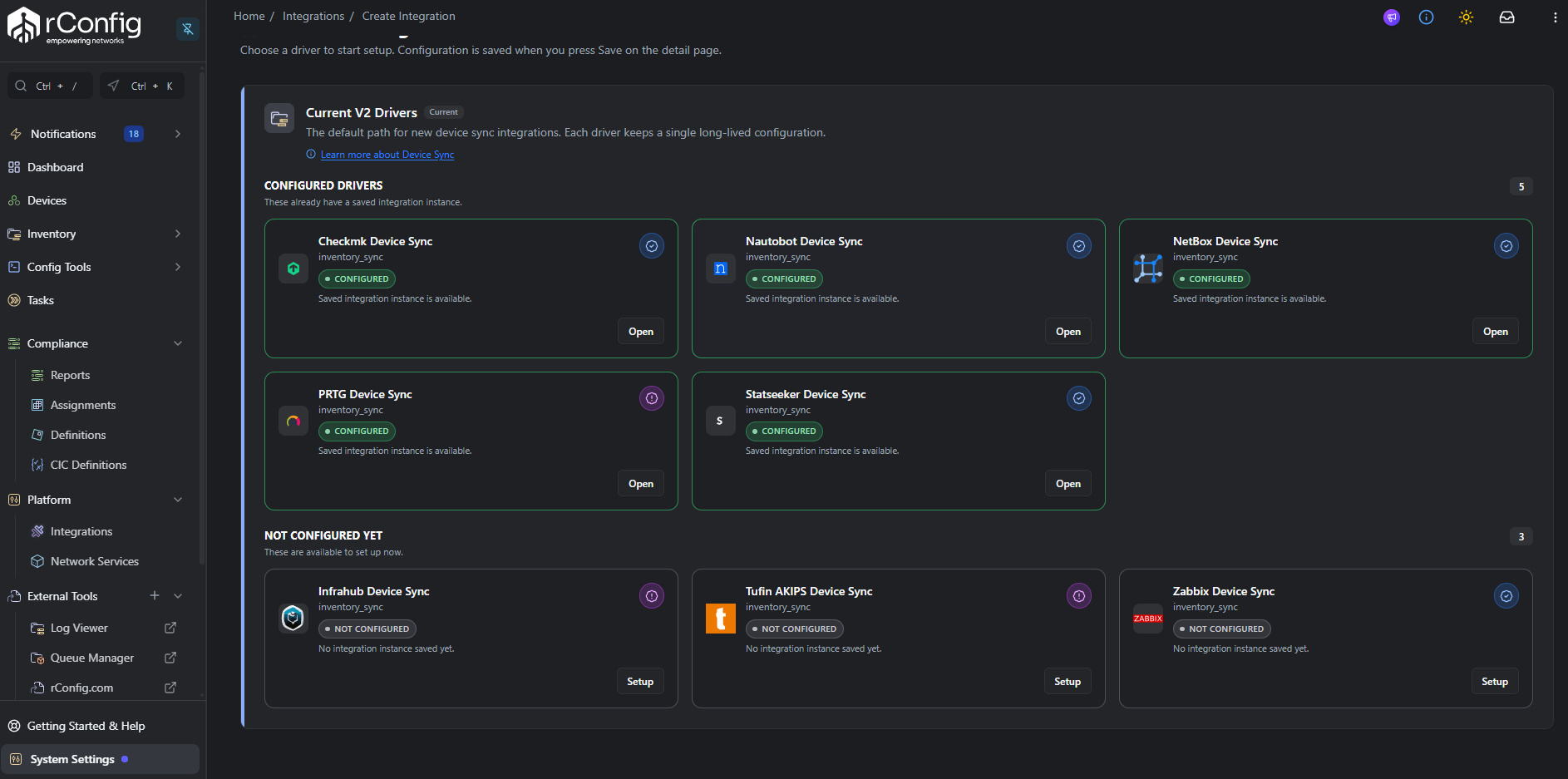
The PRTG card carries a Lab tested badge: click it to open the Setup tab.
1.2 Fill in the schema-driven Setup tab
Section titled “1.2 Fill in the schema-driven Setup tab”The form is rendered from prtg.schema.php and is laid out in two sections.
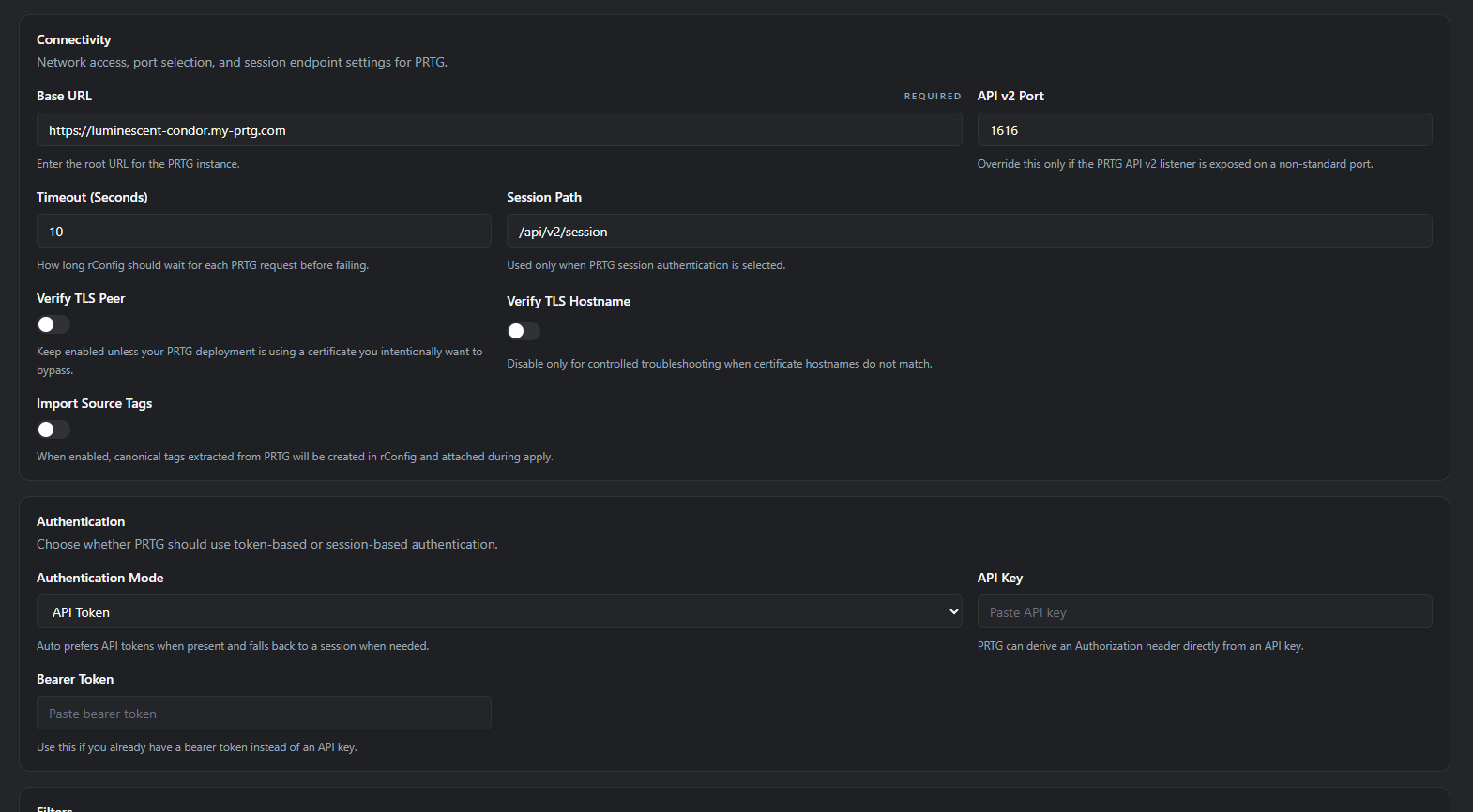
Connectivity
| Field | Default | Notes |
|---|---|---|
| Base URL | required | Root of the PRTG server, e.g. https://prtg.example.com. The API v2 port is appended automatically if not present. |
| API v2 Port | 1616 | The port PRTG exposes API v2 on. Override only if your PRTG admin has changed it. |
| Session Path | /api/v2/session | Auth/session endpoint. Rarely changed. |
| Timeout (Seconds) | 30 | HTTP request timeout. Range 1–120. |
| Verify TLS Peer | on | Leave on for production. Disable only for self-signed labs. |
| Verify TLS Hostname | on | Leave on for production. Disable only for hostname mismatches in labs. |
| Import Source Tags | off | When on, PRTG device tags become canonical tags in rConfig and are attached on Apply. |
Authentication: pick an Auth Mode:
- Auto (recommended): tries API token first, falls back to session credentials.
- API Token: supply an API Key (or Bearer Token). Sent as
api-key,Bearer, orApi-Keyheader: the driver tries each in turn. - Session: supply Username + Password, or Username + Passhash (legacy MD5). The driver POSTs to
/api/v2/sessionto exchange these for a bearer token.
1.3 Test the connection
Section titled “1.3 Test the connection”Click Test Connection in the action bar. The driver hits GET /api/v2/session with the configured auth.
Common failures:
| What you see | Most likely fix |
|---|---|
| Connection refused / timeout | Wrong Base URL, wrong API v2 Port, or firewall blocking the API v2 port (default 1616). |
SSL / certificate error | Self-signed cert: toggle Verify TLS Peer / Hostname off (lab only). |
401/403 | API key invalid, or username/password/passhash wrong. Try the alternate Auth Mode. |
404 from /api/v2/session | API v2 not enabled on the PRTG server. Enable in PRTG System Administration and restart the core. |
1.4 Save
Section titled “1.4 Save”Click Save. Move to Step 2 before running a preview.
Step 2: Set Up Device Profiles (Inventory)
Section titled “Step 2: Set Up Device Profiles (Inventory)”Device Profiles live outside the integration. The PRTG V2 driver matches the upstream record’s tag value to the Device Profile slug.
2.1 Open the Device Profiles page
Section titled “2.1 Open the Device Profiles page”Navigate to Inventory → Device Profiles.
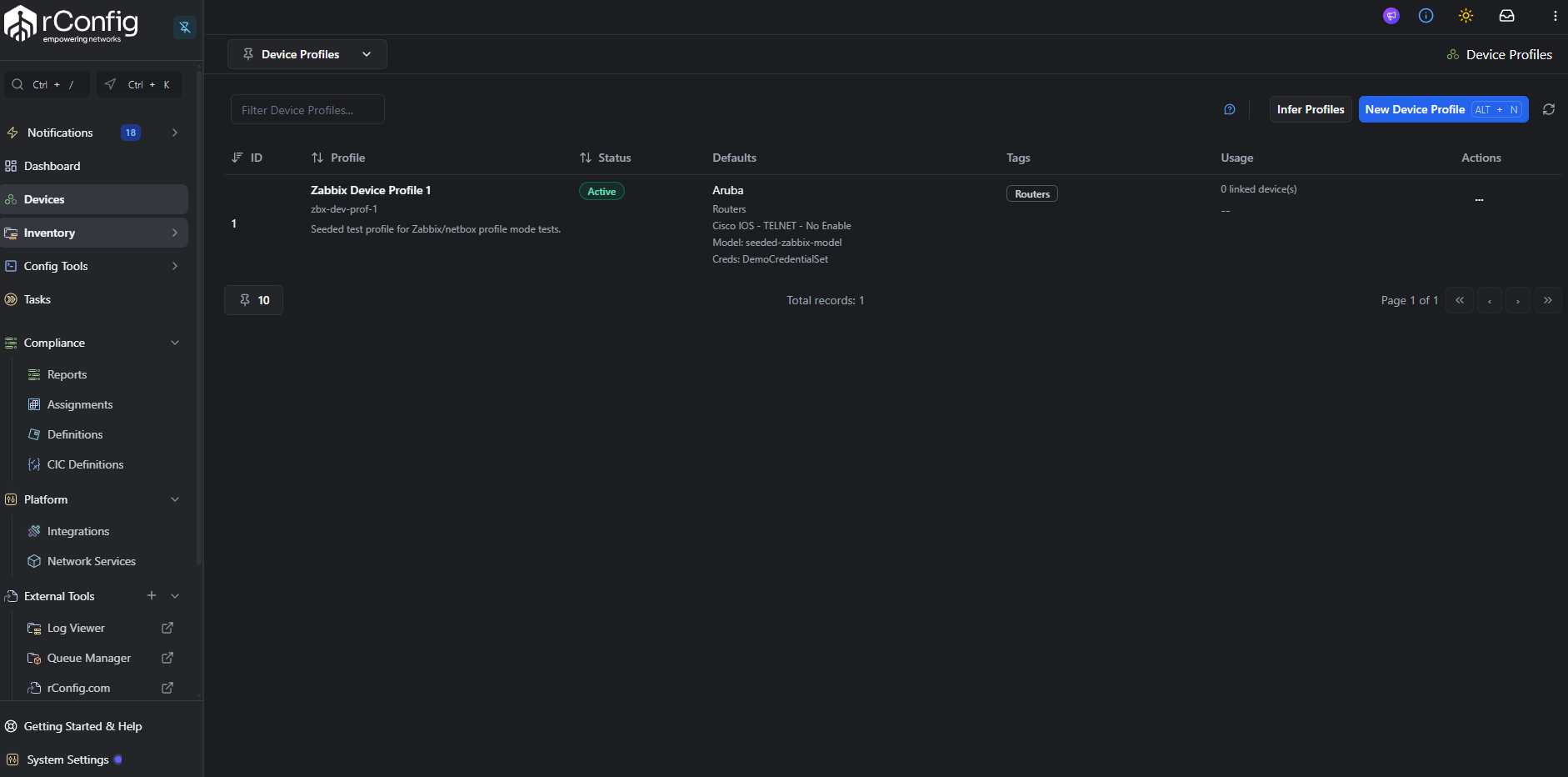
2.2 Create a Device Profile per device class
Section titled “2.2 Create a Device Profile per device class”For each device class you want to sync, click New Device Profile and fill in:
- Name: human-readable.
- Slug: the value PRTG tags will reference.
- Vendor, Category, Template, Credential set: standard rConfig device classification.
- SNMP group, Vector agent, default tags, default model / prompt patterns: optional.
2.3 Tag devices on the PRTG side
Section titled “2.3 Tag devices on the PRTG side”The PRTG V2 driver reads tags from basic.tags on each device record, but a plain tag matching a Device Profile slug is not enough. The driver looks specifically for a token carrying the rconfig::device_profile:: prefix and resolves the profile from the substring after that prefix. A bare slug tag (e.g. just cisco-ios-core) is treated as an ordinary canonical tag and will not resolve a profile.
In PRTG: open the device, click Settings, scroll to Tags, and add the prefixed tag (space-delimited from any existing tags):
rconfig::device_profile::cisco-ios-core network productionIf you cannot tag every device, set a default profile on the PRTG integration instance so untagged devices inherit a sensible fallback.
Step 3: Run an Extract Preview
Section titled “Step 3: Run an Extract Preview”Click Extract Preview in the action bar (amber download icon).
PRTG supports filters on:
name(operators:equals,contains,in)basic.tags(operators:equals,contains,in)status(operators:equals,in)
Open a row’s Details hover to see the full raw payload: confirm name, the chosen IP field (basic.host or basic.hostv6) and the tag value used for profile resolution are all present.
For the full anatomy of this tab, see the Extract Preview Tab reference.
Step 4: Run a Sync Preview
Section titled “Step 4: Run a Sync Preview”Click Preview Sync in the action bar (sky icon). Sync Preview runs the complete pipeline through decide and stops without writing.
Switch to the Run Insights tab to inspect the result.
For PRTG the most-watched stage metrics are:
extract.items_extracted: should match the Extract Preview count (within filter scope).canonicalize.invalid: non-zero usually means a device has nobasic.hostset, or no tag matches an active Device Profile.reconcile.ambiguous: non-zero means more than one rConfig device matches the same PRTG device.
If Open Problems is greater than zero, switch to the Problem Devices tab and triage the rows.
For the full anatomy of these tabs, see the Run Insights Tab reference and Problem Devices Tab reference.
Step 5: Run a Full Sync (Apply)
Section titled “Step 5: Run a Full Sync (Apply)”When the Sync Preview decisions look correct and Open Problems is at an acceptable level, click Full Sync in the action bar (indigo icon).
Full Sync re-runs the full pipeline and finishes by executing the apply stage:
- Creates new devices for each
decision = create. - Updates existing devices for each
decision = update. - Assigns the resolved Device Profile to each affected device.
- Syncs canonical tags onto the device when Import Source Tags was on at Setup.
- Updates
integration_device_links(first_seen,last_seen). - Schedules an initial configuration backup for newly created devices.
Re-check Problem Devices after Apply.
Step 6: The Debug Console
Section titled “Step 6: The Debug Console”For any of the runs above, you can swap the action-bar button for the Open Debug Console button (shimmer icon).
For the full anatomy of the dialog, see the Debug Console reference.
Step 7: Schedule the Sync
Section titled “Step 7: Schedule the Sync”Once a manual Full Sync completes cleanly, navigate to Tasks and click New Task. Choose task type Integration V2 Job, pick the PRTG instance, choose Apply mode, and set the cron schedule.
CLI Reference
Section titled “CLI Reference”# Sync Preview (does not write)php /var/www/html/rconfig8/current/artisan rconfig:integration-v2-run --driver=prtg --mode=preview
# Full Sync (Apply) by explicit instance ID, with debug outputphp artisan rconfig:integration-v2-run 18 --mode=apply --debug
# Queue an async runphp artisan rconfig:integration-v2-run 18 --mode=apply --queueDriver Reference
Section titled “Driver Reference”PRTG fields the driver reads
Section titled “PRTG fields the driver reads”| Canonical field | PRTG payload paths checked, in order |
|---|---|
| External ID | id |
| Hostname | name → basic.host |
| Primary IP | basic.host → basic.hostv6 |
| Serial | not populated |
| Vendor | not populated |
| Model | not populated |
| Tags / Profile | basic.tags, profile resolved from a rconfig::device_profile::<slug> prefixed token |
Reconciliation policy
Section titled “Reconciliation policy”- Strong match: by
instance_link_external_idonly (no serial available). - Medium match: hostname and primary IP both unique in rConfig.
- No automatic medium-match auto-relink, no cross-family matching.
Missing upstream policy
Section titled “Missing upstream policy”The default mode is disable_link_only: when a previously-synced PRTG device disappears from the upstream, rConfig disables the integration_device_links row but leaves the device intact.
Troubleshooting
Section titled “Troubleshooting”- Connection refused on the API v2 port. Confirm PRTG API v2 is enabled and the port (default
1616) is open from rConfig. Test from a shell:curl -k https://prtg.example.com:1616/api/v2/session. - API key auth fails but session works. PRTG accepts API keys via three different header forms. The driver tries
api-key,BearerandApi-Keyin turn: if all three fail, your API key was likely revoked or scoped to a user without device read access. Generate a new key. - Session auth fails. If using passhash, regenerate it from PRTG (the passhash changes when the password changes). If using password, confirm the user can log in to the PRTG web UI.
- Extract returns zero devices. Re-check
name/basic.tags/statusfilters. The PRTG API filtersDowndevices the same as Up ones, so status filters can be useful to scope. - Profile resolution fails. Confirm a tag in
basic.tagscarries the exactrconfig::device_profile::prefix followed by the slug. A bare slug tag without the prefix will not resolve. Check the Extract Preview row’s Details to see exactly what the upstream returned. - Reconciliation produces ambiguous matches. Two rConfig devices share the same hostname or primary IP. Resolve in Problem Devices by picking the correct target.