

Device Compliance
Device Compliance in rConfig V8.2.1+
Section titled “Device Compliance in rConfig V8.2.1+”The Compliance tab on a device’s view shows the latest result for every Policy Assignment that currently includes that device, one card per assignment. It is populated automatically after each successful backup (per-assignment opt-in) and can be re-run on demand from the device. This page covers the tab, the Run on backup toggle that feeds it, and the per-device re-run action.
See worked examples in the Policy Library.
Prerequisites
Section titled “Prerequisites”- rConfig V8.2.1 or later
- At least one Policy Assignment configured with your target devices in scope
- Devices configured and performing successful backups
policycompliancereport.viewpermission to view the tab;policyassignment.createto re-run compliance on demand
How it works
Section titled “How it works”Every Policy Assignment in V8.2.1+ has a Run on backup toggle (default on). When a device finishes a successful config backup, rConfig dispatches a per-device compliance check for every enabled, opted-in assignment whose scope currently includes the device. Each match produces one compliance report row.
- One report per
(assignment, device)per backup. Description starts withAuto - post-backup for device <name> (ID:<id>)so admins can distinguish auto from manual runs at a glance. - No report email is sent for auto runs. They feed the per-device tab and the dashboard counters; report emails remain reserved for full-assignment runs (manual or scheduled). See Auto vs Manual Compliance Runs.
- Worker queue: jobs run on the standard
PolicyComplianceHorizon queue, the same one already used by the existing per-assignment compliance runner. - Failure isolation: each assignment is evaluated inside its own try/catch, so a single broken policy cannot stop the others or affect the backup completion flow.
The Compliance tab
Section titled “The Compliance tab”The tab is a pill in the right-hand nav on the Device view, slotted between XFTP Files and API Endpoints. The pill carries a small status indicator that summarises compliance state across all in-scope assignments at a glance.
The Compliance pill appears alongside the other right-hand nav tabs on the device view. A coloured dot on the pill summarises aggregate state across all in-scope assignments at a glance.
| Indicator | Meaning |
|---|---|
| Green dot | Every in-scope assignment passed its most recent evaluation. |
| Red dot | At least one in-scope assignment failed (invalid result or method failures). |
| Yellow dot | Device is in scope but no assignment has been evaluated yet. |
| No dot | The device is not currently in scope of any enabled Policy Assignment. |
What you see per assignment
Section titled “What you see per assignment”The tab body is a stacked list, one bordered card per assignment that currently includes this device. Each card carries enough information to triage at a glance, and a link out to the full result detail when you need to drill in.
Each assignment in scope renders as a bordered card. Cards show the assignment name, a status badge, a colour-coded pass rate, and an Open report link to the full result detail.
Per-card content:
- Header: assignment display name, status badge (Compliant / Non-compliant / Invalid / Not yet evaluated), and an Open report → link to the standard
/compliance-results-details/{id}detail page. - Body, top row: Policy Definition, Command, Scope (
<type> · <name>), Last evaluated timestamp. - Body, bottom row: per-evaluation method counts: total / passed / failed / pass rate. Pass rate is colour-coded: green ≥ 80%, yellow ≥ 60%, red below.
- Inline notice when in scope but never evaluated: hints whether Run on backup is on (will run after the next successful backup) or off (need to re-run manually).
Drilling into a report
Section titled “Drilling into a report”Clicking Open report → on any card opens the existing single-result detail page. That page shows the per-method breakdown (each rule, the expected config text, pass / fail with the matched config snippet) plus the raw JSON for audit and scripting.
The detail page shows each policy method as a pass or fail row, with the expected config string and the matched or unmatched snippet alongside it. This is the same page you reach from the Compliance Reports list.
Empty state
Section titled “Empty state”If no enabled Policy Assignment currently includes the device, the panel shows a single neutral message rather than disappearing. The pill stays visible so the affordance is consistent across devices.
When no enabled assignment covers the device, the panel shows a neutral message rather than disappearing. The pill stays visible so the affordance is consistent across all devices.
Re-running compliance for one device
Section titled “Re-running compliance for one device”The panel header carries two actions in the top right:
- Re-run compliance (primary button): dispatches a per-device evaluation for every enabled, opted-in assignment whose scope currently includes the device. Same code path as the post-backup auto run, just triggered manually. The button shows a spinner during dispatch, then the tab auto-refreshes after a short delay so freshly-saved results pop in.
- Refresh icon: reloads the panel data only. Use it when results may have landed (for example after a scheduled task ran) and you want to see them without re-dispatching jobs. Cards render as skeletons during reload so the layout does not jump.
The Re-run compliance primary button and a refresh icon sit in the top-right corner of the panel header.
When to use which:
| Situation | Action |
|---|---|
| You changed device config and want to verify compliance now without waiting for the next backup window | Re-run compliance |
| Compliance just ran (scheduled task or recent backup) and you want to see the latest results | Refresh icon |
| You toggled Run on backup on a relevant assignment and want to populate the tab immediately | Re-run compliance |
| You opened the device view from a stale browser tab | Refresh icon |
Turning auto compliance on or off per assignment
Section titled “Turning auto compliance on or off per assignment”Auto post-backup compliance is controlled per assignment, not globally. Open the assignment in Compliance → Assignments, edit it, and toggle Run on backup off if you do not want this assignment to evaluate after every backup of an in-scope device.
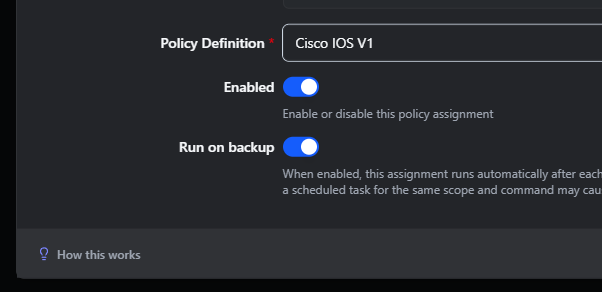 Run on backup toggle in the assignment dialog.
The toggle defaults to On for new assignments and was set to On for existing assignments during the V8.2.1 migration. Reasonable cases for turning it off:
- Assignments still being authored or tuned. Run them manually until stable, then turn this back on.
- High-cardinality scopes where every device backup would dispatch dozens of compliance jobs and you would rather drive evaluation from a single scheduled task.
- Policies where evaluating against partial or historical configs is not useful.
Common scenarios
Section titled “Common scenarios”“Did router3 pass our IOS hardening policy after this morning’s backup?” Open router3 → click Compliance → read the row for the IOS hardening assignment. The Last evaluated timestamp will match the backup time, and the status badge gives the answer directly.
“I just changed the policy and want immediate feedback for one device” On that device’s Compliance tab, click Re-run compliance. The auto-refresh (~4 seconds) will pull in the new result. For broader rollout across the assignment’s full scope, run the assignment from Compliance → Assignments instead.
“Devices in two different compliance groups” The tab shows one card per matching assignment. Statuses are independent, so a device can be Compliant under one assignment and Non-compliant under another at the same time.
“Device just came in scope of a new assignment but has no result yet” You will see the assignment card with a Not yet evaluated badge. Either wait for the next backup (if Run on backup is on) or click Re-run compliance to evaluate now.
Permissions
Section titled “Permissions”Permissions follow the existing compliance and assignment model:
| Action | Permission ident |
|---|---|
| Viewing the Compliance tab | policycompliancereport.view |
| Re-running compliance manually | policyassignment.create |
Users without policycompliancereport.view will see the standard 403 fallback when the tab attempts to load. Users with view-only access can read the tab but the Re-run compliance button will fail with 403; either remove the button affordance via RBAC at the menu level or grant the create permission.
What’s next
Section titled “What’s next”- Policy Assignments → Run on backup - assignment-level toggle that drives the tab
- Policy Compliance Results → Auto vs Manual Runs - how auto reports differ from manual reports
- Smart Groups - dynamic device populations usable as a Policy Assignment scope