

How to update rConfig V8 Pro
How to update rConfig V8 Pro
Section titled “How to update rConfig V8 Pro”After reading this page, I can locate the rConfig update interface, verify backup requirements, and apply a system update safely in a production environment.
When to use this
Section titled “When to use this”Use this guide when a green update notification appears on the rConfig dashboard, or when your team has scheduled a maintenance window to apply the latest release. If you are setting up rConfig for the first time, complete the V8 Pro Installation steps before using this workflow.
Prerequisites
Section titled “Prerequisites”- Administrator access to rConfig
- SSH access to the server running rConfig
- Your installation is at the default path
/var/www/html/rconfig8(non-standard paths are not supported) - A verified, tested backup completed before running the update (see Enterprise Backup Requirements below)
- Operating system is RHEL, CentOS, Rocky Linux, Alma Linux, or Ubuntu
Enterprise Backup Requirements
Section titled “Enterprise Backup Requirements”Enterprise Update Best Practices
Section titled “Enterprise Update Best Practices”License Agreement and Data Responsibility
Section titled “License Agreement and Data Responsibility”Step-by-step walkthrough
Section titled “Step-by-step walkthrough”1. Check for available updates
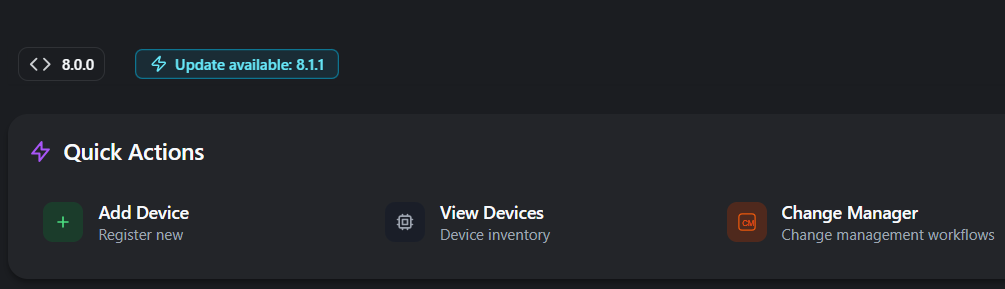
Section titled “1. Check for available updates”When an update is available, a green notification badge appears on the main rConfig dashboard.
2. Open the Update interface
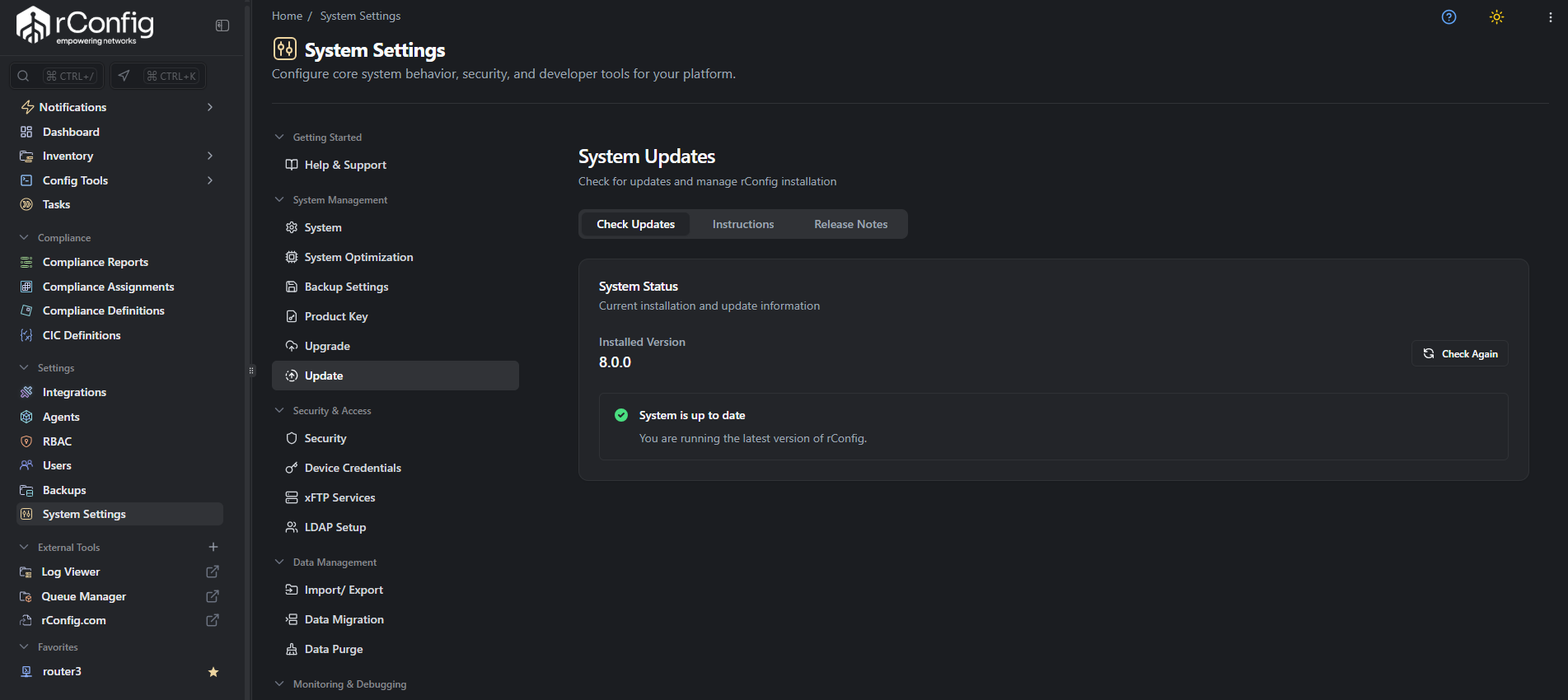
Section titled “2. Open the Update interface”- Select System Settings from the main navigation sidebar.
- Under System Management, select Update.
3. Review the available release
Section titled “3. Review the available release”The Update interface has three tabs:
- Check Updates: Shows your installed version and available release version
- Instructions: Provides the exact commands to run for your operating system
- Release Notes: Details new features, enhancements, and resolved issues
Select Check Updates to confirm an update is available. If the interface shows “System is up to date” with a green indicator, no action is required.
4. Read the release notes
Section titled “4. Read the release notes”Select Release Notes and review the changes included in the new version. Note any breaking changes or integration impacts before proceeding.
5. Run the update commands
Section titled “5. Run the update commands”Select Instructions to see the commands for your operating system. Copy and run the commands appropriate for your deployed OS (RHEL/CentOS/Rocky Linux/Alma Linux or Ubuntu).
6. Verify the update
Section titled “6. Verify the update”After the commands complete, return to Check Updates. The installed version number should reflect the new release, and the status should show “System is up to date.”
Run a post-update smoke test: log in, navigate to a device, and confirm configuration backups are still accessible.
Common gotchas
Section titled “Common gotchas”What’s next
Section titled “What’s next”- V8 Pro Installation - Review the original installation steps if you are rebuilding or moving the system
- Docker deployment for rConfig V8 Pro - If you operate a containerised stack, review the Docker-specific update guidance
- rConfig V8 Features Overview - Understand what capabilities the latest release adds