

SSO with Google
SSO with Google Workspace
Section titled “SSO with Google Workspace”This guide covers the configuration of Single Sign-On (SSO) authentication for rConfig V8 using Google Workspace. The process involves creating an OAuth application in Google Cloud Console and configuring rConfig with the necessary credentials.
When to Use This Page
Section titled “When to Use This Page”Follow this guide when your organization uses Google Workspace for identity management and you want rConfig users to log in with their existing Google credentials instead of a local rConfig password.
Prerequisites
Section titled “Prerequisites”- Administrator access to Google Cloud Console or Google Workspace Admin Console
- Administrator access to rConfig V8
- rConfig server accessible via HTTPS with valid domain name
Configure Google Workspace
Section titled “Configure Google Workspace”Step 1: Create OAuth Application
Section titled “Step 1: Create OAuth Application”Follow Google’s official documentation to set up your custom Identity Provider in the Google Admin Console:
Google Admin Console - Set up SSO for your organization
Step 2: Configure OAuth Consent Screen
Section titled “Step 2: Configure OAuth Consent Screen”In the Google Cloud Console:
- Navigate to APIs & Services > OAuth consent screen
- Select Internal or External based on your organization’s requirements
- Fill in the required application information
- Add authorized domains if needed
- Save the configuration
Step 3: Create OAuth 2.0 Credentials
Section titled “Step 3: Create OAuth 2.0 Credentials”- Navigate to APIs & Services > Credentials
- Click Create Credentials > OAuth client ID
- Select Web application as the application type
- Add a name for your OAuth client (e.g., “rConfig V8”)
- Under Authorized redirect URIs, add:
https://your-rconfig-domain.com/auth/callback/google
- Click Create
- Copy the Client ID and Client Secret (you’ll need these for rConfig configuration)
Configure rConfig V8
Section titled “Configure rConfig V8”Step 1: Edit Environment Configuration
Section titled “Step 1: Edit Environment Configuration”Open the rConfig .env file:
vim /var/www/html/rconfig8/current/.envStep 2: Add Google SSO Configuration
Section titled “Step 2: Add Google SSO Configuration”Add or update the following lines with your Google OAuth application values:
GOOGLE_CLIENT_ID=your_client_idGOOGLE_CLIENT_SECRET=your_client_secretGOOGLE_REDIRECT_URI=https://your-rconfig-domain.com/auth/callback/googleConfiguration Parameters:
GOOGLE_CLIENT_ID: OAuth 2.0 Client ID from Google Cloud ConsoleGOOGLE_CLIENT_SECRET: OAuth 2.0 Client Secret from Google Cloud ConsoleGOOGLE_REDIRECT_URI: Must match the authorized redirect URI configured in Google
Step 3: Clear Application Cache
Section titled “Step 3: Clear Application Cache”Save the file and clear the rConfig cache:
php /var/www/html/rconfig8/current/artisan rconfig:clear-allVerify Configuration
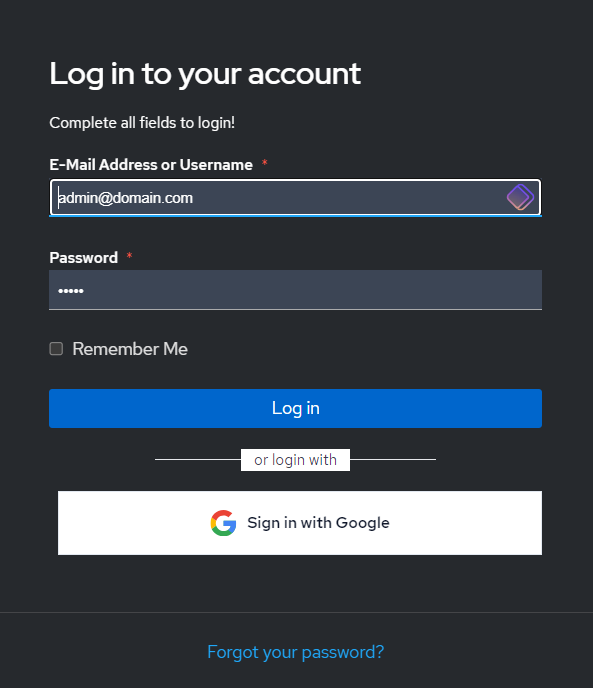
Section titled “Verify Configuration”After configuration, the rConfig login page will display a Login with Google button.
User Approval Process
Section titled “User Approval Process”When users attempt to sign in via SSO for the first time:
- User authenticates successfully with Google
- User account is created in rConfig with the SSO sign-in switch turned off
- User sees an error message indicating approval is required
Administrator must:
- Log in to rConfig as an administrator
- Navigate to Users section
- Locate the new SSO user
- Turn on the SSO sign-in switch for the user
- Assign appropriate role and permissions
After approval, the user can successfully authenticate and access rConfig.
Common Gotchas
Section titled “Common Gotchas”Troubleshooting
Section titled “Troubleshooting”SSO button not appearing
Section titled “SSO button not appearing”- Verify all environment variables are correctly set
- Ensure cache has been cleared:
php artisan rconfig:clear-all - Check Apache error logs for configuration issues
Authentication fails
Section titled “Authentication fails”- Verify redirect URI matches exactly between Google and rConfig
- Confirm OAuth consent screen is properly configured
- Check that the OAuth client is not restricted or disabled
- Ensure authorized domains include your rConfig domain
“Access blocked” error from Google
Section titled ““Access blocked” error from Google”- Verify OAuth consent screen is published (not in testing mode) or user is added as a test user
- Check that user’s email domain is authorized in the OAuth configuration
- Confirm application is approved for the requested scopes
Users cannot access after SSO login
Section titled “Users cannot access after SSO login”- Verify an administrator has turned on SSO sign-in for the user in the Users section
- Confirm user has been assigned an appropriate role
- Check user account status is active
Related Documentation
Section titled “Related Documentation”- SSO Overview - Understanding SSO in rConfig V8
- User Management - Managing user accounts and approvals
- Roles and Permissions - Configuring user roles and permissions