

Smart Groups
Smart Groups in rConfig V8.2.1+
Section titled “Smart Groups in rConfig V8.2.1+”Smart Groups are reusable, named, rule-driven device selections. Instead of hand-picking devices, categories, or tags every time you create a task, you author a filter once, combining fields like vendor, model, tag, command group, status, and more with AND / OR / NOT logic, save it as a Smart Group, and reference it from any Smart Group task.
Smart Groups are evaluated at task run time, so adding a new device that matches a group’s rules will automatically be included in the next run. No task editing required.
Understanding Smart Groups
Section titled “Understanding Smart Groups”The classic task wizard targets devices through one of four selectors: Devices, Command Groups (formerly Categories), Tags, or Agents. Each of those selectors is a single dimension. You pick a list of devices, or a list of tags, or a list of categories, and rConfig executes the task against the resulting set.
That works well for the everyday cases. It does not work well when the device set you need to act on is the intersection (or symmetric difference) of several attributes. Consider the following operational requirements:
- “Back up all Cisco IOS edge routers in production, except those flagged for maintenance.”
- “Run the new SNMP snippet against every Juniper firewall in EMEA tagged
criticalwhose configuration was last captured more than seven days ago.” - “Apply nightly compliance checks to anything tagged
monitoringthat is currently reachable.”
Tags and command groups can express each individual condition, but they cannot express the combination. Each of these requirements mixes vendor, tag, command group, status, and time into a single membership rule.
The Core Principle: A Smart Group is a saved expression that combines those dimensions into a single, named, rule-driven device set. Once saved, the group behaves like any other selector. You reference it from a task and rConfig handles the rest.
What a Smart Group Is, and Isn’t
Section titled “What a Smart Group Is, and Isn’t”Understanding the boundary between Smart Groups and other rConfig selectors prevents over-engineering and helps administrators choose the right tool:
A Smart Group is:
- A rule expression, not a stored device list. Membership is recomputed every time the group is read, so there is no need to “refresh” a group as devices are added or removed from inventory.
- Reusable across many tasks. Editing the rule changes the targets of every task that references the group.
- Compositional. You can combine columns (model, version, status) and relations (tag, vendor, command group, agent) freely, with AND, OR, and NOT.
- Inspectable. The list view shows how many tasks reference each group, so you can gauge blast radius before changing a rule.
A Smart Group is not:
- A replacement for tags. Tags remain the right tool for static, manually-assigned labels and for tag-based RBAC. Smart Groups consume tags as one of many possible filter dimensions.
- A replacement for command groups. Command groups still drive which commands run on a device. A Smart Group only decides which devices a task targets.
- A device list. The group does not own its members; devices belong to your inventory and the group simply describes which of them currently match.
- Available for API Collection backups. Smart Groups apply to device targets only.
How Smart Groups Work
Section titled “How Smart Groups Work”A Smart Group has a name, an optional description, an active flag, and a set of filter rules. The rules are the substantive part; everything else is metadata that helps you find and recognise the group later.
Conditions and groups. A filter is built from two ingredients: conditions and groups. A condition is a single rule like “vendor is Cisco” or “tag is one of [critical]”. A group combines several conditions (and, optionally, other groups) using AND, OR, or NOT.
The simplest filter is one group with a handful of conditions joined by AND. More expressive filters nest groups inside other groups so that some conditions are required and others are alternatives. For example, “Cisco devices that are either tagged critical OR currently reachable” is one outer AND group containing the vendor condition and an inner OR group containing the tag and status conditions. You can nest up to four levels deep, which is more than enough for any realistic filter.
Live evaluation. Membership is recomputed every time the group is read: when you open the preview pane, when you run the device probe, and most importantly when a task referencing the group runs. There is no stored device list and no need to “refresh” a group as devices are added, retagged, or decommissioned. The group always reflects the current state of your inventory.
Disabled devices. Devices in Disabled status are always excluded from Smart Group results, regardless of rules. This matches every other rConfig selector. You do not need to add an explicit “status != Disabled” condition; re-enable a device to bring it back into scope on the next run.
Planning Your Smart Group Strategy
Section titled “Planning Your Smart Group Strategy”Smart Groups are powerful precisely because they collapse compound conditions into one named entity. That power comes with a temptation: it is very easy to create dozens of overlapping groups for slightly different combinations of the same attributes. A small amount of upfront thinking keeps the library tidy.
Start from the operation, not the rules. Ask “what task am I trying to schedule, and what is the device set it should run against?”. The answer is the candidate Smart Group. If the answer is a single tag or a single command group, you do not need a Smart Group at all; use the existing Tag or Command Group task type.
Combine two to four dimensions. Most useful Smart Groups mix two to four attributes, typically some combination of vendor or platform, role or environment, geography, operational state, and lifecycle. Filters built on a single dimension are usually better expressed as a tag or command group, and filters that span more than four dimensions are usually better split into smaller, composable groups.
Name for intent, not for rules. Smart Group names appear in the task wizard’s picker, so they need to convey intent at a glance. Short, business-meaningful patterns work best, for example EMEA-Cisco-Edge, Production-Critical-Backups, or Juniper-Stale (>7d). Resist encoding rule details into the name (Cisco-IOS-AND-NOT-Maintenance); the description field exists for that and keeps the name stable as rules evolve.
Plan for reuse. Before creating a new group, scan the existing list. Two groups whose rules differ by a single condition are almost always better modelled as one broader group plus task-level differentiation. Maintaining two near-identical Smart Groups guarantees that they will drift apart over time, leading to subtle differences in scheduled task behaviour that are hard to diagnose.
Prerequisites
Section titled “Prerequisites”Before creating a Smart Group, confirm you have:
- The
devicegroup.createpermission (or thedevicegroup.*wildcard, granted to Admin by default) - A clear operational intent that combines two or more device attributes; a single tag or Command Group filter does not need a Smart Group
- Devices already tagged, categorized, or otherwise attributed the way your intended rule will filter on (vendor, model, tag, Command Group, status, and so on)
No prerequisites are required to view or reference an existing Smart Group beyond the devicegroup.view permission.
Smart Groups Main View
Section titled “Smart Groups Main View”Navigate to Inventory → Smart Groups to manage your saved filters. The main view lists every Smart Group in your environment along with the metadata you need to assess each one at a glance.
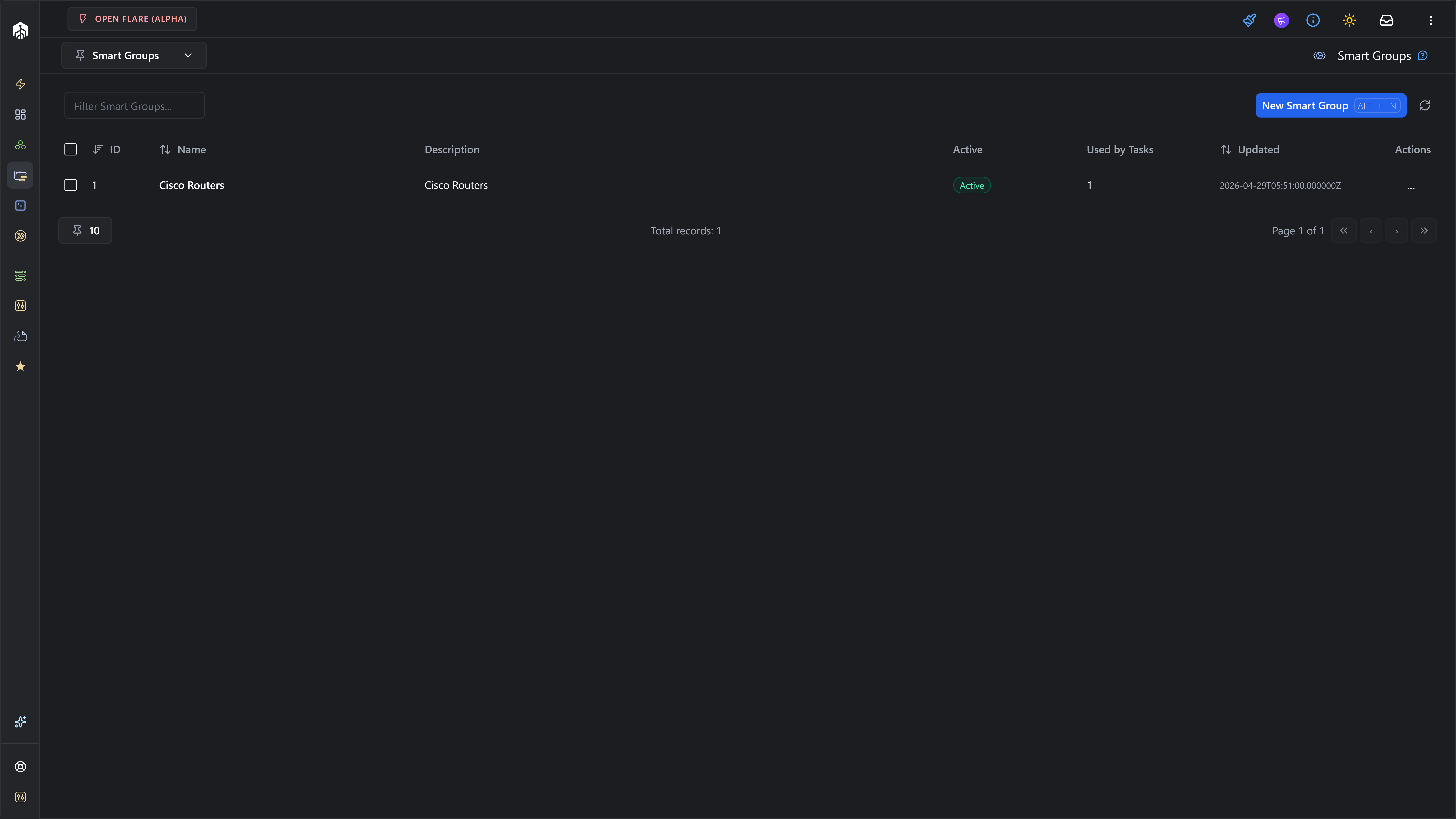 Smart Groups Main View
The interface provides several key functions:
- Group List: View all configured Smart Groups along with their description, active state, the number of tasks currently referencing the group, and the last-updated timestamp.
- Quick Search: Filter the list by name or description.
- New Smart Group: Open the authoring dialog to create a new group.
- Bulk Delete: Select multiple rows via checkboxes to remove unused groups in a single operation.
- Edit / Delete Actions: Open or remove individual groups. Delete is blocked when the group is referenced by one or more tasks.
The Used by Tasks count is the most operationally useful column on this page. Before editing a group’s rules, or deleting it outright, confirm how many tasks depend on it. Editing a group with a count of one is low-risk; editing a group with a count of twenty warrants a deliberate review.
Creating and Editing Smart Groups
Section titled “Creating and Editing Smart Groups”Smart Group creation and modification both occur through the same authoring dialog. The dialog is split into two columns: identity and rule builder on the left, live preview on the right. As you compose the rule tree, the preview pane updates continuously to show how many devices match and which ones.
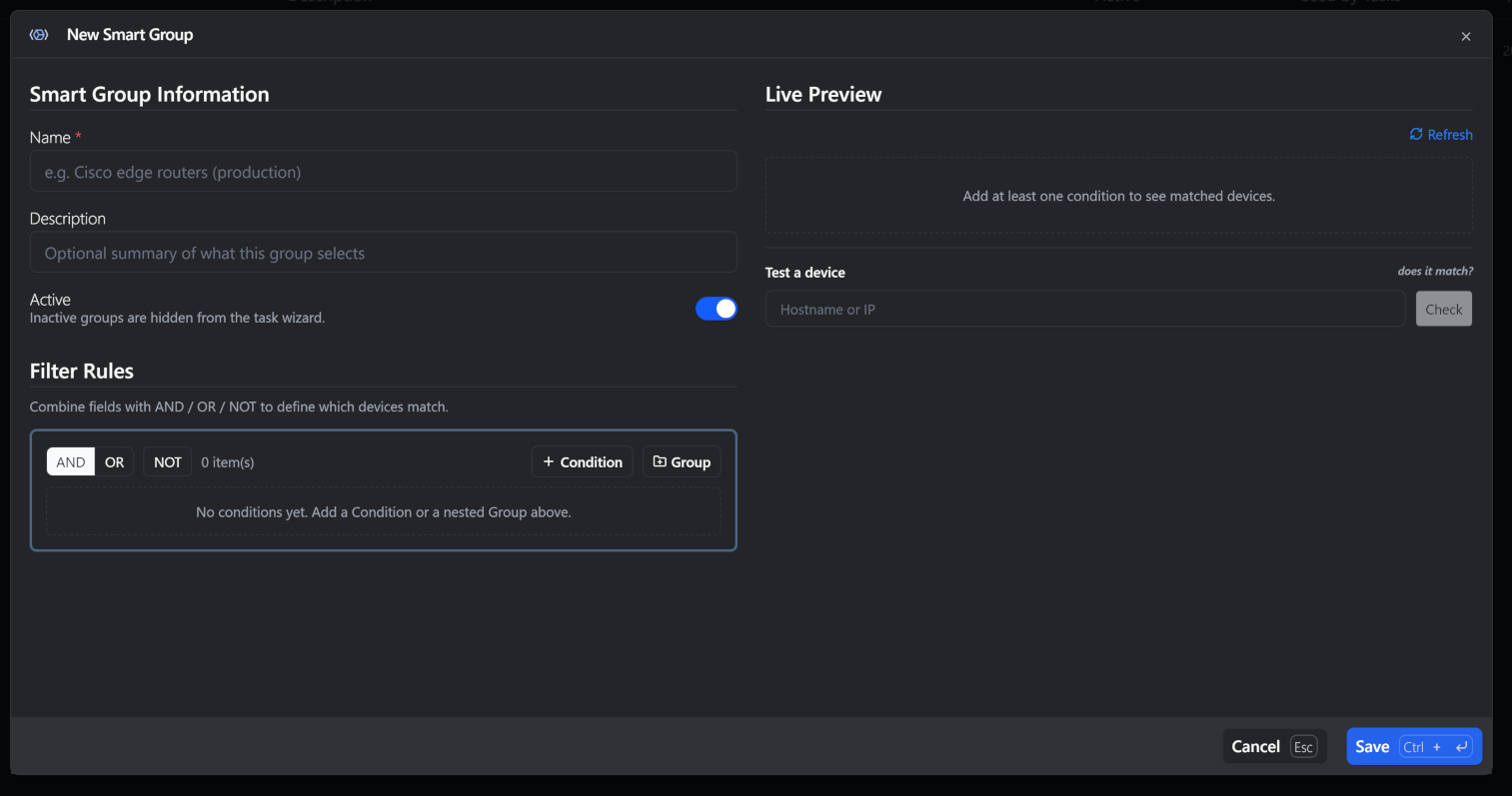 Smart Group authoring dialog
Identity
Section titled “Identity”Three fields establish the group’s identity:
| Field | Required | Notes |
|---|---|---|
| Name | Yes | Unique across the system, 3–191 characters. Appears in the task wizard’s picker. |
| Description | No | Optional summary visible in the list view and in the picker dropdown. Use this to record intent and context. |
| Active | Toggle | Inactive groups remain in the list and stay attached to existing tasks, but are hidden from the task wizard picker. |
The description field is optional, but in practice it is the single most useful piece of metadata you can attach to a Smart Group. Operators scheduling tasks see the description directly under the name in the picker dropdown; a one-line statement of intent (“Cisco edge routers in production, excluding maintenance window devices”) removes ambiguity at the moment it matters most.
The Rule Builder
Section titled “The Rule Builder”The rule builder is where the substantive work happens. It is a visual representation of the filter described earlier: a group containing conditions and, optionally, nested sub-groups.
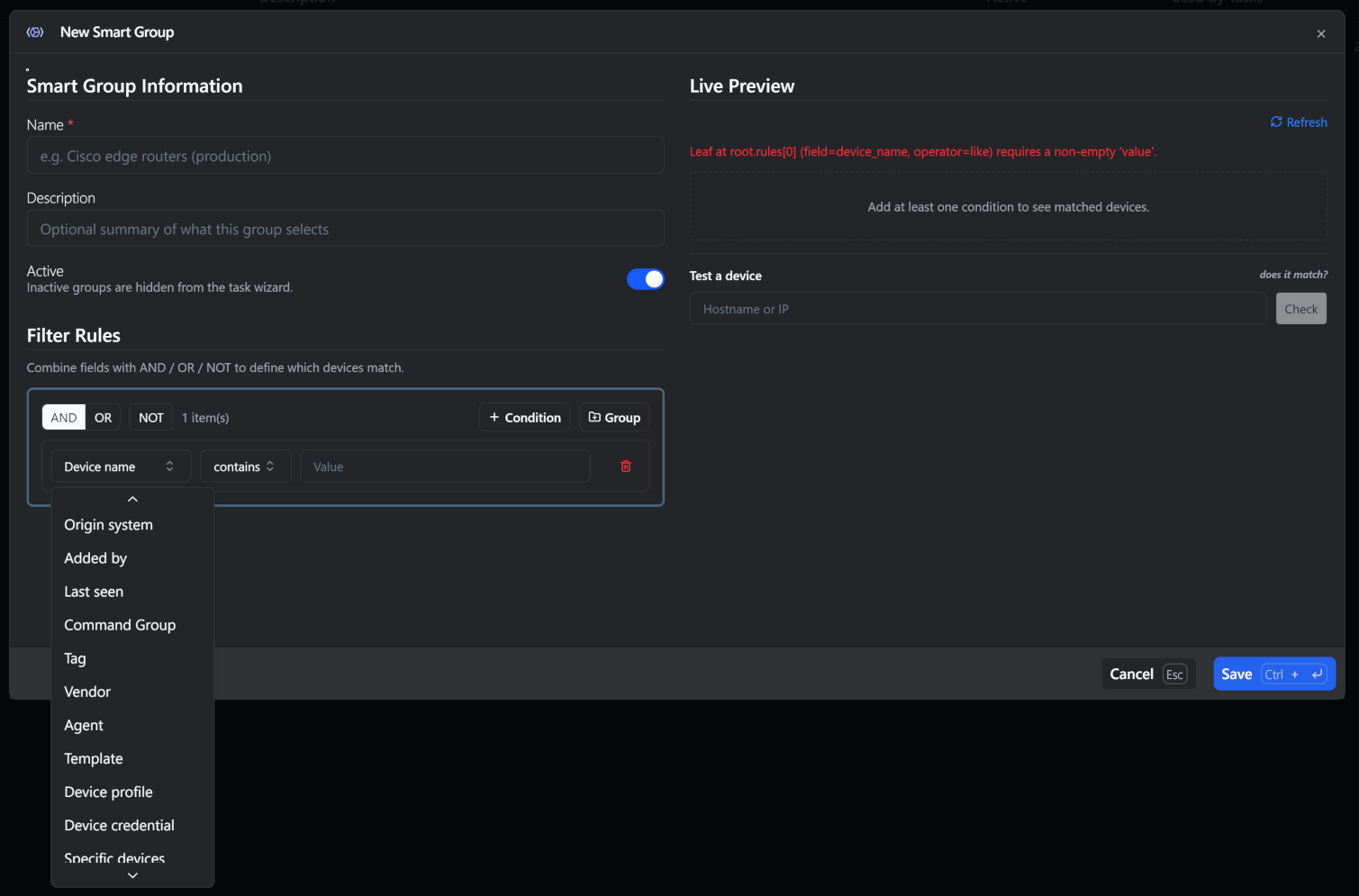 The rule builder. Each group has its own AND/OR/NOT toggle and can contain conditions or nested groups.
Working with groups. Each group in the builder has three controls. The AND / OR toggle determines how the group’s children combine. The NOT toggle wraps the entire group in negation, which is the cleanest way to express “everything except…” rules without authoring two near-identical groups. The + Condition and + Group buttons add a single condition or a nested sub-group respectively.
Nested groups are visually outlined in different colors so the structure of a deeper tree remains readable at a glance. The maximum nesting depth is four levels, and each group can contain up to fifty children. Both are deliberately generous limits that exceed any practical filter you are likely to author.
Working with conditions. Each condition is a triplet of field, operator, and one or more values. Selecting a field automatically narrows the operator dropdown to the operators that field supports, and switches the value control to the appropriate widget (text input, date picker, multi-select chip list, or one of the existing inventory filter components).
The full list of supported fields and operators:
| Field | Type | Operators |
|---|---|---|
| Device name | text | equals, not equal, contains, does not contain, is one of, is not one of |
| Device IP | text | equals, not equal, contains, does not contain |
| Device model | picker (uses Device Models filter) | is one of |
| Device version | text | equals, not equal, contains, does not contain |
| Status | picker (uses Status filter) | is one of |
| CM sync state | text | equals, not equal, is one of, is not one of |
| Origin system | text | equals, not equal, is one of, is not one of |
| Added by | text | equals, not equal, contains |
| Last seen | datetime | on/after, on/before |
| Command Group | picker (uses Command Group filter) | is one of, is not one of |
| Tag | picker (uses Tag filter) | is one of, is not one of |
| Vendor | picker (uses Vendor filter) | is one of, is not one of |
| Agent | picker (uses Agent filter) | is one of, is not one of |
| Template | chip picker | is one of, is not one of |
| Device profile | chip picker | is one of, is not one of |
| Device credential | chip picker | is one of, is not one of |
| Specific devices | chip picker | is one of, is not one of |
Live Preview
Section titled “Live Preview”The right column of the dialog is the live preview pane. It refreshes automatically (debounced by roughly 600 ms after each rule change) and gives you three independent ways to validate a filter before saving.
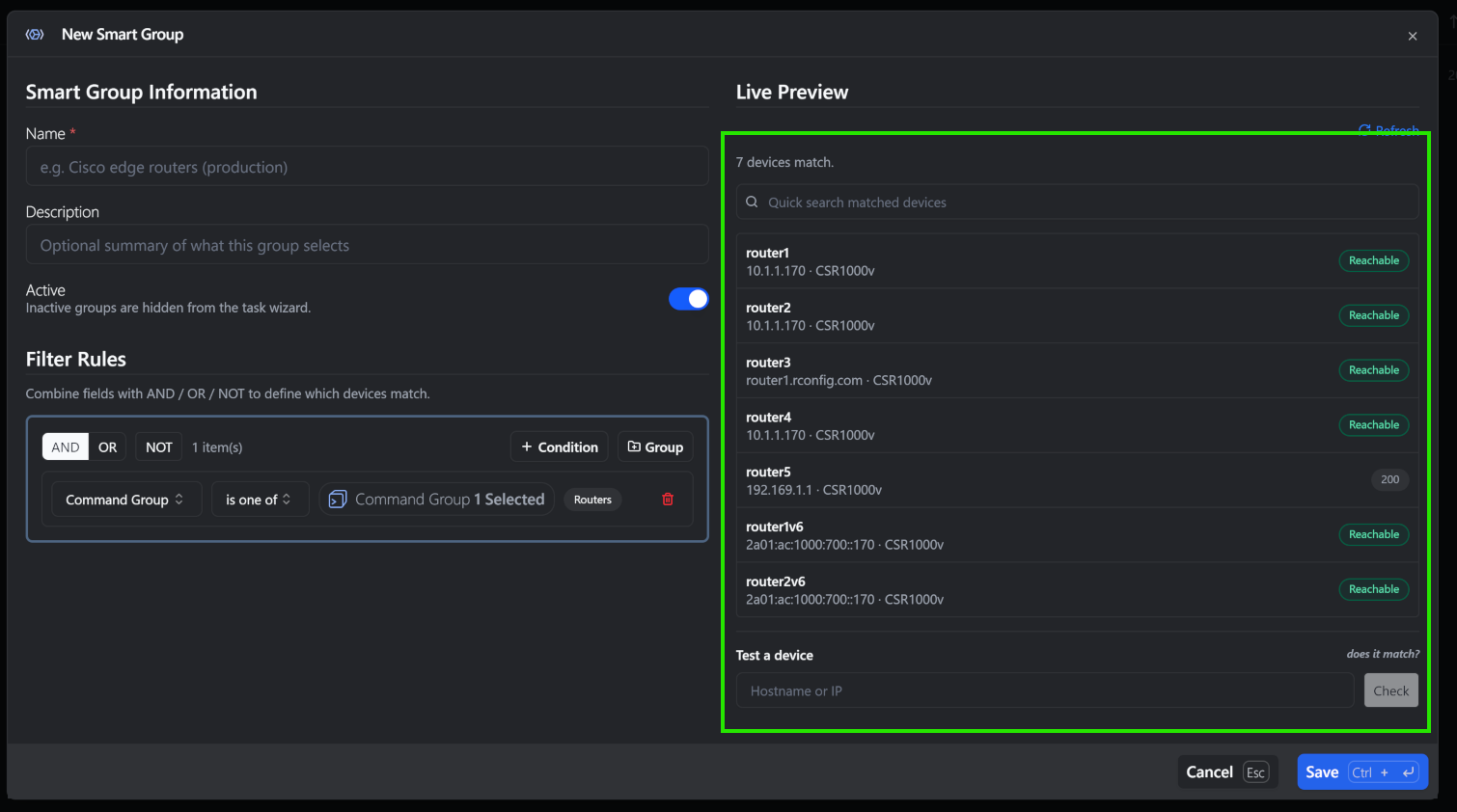 Live preview: match count, scrollable sample of matched devices, quick-search to scan the loaded sample, and the “Test a device” probe.
Match count. A single line at the top of the pane reports the size of the matched set, for example “42 devices match this filter”. This is the fastest sanity check: if a rule that should match a thousand devices reports four, you know immediately that the rule is too narrow.
Sample list. Below the count, the pane lists the first one hundred matching devices, each showing name, IP, model, and a coloured status badge. A Quick Search input above the list lets you filter the loaded sample by name, IP, or model substring without making a server round-trip. This is invaluable when a group matches several hundred devices and you want to confirm a specific one is included.
Device probe. The most useful validation tool is the Test a device input at the bottom of the pane. Type a hostname or IP fragment, click Check (or press Enter), and rConfig finds up to ten matching devices and annotates each with either a green ✓ Matches badge or a red ✗ Excluded badge. Use the probe to answer the question “does device X belong to this Smart Group?” directly, rather than scrolling through the sample list.
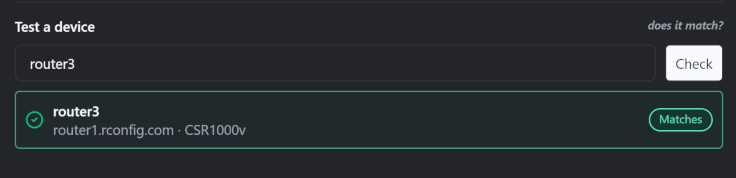 The Test-a-device probe answers “does device X belong to this Smart Group?” instantly.
Saving and Editing
Section titled “Saving and Editing”Click Save (or Update when editing) to persist the group. The server re-validates the filter on save, checking that every field is recognised, every operator is valid for its field’s type, every value is non-empty where required, and the structure does not exceed depth or width limits. Validation errors are returned inline so you can correct them without losing your work.
Editing an existing group hydrates the dialog with the current filter. Relation pickers (tags, vendors, command groups, etc.) re-fetch their option lists and re-select the saved IDs automatically, so groups created on a different rConfig instance load correctly when imported.
Deleting Smart Groups
Section titled “Deleting Smart Groups”Deletion is constrained to prevent accidental disruption of scheduled tasks. A Smart Group cannot be deleted while one or more tasks reference it. Both the API and the UI return a clear, actionable error:
“Cannot delete device group while it is referenced by one or more tasks. Detach the group from all tasks first.”
To remove a referenced group, work through its dependent tasks first:
- Open Tasks → Scheduled Tasks.
- Identify each task using the group. Search by Smart Group name or filter by the
rconfig:download-devicegroup/rconfig:snippet-devicegrouptask types. - Edit each dependent task and either pick a different Smart Group, switch the task to a different selector type, or delete the task entirely.
- Return to Inventory → Smart Groups and delete the group.
If you only want to temporarily stop a group from being used by new tasks (for example while you iterate on its rules, or during a seasonal pause), set it to Inactive instead of deleting. Inactive groups remain attached to existing tasks (which continue to run as normal) but are hidden from the task wizard picker, so no further tasks will pick them up. Re-activate the group when you are ready to resume.
Using a Smart Group in a Task
Section titled “Using a Smart Group in a Task”Smart Groups exist to be referenced from tasks. From V8.2.1, two new task types appear in the task wizard’s type picker (one for configuration downloads, one for snippet deployment), both targeting Smart Groups instead of devices, command groups, tags, or agents.
| Task type | Task wizard category | Behaviour |
|---|---|---|
| Config Downloads → Smart Groups | Under “Config Downloads” | Downloads configurations for every device matched by the selected Smart Group(s). |
| Send Snippets → Smart Groups | Under “Send Snippets” | Runs the chosen snippet against every device matched by the selected Smart Group(s). |
In Step 3 of the task wizard, the selector field becomes a Smart Group picker, with the same popover/pill UX as the existing Tag picker. Pick one or more Smart Groups; for snippet tasks, also pick the snippet to deploy. Each selected Smart Group is dispatched as its own batch named Smart Group: <name>, which makes failures easy to locate in the Horizon Queue Manager.
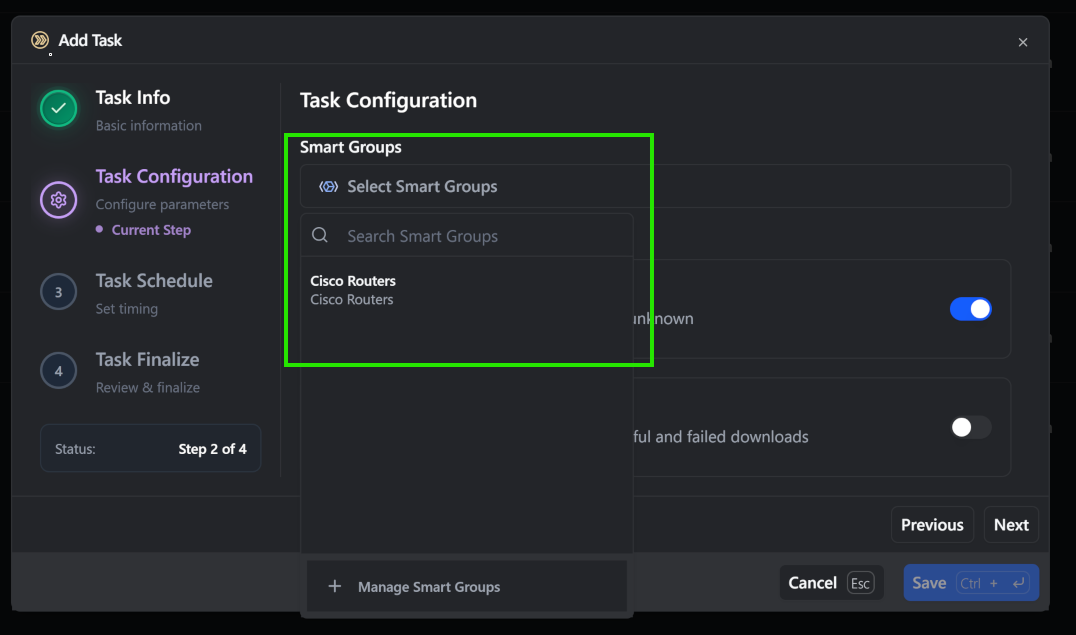 Step 3 of the task wizard. The Smart Group picker uses identical UX to the existing Tag picker.
For end-to-end task creation, scheduling, and troubleshooting, see Scheduled Tasks.
Using a Smart Group in a Policy Assignment
Section titled “Using a Smart Group in a Policy Assignment”From V8.2.1, Smart Groups are also a fourth scope type for Policy Assignments, alongside Device, Tag, and Command Group. Pick Type → Smart Groups in the assignment dialog and the Target picker becomes a Smart Group selector. The assignment then evaluates compliance against every device the Smart Group currently resolves to at run time.
Two caveats specific to compliance use:
- The Command dropdown is filtered to commands available in the first matching device’s Command Group. If your Smart Group resolves to devices across multiple Command Groups, the chosen command may not exist for some of them, and those devices will silently produce no compliance result. Keep the group homogeneous (rule on a single Command Group, or a tag whose devices all share one), or split into multiple assignments.
- Auto compliance after backup follows the same rule. A device joins or leaves the assignment’s evaluated set automatically as Smart Group membership changes, with no edit needed.
See Policy Assignments → Smart Group Assignments for full guidance.
Permissions
Section titled “Permissions”Smart Groups follow the same RBAC model as every other rConfig entity. The system auto-registers a standard set of permission idents from the model name and assigns the wildcard to the Admin role through the standard PermissionSeeder:
| Permission ident | Grants |
|---|---|
devicegroup.view | List Smart Groups, view individual groups, run preview and probe. |
devicegroup.create | Create new Smart Groups. |
devicegroup.update | Edit existing Smart Groups (name, description, rules, active state). |
devicegroup.delete | Delete Smart Groups, subject to the “no tasks reference it” guard. |
devicegroup.* | All of the above. Granted to the Admin role by default. |
Assign these idents to additional roles via Settings → RBAC → Roles. A common pattern is to grant devicegroup.view and devicegroup.create (but not update or delete) to operations engineers. They can author new groups for their own tasks, but cannot alter or remove groups that other teams depend on.
Best Practices
Section titled “Best Practices”Authoring
Section titled “Authoring”Start broad, then narrow. Begin every Smart Group with the broadest condition that captures your intent (usually a vendor, command group, or tag) and only add additional conditions as needed. A two-condition group is easier to reason about and easier to test than a five-condition group.
Prefer relations over text matching. When a device has a structured attribute (a tag, a vendor, a command group), filter on the relation rather than on the device name. Tag is one of [critical] will always be more reliable than Device name contains crit, and the relation-based query is indexed in SQL where the substring match is not.
Use NOT groups for exceptions. When the requirement is “everything matching X, except those also matching Y”, model the exception as a NOT group rather than authoring two near-identical Smart Groups. The NOT group makes the exception explicit and keeps the affirmative rule set readable.
Validate before saving. The live preview and the device probe exist precisely to catch mistakes early. Always confirm the match count is in the right order of magnitude, and probe at least one device that should be included and one that should not, before saving.
Reuse and Lifecycle
Section titled “Reuse and Lifecycle”Reuse over duplication. Two Smart Groups whose rules differ by a single condition are almost always better modelled as one broader group plus task-level differentiation. Maintaining two near-identical groups guarantees they will drift apart over time, leading to subtle differences in scheduled task behaviour that are hard to diagnose.
Use Inactive as a soft-delete. When you suspect a group is no longer needed but want to verify before removing it, mark it Inactive rather than deleting it. Inactive groups remain attached to any tasks that already reference them, but disappear from the task wizard. This is a safe way to confirm a group is genuinely unused before committing to deletion.
Audit periodically. Once a quarter, review the Smart Groups list and the Used by Tasks counts. Look for groups with zero references (candidates for deletion), groups with very high reference counts (review changes carefully), and groups with overlapping rules (candidates for consolidation).
Naming and Documentation
Section titled “Naming and Documentation”Names are user-facing. The Smart Group name appears in the task wizard’s picker and in batch names in the queue manager. Treat it like a public API. Once a group is referenced by tasks, renaming it is fine but the new name should still convey the same intent.
Use descriptions liberally. The description appears directly under the name in the picker dropdown. A one-line statement of intent (particularly the why, not the how) saves operators from having to open the rule builder to understand what a group selects.
Document rule rationale outside rConfig. Smart Group rules are self-documenting up to a point, but the reason a particular rule was chosen often lives in a change ticket, a runbook, or an architectural decision record. For groups whose membership has security or compliance implications, link to that external context from the description.
Troubleshooting
Section titled “Troubleshooting”Most Smart Group issues fall into one of three categories: a rule that matches too many devices, a rule that matches too few devices, or a task that targets the right group but produces unexpected results.
Symptom: A specific device is missing from the matched set.
The fastest way to diagnose this is the device probe. Open the group, type the device hostname or IP into the Test a device input, and check whether it is annotated as Matches or Excluded. If it is excluded, work through the conditions one by one. Temporarily remove conditions until the device is included, and the last-removed condition is the culprit. Common causes include a typo in a text-match value, a tag the device is missing, or the device being in Disabled status (always excluded regardless of rules).
Symptom: A specific device is unexpectedly included.
Same workflow in reverse. Probe the device, confirm it matches, then disable conditions until the device is excluded. The condition that flipped the result is too permissive. Common causes include a contains operator where equals was intended, an OR group that is too broad, or a NOT flag that has been forgotten.
Symptom: Match count is much higher or lower than expected.
Check the outermost group’s operator first. A group with operator AND combined with three conditions is the intersection; a group with operator OR combined with the same three conditions is the union. Toggling the operator typically swings the count by an order of magnitude, so confirm it is set the way you intend before debugging individual conditions.
Symptom: A scheduled task ran successfully but produced no output.
Open the task in Tasks → Scheduled Tasks, identify the Smart Group it references, and open the group’s preview. If the count is zero, the group’s rules no longer match any devices, likely because devices have been disabled, decommissioned, or had relevant tags removed. If the count is non-zero but the task still produced no output, look at the per-batch output in the Horizon Queue Manager; the batches are named Smart Group: <name>, which makes them easy to locate.
Symptom: Cannot delete a Smart Group.
The group is still referenced by one or more tasks. Use the workflow described under Deleting Smart Groups to detach the group from each dependent task before retrying the delete.
Related Documentation
Section titled “Related Documentation”Smart Groups integrate with several rConfig V8 features:
- Scheduled Tasks: uses Smart Groups via the new Config Downloads → Smart Groups and Send Snippets → Smart Groups task types.
- Tags: static, manually-assigned device labels. Smart Groups can reference tags as one of many filter dimensions.
- Command Groups: the categories that drive command execution, and one of the relation fields available inside the rule builder.
- Device Profiles: baseline device defaults; one of the filter fields available inside a Smart Group.
Quick Reference
Section titled “Quick Reference”Smart Group Authoring Checklist
Section titled “Smart Group Authoring Checklist”Common Filter Recipes
Section titled “Common Filter Recipes”| Intent | Rule sketch |
|---|---|
| All devices of a single vendor | vendor is one of [Cisco] |
| All Cisco IOS edge routers | vendor is one of [Cisco] AND device_model is one of [CiscoIOS] AND tag is one of [edge] |
| Production Cisco devices, excluding maintenance-window hosts | (vendor is one of [Cisco] AND tag is one of [production]) AND NOT (tag is one of [maintenance]) |
| Devices not seen in the last 7 days | last_seen on/before (date 7 days ago) |
| Critical devices that are currently reachable | tag is one of [critical] AND status is one of [Reachable] |
| Anything assigned to a specific Vector agent | agent is one of [<agent name>] |
| Devices in EMEA running JunOS 21.x | tag is one of [EMEA] AND device_model is one of [JunOS] AND device_version contains 21. |
Limitations
Section titled “Limitations”- Smart Groups apply to device targets only. They are not used for API Collection backup tasks.
- Group-of-groups recursion (a Smart Group that references another Smart Group as a rule) is not supported in V8.2.1.
- Free-text search inside the rule builder for nested device-attribute values (for example, configuration extracted properties) is not yet exposed.
Summary
Section titled “Summary”Smart Groups extend rConfig’s task targeting model from “pick a list of one thing” to “describe an arbitrary subset of devices using rules”. Author the rule once with the visual builder, validate it instantly with the live preview and device probe, save it with a descriptive name, and reference it from any Smart Group task. Because the rule is re-evaluated on every task run, the group always reflects the current state of your inventory, with no maintenance required as devices are added, retagged, or decommissioned.
Key Takeaways:
- Smart Groups are saved rule expressions, not stored device lists; membership is recomputed at task run time.
- AND, OR, and NOT combinators with up to four levels of nesting express any combination of device attributes and relations.
- The live preview and device probe make it practical to validate intent before saving, and to diagnose unexpected behaviour later.
- Names and descriptions are user-facing in the task wizard; treat them as you would any other API surface.
- Smart Groups are introduced in V8.2.1 as two new task types (Config Downloads → Smart Groups and Send Snippets → Smart Groups) alongside the existing Devices, Command Groups, Tags, and Agents selectors.
For organisations running compound, multi-dimensional task selection (vendor plus tag plus state, or category minus exception) Smart Groups remove the previous need to maintain duplicate tags, hand-curated device lists, or out-of-band scripts. Author once, reuse everywhere, audit centrally.