

HashiCorp Vault Setup
HashiCorp Vault Setup
Section titled “HashiCorp Vault Setup”
The HashiCorp Vault integration enables rConfig V8 to securely retrieve device credentials from HashiCorp Vault during connection operations. This guide covers the configuration of rConfig to communicate with your HashiCorp Vault instance and the setup of vault-backed device credentials.
When to Use This Page
Section titled “When to Use This Page”Use this page when you want device credentials pulled live from HashiCorp Vault at connection time instead of stored directly in rConfig. Complete this setup once per rConfig instance, then create a Vault-backed credential set for each group of devices that should use it.
Prerequisites
Section titled “Prerequisites”- HashiCorp Vault instance installed and operational
- A Vault authentication token with appropriate read permissions
- Secrets stored in Vault with device credentials
- Administrator access to rConfig V8
- Network connectivity between rConfig server and Vault API endpoint
Vault Secret Structure
Section titled “Vault Secret Structure”By default, rConfig looks for a secret with these key names:
{ "device_username": "admin", "device_password": "your_device_password", "device_enable_password": "your_enable_password"}Example Vault path (KV v2):
secret/data/network/devices/router1Configure rConfig V8
Section titled “Configure rConfig V8”Step 1: Edit Environment Configuration
Section titled “Step 1: Edit Environment Configuration”Open the rConfig .env file:
vim /var/www/html/rconfig8/current/.envStep 2: Add HashiCorp Vault Configuration
Section titled “Step 2: Add HashiCorp Vault Configuration”Add or update the following lines:
VAULT_HASHICORP_ADDR=https://your-vault-server.com:8200VAULT_HASHICORP_TOKEN=your_vault_tokenVAULT_HASHICORP_NAMESPACE=your_namespaceConfiguration Parameters:
VAULT_HASHICORP_ADDR: The full URL of your HashiCorp Vault server (including port)VAULT_HASHICORP_TOKEN: Vault authentication token with read permissions for device secrets, sent as theX-Vault-Tokenheader on every requestVAULT_HASHICORP_NAMESPACE: Optional. Set this if your Vault deployment uses namespaces (Vault Enterprise); sent as theX-Vault-Namespaceheader. Leave unset if you don’t use namespaces.
Step 3: Clear Application Cache
Section titled “Step 3: Clear Application Cache”Save the file and clear the rConfig cache:
php /var/www/html/rconfig8/current/artisan rconfig:clear-allTest Vault Connection
Section titled “Test Vault Connection”Step 1: Access Integration Settings
Section titled “Step 1: Access Integration Settings”Navigate to Platform → Integrations in the main rConfig sidebar.
Step 2: Configure HashiCorp Vault Integration
Section titled “Step 2: Configure HashiCorp Vault Integration”Click Configure for the HashiCorp Vault integration.
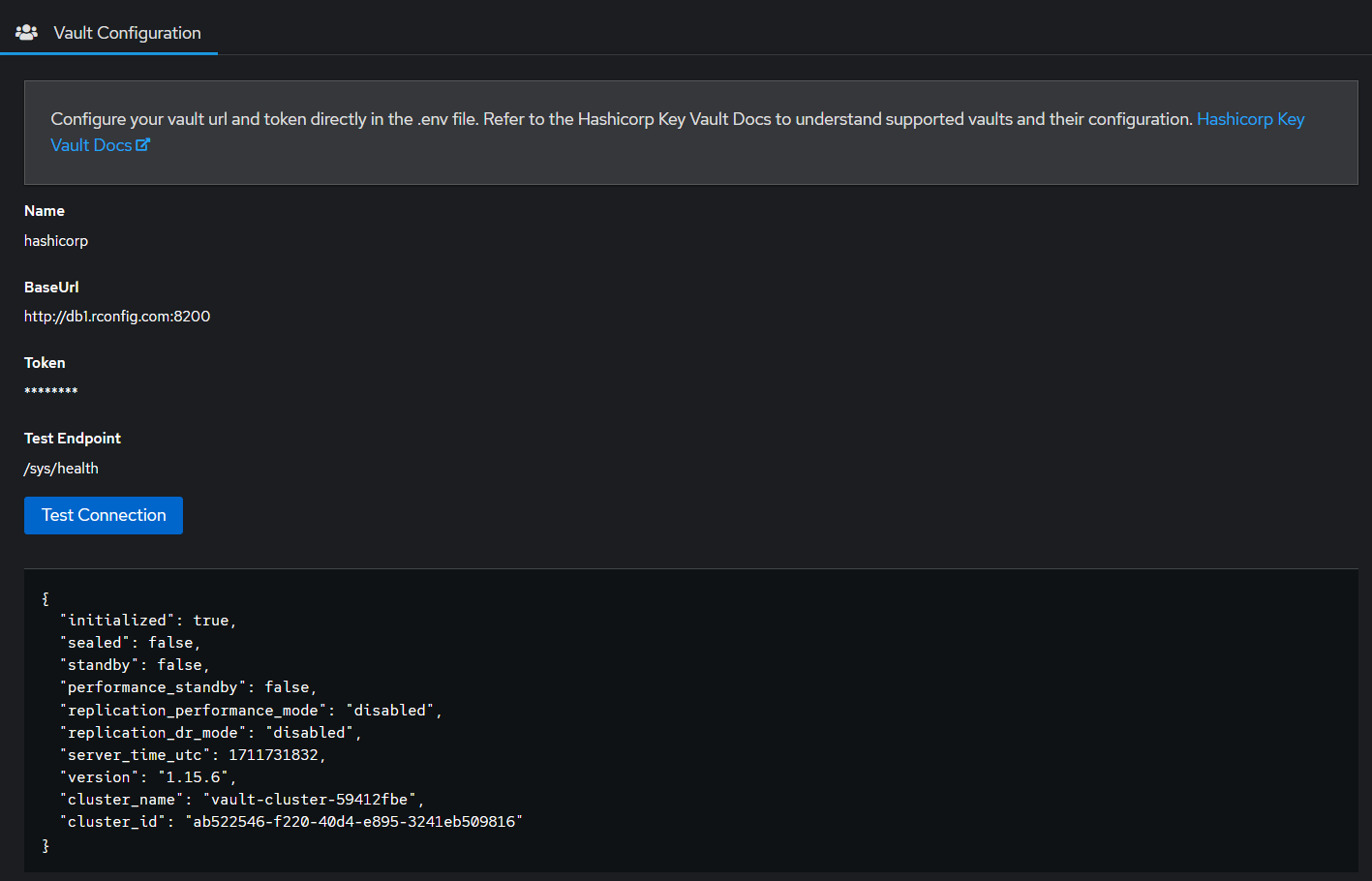
Step 3: Test Connection
Section titled “Step 3: Test Connection”Click the Test Connection button to verify connectivity. A successful test shows a Connection test successful toast notification.
If errors occur:
- Verify Vault server is accessible from rConfig server
- Confirm authentication credentials are correct
- Check Vault token has not expired
- Ensure network connectivity and firewall rules allow access
- Review Vault audit logs for authentication failures
Contact your identity administrator for Vault-specific issues before reaching out to rConfig support.
Create Vault Credential Set
Section titled “Create Vault Credential Set”Step 1: Access Device Credentials
Section titled “Step 1: Access Device Credentials”Navigate to System Settings → Security & Access → Device Credentials.
Step 2: Add Vault Credential Set
Section titled “Step 2: Add Vault Credential Set”Click the Add Vault Credential Set button.
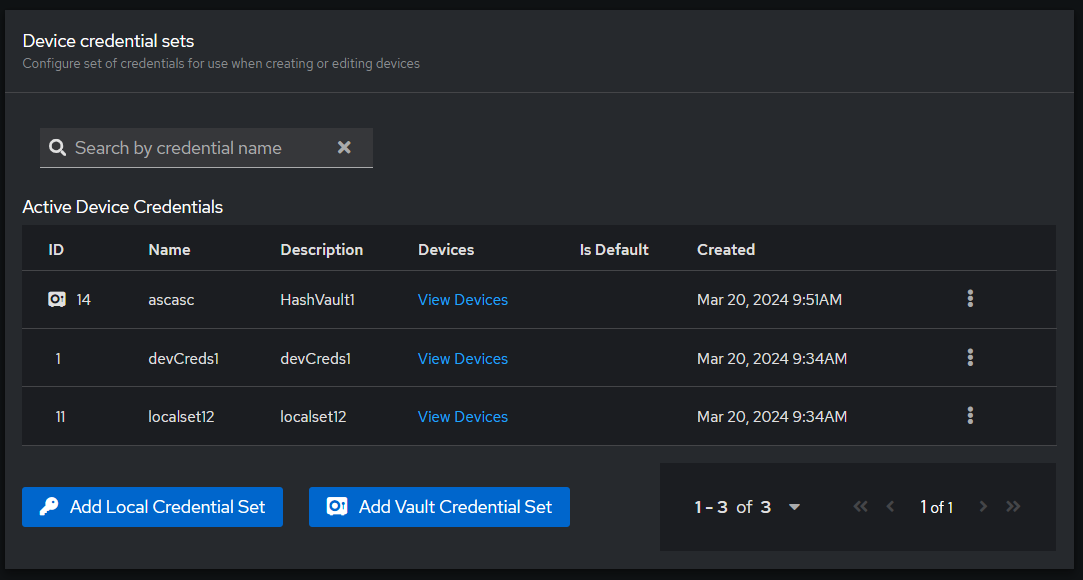
Step 3: Configure Credential Set
Section titled “Step 3: Configure Credential Set”Complete the form with the following information:
Credential Set Name:
- Descriptive name for the credential set (e.g., “Production Routers - Vault”)
Vault Endpoint URL:
- Full path to the secret in Vault (e.g.,
secret/data/network/devices/router1for a KV v2 mount namedsecret) - This path must exist in Vault and contain the device credentials
Field Mapping:
- Username Key: Vault key containing username (default:
device_username) - Password Key: Vault key containing password (default:
device_password) - Enable Password Key: Vault key containing enable password (default:
device_enable_password)
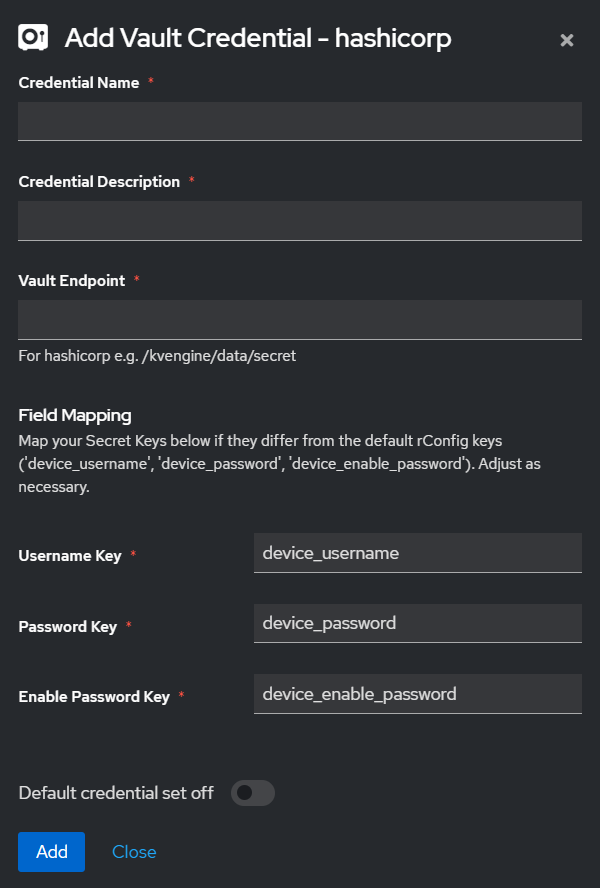
Click Save to create the credential set.
Step 4: Verify Creation
Section titled “Step 4: Verify Creation”After saving, you will see the new credential set with a Vault icon next to it, indicating it retrieves credentials from HashiCorp Vault.
Configure Device to Use Vault Credentials
Section titled “Configure Device to Use Vault Credentials”Step 1: Edit Device
Section titled “Step 1: Edit Device”Navigate to Devices and select a device to edit.
Step 2: Select Vault Credential Set
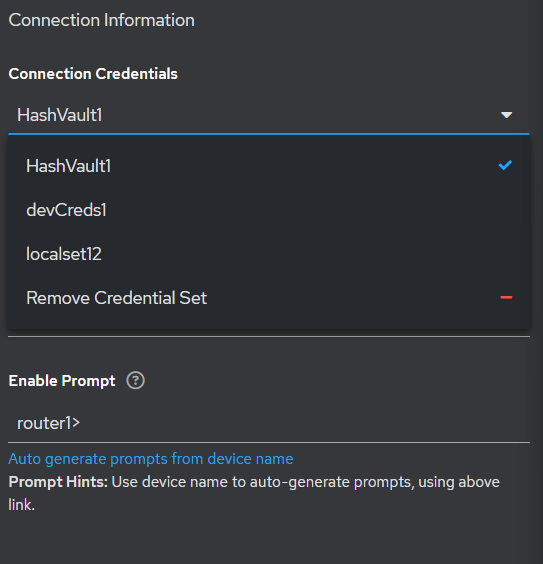
Section titled “Step 2: Select Vault Credential Set”In the device edit form:
- Locate the Credential Set dropdown
- Select the newly created Vault credential set
- Note that username and password fields are no longer visible (credentials will be retrieved from Vault)
Step 3: Save Device Configuration
Section titled “Step 3: Save Device Configuration”Click Save to apply the Vault credential set to the device.
Step 4: Test Connectivity
Section titled “Step 4: Test Connectivity”Use the debug command or connectivity test feature to verify rConfig can successfully:
- Retrieve credentials from Vault
- Authenticate to the device
- Execute commands or download configurations
Vault Secret Management
Section titled “Vault Secret Management”Creating Secrets for Multiple Devices
Section titled “Creating Secrets for Multiple Devices”For multiple devices sharing the same credentials:
# Using Vault CLIvault kv put secret/network/devices/shared \ device_username=admin \ device_password=SecurePassword123 \ device_enable_password=EnablePass456For devices with unique credentials:
# Router 1vault kv put secret/network/devices/router1 \  device_username=admin \  device_password=Router1Pass \  device_enable_password=Router1Enable
# Router 2vault kv put secret/network/devices/router2 \  device_username=admin \  device_password=Router2Pass \  device_enable_password=Router2Enable
Updating Credentials
Section titled “Updating Credentials”When credentials change in Vault, rConfig automatically retrieves the updated values on the next device operation: no rConfig configuration changes required.
# Update secret in Vaultvault kv put secret/network/devices/router1 \ device_username=admin \ device_password=NewSecurePassword \ device_enable_password=NewEnablePasswordTroubleshooting
Section titled “Troubleshooting”Connection test fails
Section titled “Connection test fails”Symptoms:
- Test Connection button returns error
- Cannot authenticate to Vault
Resolution:
Check Vault server accessibility:
curl -k https://your-vault-server.com:8200/v1/sys/healthVerify token validity:
vault token lookupCheck token permissions:
vault token capabilities secret/data/network/devicesDevice authentication fails
Section titled “Device authentication fails”Symptoms:
- Device connection fails
- Error indicates invalid credentials
Resolution:
Verify secret exists in Vault:
vault kv get secret/network/devices/router1Check field mappings match Vault secret structure:
- Ensure username, password, and enable_password keys exist
- Verify field mapping configuration in Device Credential Set
Test credential retrieval manually:
vault kv get -field=device_username secret/network/devices/router1vault kv get -field=device_password secret/network/devices/router1Vault endpoint URL errors
Section titled “Vault endpoint URL errors”Symptoms:
- Error indicates path not found
- Secret retrieval fails
Resolution:
Verify Vault path format:
- KV v1:
secret/network/devices/router1 - KV v2:
secret/data/network/devices/router1
Check Vault version:
vault secrets list -detailedEnsure path includes correct prefix based on KV version.
Token expired
Section titled “Token expired”Symptoms:
- Connection test succeeds initially but fails later
- Authentication errors after period of time
Resolution:
Check token TTL:
vault token lookupRenew token:
vault token renewOr generate new token and update .env:
vault token create -policy=rconfig-policySince AppRole isn’t supported, renewal has to be either a manually-run vault token renew on a long-lived token, or an external process that generates a fresh token and updates .env on a schedule.
Permission denied errors
Section titled “Permission denied errors”Symptoms:
- Vault returns “permission denied” errors
- Cannot read secrets despite correct path
Resolution:
Verify token policy allows reading secrets:
# Example policy for rConfigpath "secret/data/network/devices/*" { capabilities = ["read", "list"]}Apply policy to token:
vault policy write rconfig-policy policy.hclvault token create -policy=rconfig-policySecurity Best Practices
Section titled “Security Best Practices”Restrict token permissions: Grant read-only access to only the secret paths needed by rConfig.
Enable Vault audit logging: Monitor credential access patterns and detect anomalies.
Rotate tokens regularly: Set appropriate TTL values and implement token renewal processes.
Use TLS encryption: Always use HTTPS for Vault communications (verify with valid certificates).
Namespace isolation: Use Vault namespaces to isolate rConfig credentials from other applications. rConfig sends one namespace (VAULT_HASHICORP_NAMESPACE) for the whole instance, so keep all its secrets in that namespace.
Common Gotchas
Section titled “Common Gotchas”Related Documentation
Section titled “Related Documentation”- Vault Credentials Overview - Understanding Key Vault integration
- Security Hardening Guide - Securing your rConfig deployment