

V2 UI Reference — Debug Console
V2 UI Reference: Debug Console
Section titled “V2 UI Reference: Debug Console”The Debug Console is a modal dialog that runs the V2 pipeline in the foreground and streams the native php artisan rconfig:integration-v2-run stdout/stderr straight into the UI. It is the right tool for any time you need to watch a run instead of waiting for Run Insights to settle, or when you need a copy-pasteable log to attach to a support ticket.
The Debug Console is the same on every V2 driver.
When to Use This
Section titled “When to Use This”Open the Debug Console when you need to watch a run happen live, reproduce an intermittent failure, or capture a clean log for a support ticket. For routine scheduled syncing, use a Scheduled Task or the action bar’s Full Sync button instead: the console runs in the foreground and ties up the browser tab for the duration.
Prerequisites
Section titled “Prerequisites”- A saved V2 integration instance (the Run Integration Debug button stays disabled until the instance has a saved configuration).
setting.viewpermission to open the console,setting.create/setting.updateto start a run.
Opening the Console
Section titled “Opening the Console”-
Click Open Debug Console in the Detail page action bar. The button has a subtle shimmer to mark it as a power-user control.
-
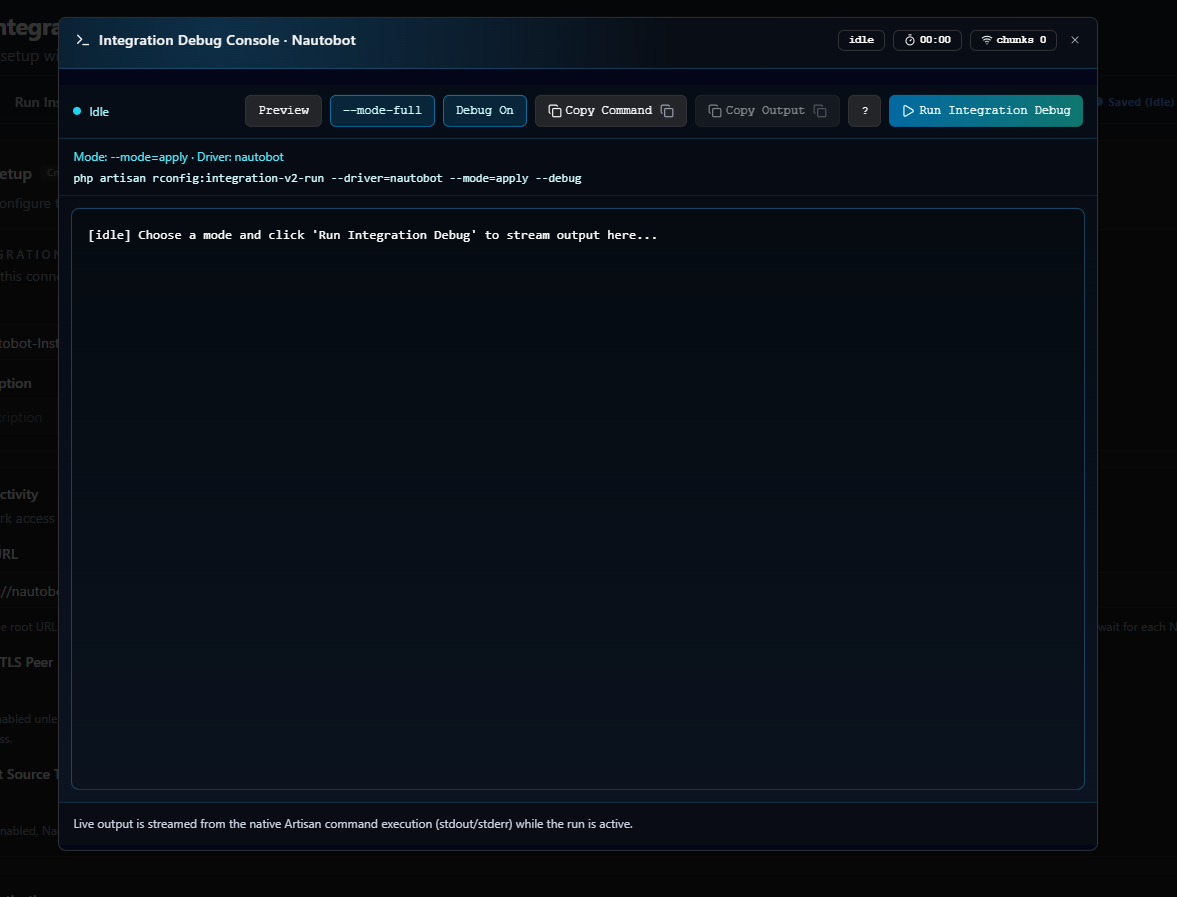
The dialog opens with the current driver pre-selected. The title bar reads:
Integration Debug Console · Driver Display Name
Anatomy of the Dialog
Section titled “Anatomy of the Dialog”Status Strip
Section titled “Status Strip”The top of the dialog shows three live indicators:
- Status:
idle,starting,running,completed, orfailed. - Elapsed: wall-clock time since the run started, formatted
mm:ss. - Chunks: number of SSE stream chunks received so far. A climbing chunk count without new output is a sign the run is mid-stage but not silent.
Beside the indicators sits a phase label with a pulsing dot. Unlike Run Insights, this label tracks the console’s own connection lifecycle rather than the pipeline stage: Idle, Starting native debug run, Streaming native command output, then Run completed or Run ended with issues.
Mode & Debug Controls
Section titled “Mode & Debug Controls”Three toggles control what command will be run:
| Control | Effect |
|---|---|
| Preview | Selects --mode=preview: the run stops after decide, no writes. |
--mode-full | Selects --mode=apply: the run executes through apply, writing to devices. The button is labelled --mode-full rather than “Apply” in the current build. |
| Debug On / Off | Toggles --debug. With Debug On, every stage’s elapsed_ms and metrics are printed as the run executes. |
Underneath, the command line that will be executed is rendered verbatim, e.g.:
php artisan rconfig:integration-v2-run --driver=zabbix --mode=preview --debugThe console always renders the command with --driver=<driver_key>, never a positional instance ID. This is the exact string you can also run from a terminal: handy when the dialog is failing for environmental reasons (queue worker missing, PHP CLI permission issues) and you want to bypass the UI.
Action Buttons
Section titled “Action Buttons”| Button | What it does |
|---|---|
| Run Integration Debug | Kicks off the run. Disabled until the instance has a saved configuration; label changes to Running for the duration of the run. |
| Copy Command | Copies the rendered CLI command to the clipboard. |
| Copy Output | Copies the entire output buffer captured so far. |
| ? (Help) | Toggles the Integration Decision Helper panel (see below). |
Output Console
Section titled “Output Console”The bottom panel is a fixed-height monospace ScrollArea that renders streamed output line-by-line. While the run is active, a terminal-style cursor pulses on the trailing line. When idle the panel shows:
[idle] Choose a mode and click 'Run Integration Debug' to stream output here...
Lines are colour-tinted by source: stage headers, stage summaries, metrics lines, the “Debug mode enabled” banner, and decision-reason lines each get their own colour so they stand out from regular stdout.
Integration Decision Helper
Section titled “Integration Decision Helper”Click ? to reveal the Integration Decision Helper panel: a small reference of the decision reason codes the reconciliation stage emits. The same codes appear in the Logs tab on every decision row and on each Problem Devices row that requires review.
| Reason code | Plain-English meaning | What happens on Apply |
|---|---|---|
LINK_FOUND_BY_EXTERNAL_ID | Update an already linked device: the candidate’s upstream external ID matched an existing integration_device_links row from a previous run, so this is the same device. | The matched rConfig device is updated. No human review needed. |
MEDIUM_MATCH_REQUIRES_REVIEW | One plausible existing device matched, so manual review is required: the candidate’s hostname + primary IP match a unique device, but not strongly enough to auto-link. | No write. Candidate appears in Problem Devices for an operator to confirm or reject. |
AMBIGUOUS_MATCH_MULTIPLE_DEVICES | Multiple possible matches, so manual review is required: more than one rConfig device fits the candidate’s identity fingerprint, so V2 refuses to guess. | No write. Candidate appears in Problem Devices; operator picks the correct target. |
NO_MATCH_CREATE_CANDIDATE | No match was found, so rConfig plans to create a new device on apply: the normal “this upstream host did not match any existing rConfig device, so create a new one” outcome. | A new rConfig device is created and linked to the upstream record. |
LINK_FOUND_BY_EXTERNAL_ID and NO_MATCH_CREATE_CANDIDATE are the steady-state codes you want: they cover “update an existing device” and “create a new one” respectively. MEDIUM_MATCH_REQUIRES_REVIEW and AMBIGUOUS_MATCH_MULTIPLE_DEVICES always defer the decision to a human; chase them down in Problem Devices so they don’t accumulate.
Footer
Section titled “Footer”A short footer line confirms what you’re watching:
Live output is streamed from the native Artisan command execution (stdout/stderr) while the run is active.
What the Streamed Output Looks Like
Section titled “What the Streamed Output Looks Like”Output is the native Artisan output from IntegrationV2RunCommand, streamed line-by-line as it’s produced. With debug on, a Preview run against Zabbix looks roughly like this:
[rConfig] Running native CLI command in preview mode with debug ON.Debug mode enabled.Run context: {"run_id":214,"instance_id":3,"source_key":"zabbix","mode":"preview","queued":false,"task_id":null}Running V2 integration run #214 inline (no queue).Stage [validate_setup]Marking stage started...Executing stage handler...Stage completed.elapsed_ms=312metrics={"connection":"ok","credentials":"ok"}Stage [extract]Marking stage started...Executing stage handler...Stage completed.elapsed_ms=1734metrics={"processed":128,"pagination_type":"offset","page_count":3}...Preview run #214 completed and is ready for review.Debug SummaryRun #214 | mode=preview | status=preview_ready | stage=decideStages:- validate_setup [completed]: 1- extract [completed]: 1- canonicalize [completed]: 1- reconcile [completed]: 1- decide [completed]: 1Extracted source records: 128Canonical candidates: valid=124, invalid=4Reconciliation tiers: strong=110, medium=10, ambiguous=2, none=2Decisions: create=12, update=110, skip=4, conflict=2Top decision reasons:- LINK_FOUND_BY_EXTERNAL_ID: 108- MEDIUM_MATCH_REQUIRES_REVIEW: 8Open conflicts: 10The “Debug Summary” block always renders at the end of a run, whether or not Debug On is toggled: the per-stage elapsed_ms and metrics lines in the middle of the run are what’s gated behind Debug On. When a stage fails instead, the exception message (and, when Debug On, the chained exception trace with file/line numbers) prints inline: copy that block straight into a support ticket.
When to Use Each Run Mode
Section titled “When to Use Each Run Mode”| Goal | Recommended path |
|---|---|
| Confirm filters return the right hosts | Extract Preview in the action bar: much lighter than the console. |
| Walk the full pipeline once, watch it happen, see exactly where it stops | Debug Console, Preview, debug on. |
| Routine, scheduled production sync | Action-bar Full Sync (queued) or a Scheduled Task. |
| Reproduce a failure that only shows up under load | Debug Console, --mode-full, debug on, capture the output. |
| Capture a clean log to attach to a support ticket | Debug Console with Copy Output after the run. |
Common Gotchas
Section titled “Common Gotchas”Related Documentation
Section titled “Related Documentation”- Extract Preview Tab: filter-only validation.
- Run Insights Tab: the post-run dashboard.
- Logs Tab: the per-stage history view, including chained exceptions captured during debug runs.