

Network Automation Expect Scripts - rConfig V8 SIE Tutorial
SIE Expect Script Example: Radware Alteon Configuration Backup
Section titled “SIE Expect Script Example: Radware Alteon Configuration Backup”Set up a complete Script Integration Engine (SIE) integration that uses an Expect script to back up Radware Alteon load balancer configurations. After completing this walkthrough, you can apply the same pattern (enable SIE, deploy a script, create a template, configure a command and device) to any system that needs custom script-based backups.
When to Use This
Section titled “When to Use This”Use this pattern when a device’s CLI doesn’t support standard SSH/Telnet backup commands and instead requires interactive menu navigation, such as Radware Alteon load balancers. The same approach applies to any device or API that needs a custom script to retrieve configuration data.
Implementation Overview
Section titled “Implementation Overview”Use Case
Section titled “Use Case”Challenge: Radware Alteon load balancers use a proprietary CLI interface with custom command sequences for configuration export. Standard SSH-based backup commands don’t work: the device requires interactive navigation through menus and specific command syntax to dump configuration.
Solution: Expect script automates the interactive CLI session, executing the precise command sequence needed to retrieve and format the Alteon configuration for rConfig storage.
Components:
- Expect script handling Alteon CLI interaction
- Custom connection template specifying script protocol
- Command group with script invocation command
- Device configured with script-based template and credentials
Prerequisites
Section titled “Prerequisites”Before implementing this example, ensure:
SIE Enabled: Script Integration Engine feature flag set to true in .env file (see SIE Overview for enablement instructions)
Expect Installed: Expect binary available on rConfig server
which expectIf Expect is not installed:
# Rocky Linux/RHEL/CentOSsudo dnf install expect -y
# Ubuntu/Debiansudo apt-get install expect -y
Script Directory: Scripts directory exists with appropriate permissions
sudo mkdir -p -m 0750 /var/www/html/rconfig8/current/storage/app/rconfig/scripts/sudo chown www-data:www-data /var/www/html/rconfig8/current/storage/app/rconfig/scripts/sudo chmod 0750 /var/www/html/rconfig8/current/storage/app/rconfig/scripts/Device Access: Network connectivity from rConfig server to Alteon device, valid device credentials for CLI access.
Step 1: Enable SIE
Section titled “Step 1: Enable SIE”If not already enabled, activate Script Integration Engine in rConfig:
Edit Environment File
Section titled “Edit Environment File”sudo nano /var/www/html/rconfig8/current/.envAdd or Modify SIE Setting
Section titled “Add or Modify SIE Setting”Locate the SIE configuration or add if not present:
SCRIPT_INTEGRATION_ENGINE_ENABLED=trueSave and exit (Ctrl+O, Enter, Ctrl+X).
Clear Application Cache
Section titled “Clear Application Cache”Apply configuration changes by clearing rConfig cache:
cd /var/www/html/rconfig8/currentphp artisan rconfig:clear-allVerification: SIE is now enabled. Scripts specified in device commands will execute during backup operations.
Step 2: Deploy Expect Script
Section titled “Step 2: Deploy Expect Script”Create the Script File
Section titled “Create the Script File”Navigate to the scripts directory and create the Expect script:
cd /var/www/html/rconfig8/current/storage/app/rconfig/scripts/sudo nano alteon_cdump_test_script.expExpect Script Content
Section titled “Expect Script Content”Paste the following Expect script (customize for your Alteon device specifics):
#!/usr/bin/expect -f
# Radware Alteon Configuration Dump Script# Purpose: Connect to Alteon load balancer and retrieve configuration# Usage: ./alteon_cdump_test_script.exp <device_ip> <username> <password>
# Capture command line argumentsset device_ip [lindex $argv 0]set username [lindex $argv 1]set password [lindex $argv 2]
# Set timeout for expect commands (30 seconds)set timeout 30
# Initiate SSH connection to Alteon devicespawn ssh -o StrictHostKeyChecking=no $username@$device_ip
# Expect password prompt and send passwordexpect {    "password:" {        send "$password\r"    }    timeout {        puts "Error: Connection timeout waiting for password prompt"        exit 1    }    eof {        puts "Error: Connection closed unexpectedly"        exit 1    }}
# Wait for command prompt (customize based on your Alteon prompt)expect {    ">>  Main# " {        # Successfully logged in    }    timeout {        puts "Error: Timeout waiting for command prompt"        exit 1    }}
# Navigate to configuration menusend "/cfg\r"
expect {    ">>  Configuration# " {        # Successfully entered config mode    }    timeout {        puts "Error: Failed to enter configuration mode"        exit 1    }}
# Execute configuration dump commandsend "dump\r"
# Capture configuration output# Wait for command completion and prompt returnexpect {    ">>  Configuration# " {        # Dump completed    }    timeout {        puts "Error: Configuration dump timeout"        exit 1    }}
# Exit configuration modesend "apply\r"expect ">>  Configuration# "
send "../\r"expect ">>  Main# "
# Logout from devicesend "exit\r"expect eof
# Exit successfullyexit 0
Save and Set Permissions
Section titled “Save and Set Permissions”Save the file (Ctrl+O, Enter, Ctrl+X) and set execute permissions:
sudo chmod 0750 /var/www/html/rconfig8/current/storage/app/rconfig/scripts/alteon_cdump_test_script.expsudo chown www-data:www-data /var/www/html/rconfig8/current/storage/app/rconfig/scripts/alteon_cdump_test_script.expTest Script Manually
Section titled “Test Script Manually”Before rConfig integration, test the script directly with real device credentials:
/usr/bin/expect /var/www/html/rconfig8/current/storage/app/rconfig/scripts/alteon_cdump_test_script.exp 192.168.1.100 admin password123Expected Output: Alteon configuration data printed to terminal
Success Indicators:
- Script connects to device
- Authentication succeeds
- Configuration dump executes
- Output captured and displayed
- Script exits with code 0
Troubleshooting: If script fails, review error messages, verify device accessibility, confirm credentials, and adjust expect patterns to match your Alteon’s actual CLI prompts.
Step 3: Create Connection Template
Section titled “Step 3: Create Connection Template”SIE-enabled devices require a connection template specifying “script” as the protocol.
Access Device Templates
Section titled “Access Device Templates”In rConfig UI, navigate to: Devices → Device Templates
Create New Template
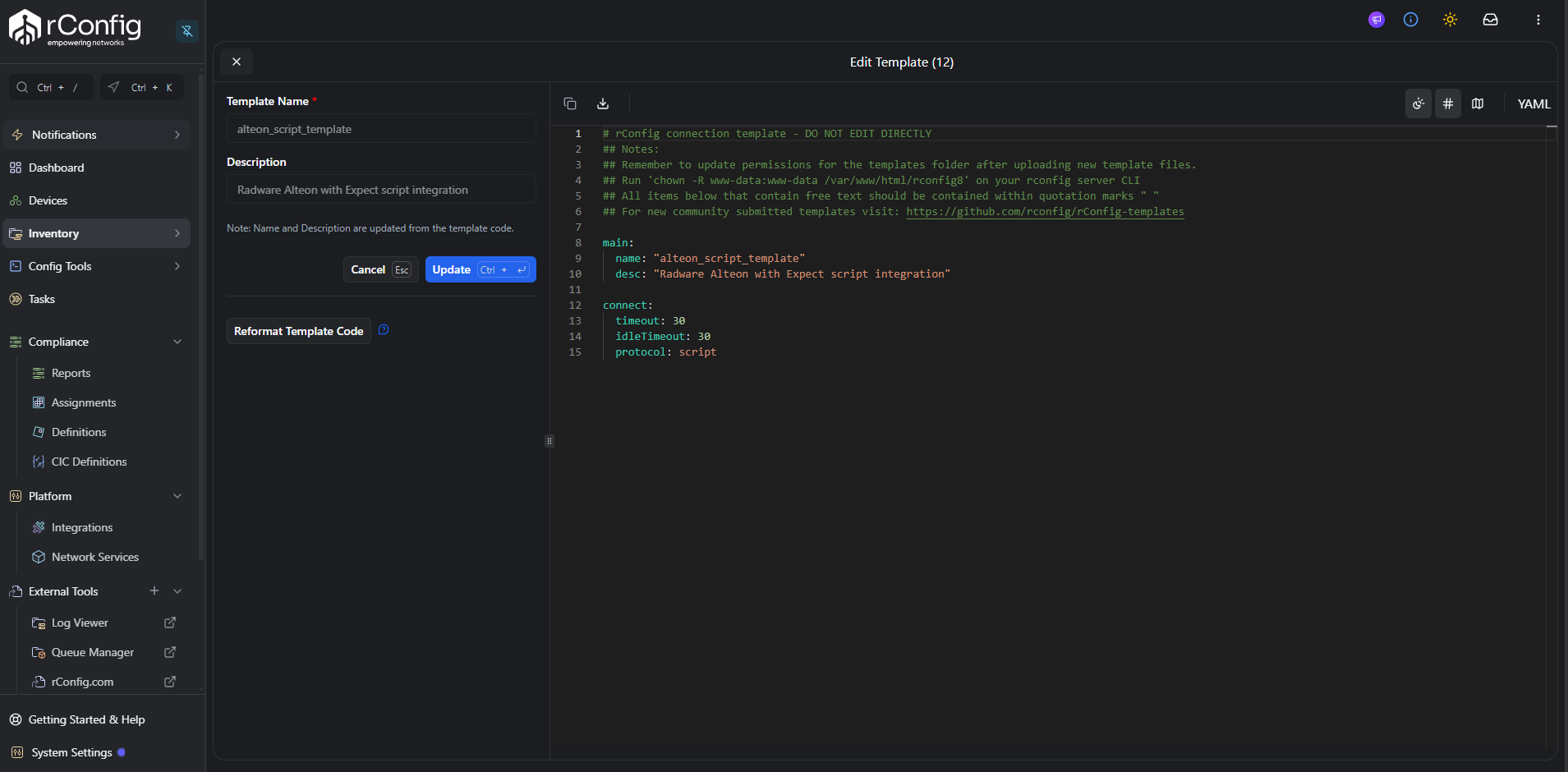
Section titled “Create New Template”Click Add New Template and configure:
Template Content:
# rConfig connection template## Edition: pro## Status: community-tested## Tested-on: rConfig V8 Pro## Docs: https://docs.rconfig.com/integrations/script-integration-engine/sie/## Community: https://github.com/rconfig/rConfig-templates## Note: all free-text values must be wrapped in double quotes " "
main:  name: "alteon_script_template"  desc: "Radware Alteon with Expect script integration"
connect:  timeout: 30  idletimeout: 30  protocol: script
Template Parameters:
name: Unique identifier for the template (used in device configuration)
desc: Human-readable description
timeout: Maximum time (seconds) for script execution before timeout
- Set based on expected script runtime
- Alteon config dump typically completes in 10-20 seconds
- 30 seconds provides buffer for network latency
idletimeout: Maximum idle time during script execution
- Prevents hanging on unexpected device responses
- Set equal to or slightly less than timeout
- Spelled all lowercase, which is the spelling rConfig reads
protocol: script: Critical - Instructs rConfig to execute script instead of SSH/Telnet connection
Save Template
Section titled “Save Template”Click Save to store the template. Template is now available for device assignment.
Step 4: Configure Command
Section titled “Step 4: Configure Command”Commands define how rConfig invokes scripts with proper parameters.
Access Commands Section
Section titled “Access Commands Section”Navigate to: Inventory → Commands
Create New Command
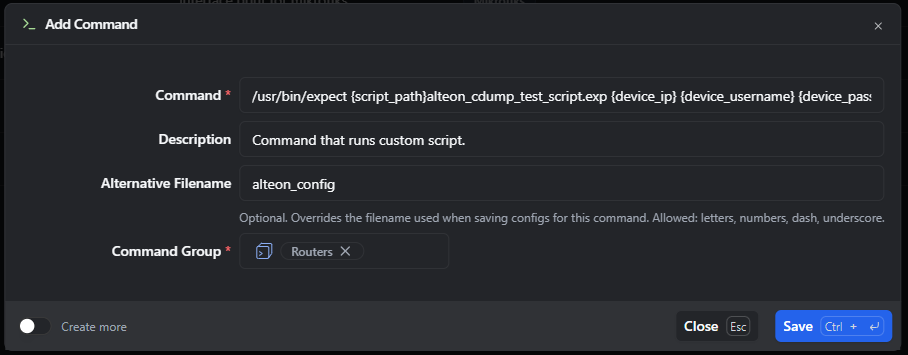
Section titled “Create New Command”Click Add Command to open the Add Command dialog, then fill in:
Command (required):
/usr/bin/expect {script_path}alteon_cdump_test_script.exp {device_ip} {device_username} {device_password}Description: Script that dumps Alteon configuration
Alternative Filename (recommended): alteon_config
- Overrides the filename used when saving configs for this command (allowed: letters, numbers, dash, underscore)
- Simplifies configuration filenames in rConfig storage
- Without alternative name, filename becomes lengthy command string
Command Group (required): select the group this command belongs to (for example, Routers), or create a new one. This is the group you’ll assign to the Alteon device in Step 5.
Toggle Create more if you’re adding several script-based commands and want the dialog to stay open between saves.
Command Breakdown
Section titled “Command Breakdown”/usr/bin/expect: Full path to Expect interpreter binary
- Located via
which expectcommand - Must be absolute path, not relative
{script_path}alteon_cdump_test_script.exp: Script filename prefaced with {script_path} variable
{script_path}expands to:/var/www/html/rconfig8/current/storage/app/rconfig/scripts/- Combined with script name forms full path to script file
{device_ip}: Replaced with device IP address from rConfig device record
- Passed as first argument to Expect script
- Script uses to establish SSH connection
{device_username}: Replaced with device username credential
- Passed as second argument
- Script uses for authentication
{device_password}: Replaced with device password credential
- Passed as third argument
- Script uses for authentication
Note: {device_enable_password} not used in this example as Alteon doesn’t require enable mode
Parameter Order
Section titled “Parameter Order”Parameters can appear in any order. The script determines usage based on argument position. This example uses: IP, username, password (matching Expect script’s argument handling).
Save Command
Section titled “Save Command”Click Save to add the command to the selected command group. Note the group name for device assignment in Step 5.
Step 5: Configure Device
Section titled “Step 5: Configure Device”With template and command created, configure the Alteon device to use script-based backup.
Access Device Configuration
Section titled “Access Device Configuration”Navigate to: Devices, then click Add Device.
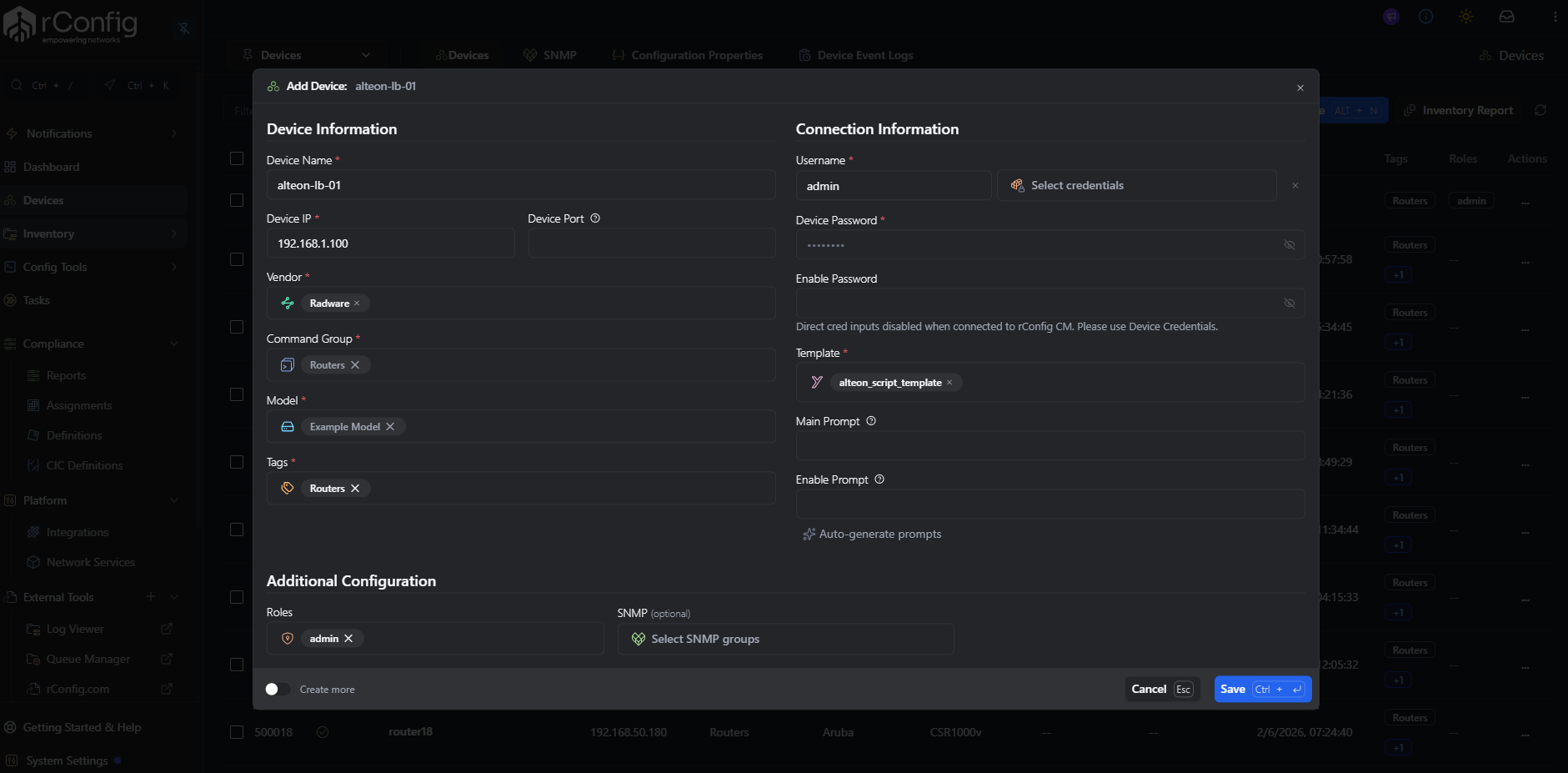
Device Information
Section titled “Device Information”Fill in the device details:
- Device Name (required): descriptive name, for example
alteon-lb-01 - Device IP (required): Alteon management IP, for example
192.168.1.100 - Device Port (optional): leave blank to use the connection template default
- Vendor (required):
Radware - Command Group (required): select the group containing the Expect script command (from Step 4), for example
Routers - Model (required): the Alteon model, or a placeholder model if your inventory doesn’t track this yet
- Tags (required): add tags to help filter and group this device, for example
Routers
Connection Information
Section titled “Connection Information”- Username (required): device CLI username, or use Select credentials to assign a saved credential set
- Device Password (required): device CLI password
- Enable Password: leave blank (not used for Alteon)
- Template (required): select
alteon_script_template(created in Step 3) - Main Prompt / Enable Prompt: leave blank, or click Auto-generate prompts to detect them from the device
Additional Configuration
Section titled “Additional Configuration”- Roles: assign roles for access control, for example
admin - SNMP (optional): select SNMP groups if SNMP polling is configured for this device
Toggle Create more if you’re adding several Alteon devices and want the dialog to stay open between saves.
Save Device Configuration
Section titled “Save Device Configuration”Click Save to store device settings. Device is now configured for script-based backup.
Step 6: Test Execution
Section titled “Step 6: Test Execution”Verify script integration works correctly using rConfig’s debug feature.
Access Device Debug
Section titled “Access Device Debug”From the device page, click Debug or Test Connection button.
Execute Debug Command
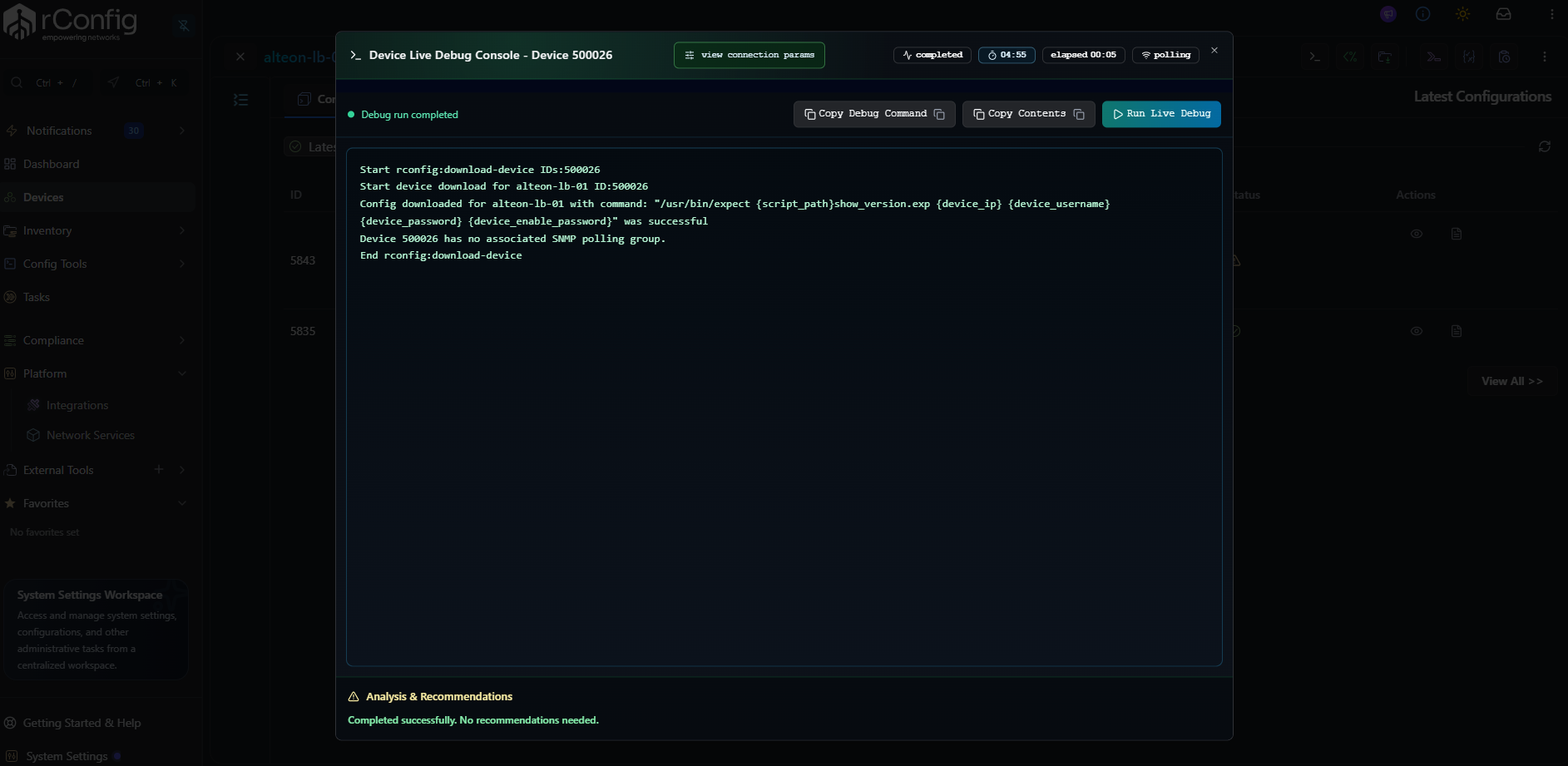
Section titled “Execute Debug Command”Debug mode executes the configured command and displays results in real-time:
Debug Output Displays:
-
Command Executed: Full command with substituted parameters
/usr/bin/expect /var/www/html/rconfig8/current/storage/app/rconfig/scripts/alteon_cdump_test_script.exp 192.168.1.100 admin password123 -
Script Output: Captured stdout containing Alteon configuration
-
Execution Status: Success or failure indication
-
Execution Time: Duration of script execution
-
Exit Code: Script exit status (0 = success)
Verify Success
Section titled “Verify Success”Success Indicators:
- Exit code: 0
- Status: Success/Completed
- Output: Valid Alteon configuration data
- No error messages in output
Configuration Captured: If debug succeeds, configuration is stored in device history and available for:
- Viewing in device configuration tab
- Diff comparison with previous versions
- Compliance checking
- Search indexing
Troubleshooting Failed Execution
Section titled “Troubleshooting Failed Execution”Step 7: Schedule Automated Backups
Section titled “Step 7: Schedule Automated Backups”Once debug confirms script works correctly, enable automated backups.
Backup Scheduling
Section titled “Backup Scheduling”Scripts execute during scheduled backup jobs just like standard SSH/Telnet backups:
Via Device Groups:
- Add Alteon device to appropriate device group
- Configure backup schedule for group
- Script executes automatically per schedule
Via Global Schedule:
- Ensure device included in backup scope (not excluded)
- Global backup schedule triggers script execution
- Configuration captured and versioned automatically
Monitoring Script Backups
Section titled “Monitoring Script Backups”Backup History: View backup success/failure in device backup history:
- Navigate to device page
- Review backup log for script execution results
- Check for consistent successful backups or recurring failures
Notifications: Configure email or webhook notifications for backup failures:
- Settings → Notifications
- Create alert for backup failures
- Receive notifications when script backups fail
Logs: Review detailed execution logs:
tail -f /var/www/html/rconfig8/current/storage/logs/laravel.log | grep -i scriptAdvanced Script Techniques
Section titled “Advanced Script Techniques”Error Handling Enhancement
Section titled “Error Handling Enhancement”Improve script robustness with comprehensive error handling:
#!/usr/bin/expect -f
# Enhanced error handling versionset device_ip [lindex $argv 0]set username [lindex $argv 1]set password [lindex $argv 2]
# Validate argumentsif {$device_ip == "" || $username == "" || $password == ""} {    puts "Error: Missing required arguments"    puts "Usage: $argv0 <device_ip> <username> <password>"    exit 1}
# Enhanced timeout handlingset timeout 30log_user 0  # Suppress script interaction output
spawn ssh -o StrictHostKeyChecking=no -o ConnectTimeout=10 $username@$device_ip
expect {    "password:" {        send "$password\r"    }    "No route to host" {        puts "Error: Device unreachable - check network connectivity"        exit 1    }    "Connection refused" {        puts "Error: SSH connection refused - verify SSH enabled on device"        exit 1    }    timeout {        puts "Error: Connection timeout - device not responding"        exit 1    }}
# Additional authentication error handlingexpect {    ">>  Main# " {        # Login successful    }    "Permission denied" {        puts "Error: Authentication failed - check credentials"        exit 1    }    "Access denied" {        puts "Error: Access denied - user may lack permissions"        exit 1    }    timeout {        puts "Error: Login timeout - authentication may have failed"        exit 1    }}
# Continue with configuration dump...
Output Formatting
Section titled “Output Formatting”Format script output for improved readability in rConfig:
# Add header to configuration outputputs "# Radware Alteon Configuration Backup"puts "# Device: $device_ip"puts "# Date: [clock format [clock seconds] -format {%Y-%m-%d %H:%M:%S}]"puts "#"puts ""
# Execute dump and capture outputsend "dump\r"
# Wait for and capture configurationexpect {    -re "(.*)\r\n>>  Configuration# " {        set config_output $expect_out(1,string)        puts $config_output    }}
# Add footerputs ""puts "# End of Configuration"
Logging for Audit
Section titled “Logging for Audit”Implement audit logging separate from rConfig output:
# Log to separate audit fileset logfile "/var/log/rconfig/alteon_script_audit.log"set timestamp [clock format [clock seconds] -format {%Y-%m-%d %H:%M:%S}]
# Append to audit log (not captured by rConfig)if {[catch {open $logfile a} logfd]} {    # Log file open failed, continue without logging} else {    puts $logfd "$timestamp - Device: $device_ip - User: $username - Status: Starting backup"    close $logfd}
# Script execution...
# Log completionif {[catch {open $logfile a} logfd]} {    # Silently fail if can't log} else {    puts $logfd "$timestamp - Device: $device_ip - Status: Backup completed successfully"    close $logfd}
Script Optimization
Section titled “Script Optimization”Performance Improvements
Section titled “Performance Improvements”Reduce Timeout Overhead: Set aggressive but safe timeouts:
# Use shorter timeouts for fast networksset timeout 15  # Instead of 30
# But increase for specific slow operationsexpect {    ">>  Configuration# " {        # Dump may take longer        set timeout 45        send "dump\r"    }}
Minimize Output: Suppress unnecessary device output:
# Disable pagination/prompts on devicesend "terminal length 0\r"expect ">>  Main# "
# Suppress expect's own outputlog_user 0
Parallel Execution: For multiple Alteon devices, rConfig handles parallelization. Ensure scripts don’t create resource contention:
# Avoid writing to shared files# Use unique temp files if needed:set tempfile "/tmp/alteon_$device_ip_[clock seconds].tmp"Maintainability
Section titled “Maintainability”Parameterize Device-Specific Values:
# Define device-specific prompts as variablesset main_prompt ">>  Main# "set config_prompt ">>  Configuration# "
# Use variables in expect statementsexpect $main_promptsend "/cfg\r"expect $config_prompt
Modular Functions: For complex scripts, use procedures:
proc login {device_ip username password} {    spawn ssh -o StrictHostKeyChecking=no $username@$device_ip    expect "password:"    send "$password\r"    expect ">>  Main# "    return 0}
proc dump_config {} {    send "/cfg\r"    expect ">>  Configuration# "    send "dump\r"    expect -re "(.*)\r\n>>  Configuration# " {        puts $expect_out(1,string)    }    return 0}
# Main executionlogin $device_ip $username $passworddump_config
Alternative Script Languages
Section titled “Alternative Script Languages”While this example uses Expect, SIE supports any scripting language. Consider alternatives based on requirements:
Python for API-Based Devices
Section titled “Python for API-Based Devices”If Alteon supported REST API instead of CLI:
#!/usr/bin/env python3import sysimport requestsfrom requests.auth import HTTPBasicAuth
# Get parameters from rConfigdevice_ip = sys.argv[1]username = sys.argv[2]password = sys.argv[3]
# API endpointurl = f"https://{device_ip}/api/config/export"
try:    # Call API with authentication    response = requests.get(        url,        auth=HTTPBasicAuth(username, password),        verify=False,  # Disable SSL verification for self-signed certs        timeout=30    )
    if response.status_code == 200:        # Output configuration to stdout for rConfig capture        print(response.text)        sys.exit(0)    else:        print(f"Error: API returned status {response.status_code}")        sys.exit(1)
except Exception as e:    print(f"Error: {str(e)}")    sys.exit(1)
Command in rConfig:
/usr/bin/python3 {script_path}alteon_api_backup.py {device_ip} {device_username} {device_password}Bash for Simple CLI Automation
Section titled “Bash for Simple CLI Automation”For devices with straightforward CLI:
#!/bin/bash
# Get parametersDEVICE_IP=$1USERNAME=$2PASSWORD=$3
# Use sshpass for non-interactive SSH (install: apt-get install sshpass)sshpass -p "$PASSWORD" ssh -o StrictHostKeyChecking=no "$USERNAME@$DEVICE_IP" << 'EOF'terminal length 0show running-configexitEOF
# Exit with SSH command's exit codeexit $?
Command in rConfig:
/bin/bash {script_path}simple_backup.sh {device_ip} {device_username} {device_password}Community Resources
Section titled “Community Resources”Example Scripts Repository
Section titled “Example Scripts Repository”rConfig maintains a collection of community-contributed SIE scripts:
GitHub Repository: https://github.com/rconfig/rConfig-templates
Available Examples:
- Radware Alteon - this example, an expect script paired with its script template
- Zyxel GS1900 - an expect script for a device whose restricted CLI cannot be driven by a connection template
- Starter template - the base script template to copy when writing your own
Four worked workflow examples show patterns beyond running a single command:
- REST API backup - backing up a device with no CLI at all
- Pre and post change snapshot - capturing state either side of a change window so the diff is the evidence
- Multi step export - trigger, poll for completion, then fetch
- Database schema dump - versioning something that is not a network device
Directory Structure:
pro-features/sie/├── _base/ starter script template├── radware/ Alteon expect script and template├── zyxel/ GS1900 expect script└── workflows/ four worked end-to-end examplesContributing Your Scripts
Section titled “Contributing Your Scripts”Share working scripts with the community:
- Test Thoroughly: Ensure script works reliably in your environment
- Generalize: Remove site-specific hardcoded values
- Document: Include comments explaining logic and requirements
- Submit: Open a template test report or a pull request against the rConfig-templates repository, following the contributing guide. For anything sensitive or private, email info@rconfig.com instead.
Contribution Benefits:
- Help other rConfig users with similar devices
- Receive community feedback and improvements
- Build reputation in rConfig ecosystem
Troubleshooting Reference
Section titled “Troubleshooting Reference”Common Expect Issues
Section titled “Common Expect Issues”Issue: Script hangs indefinitely
Causes:
- Expect pattern doesn’t match actual device output
- Device prompt changed or includes variable content (timestamps, etc.)
Resolution:
- Log into device manually, note exact prompt format
- Update expect patterns to match observed prompts
- Use regex patterns for variable prompt components:
expect -re ">>.*Main# " # Matches prompt with variable content
Issue: Authentication succeeds but commands fail
Causes:
- User lacks privileges for configuration commands
- Device in restricted mode
Resolution:
- Verify user has admin/config access
- Add privilege escalation to script if needed
- Check device logs for permission denials
Issue: Partial configuration captured
Causes:
- Timeout too short for full config dump
- Pagination/paging enabled on device
Resolution:
- Increase timeout values in script and template
- Disable paging:
send "terminal length 0\r" - Adjust expect patterns to handle multi-page output
Debugging Techniques
Section titled “Debugging Techniques”Enable Expect Debugging:
# Add at start of scriptexp_internal 1 # Shows expect's internal operationslog_user 1 # Shows all interaction (default)Capture Interaction to File:
# Log all interaction for reviewlog_file /tmp/expect_debug.logTest Script Components Independently:
# Comment out later sections, test connection only:spawn ssh $username@$device_ipexpect "password:"send "$password\r"expect ">> Main# "puts "Login successful"exit 0Security Best Practices
Section titled “Security Best Practices”Credential Protection
Section titled “Credential Protection”Never Log Passwords: Ensure scripts don’t expose credentials:
# Disable output when sending passwordlog_user 0send "$password\r"log_user 1 # Re-enable after authenticationSecure Script Storage:
# Restrict script directory permissionschmod 750 /var/www/html/rconfig8/current/storage/app/rconfig/scripts/chown www-data:www-data /var/www/html/rconfig8/current/storage/app/rconfig/scripts/
# Individual script permissionschmod 750 alteon_cdump_test_script.exp
Audit Script Execution:
# Monitor script execution logstail -f /var/www/html/rconfig8/current/storage/logs/laravel.log | grep script
# Review for unauthorized executions or failures
Input Validation
Section titled “Input Validation”Always validate parameters received from rConfig:
# Validate IP address formatif {![regexp {^[0-9]{1,3}\.[0-9]{1,3}\.[0-9]{1,3}\.[0-9]{1,3}$} $device_ip]} {    puts "Error: Invalid IP address format"    exit 1}
# Sanitize inputs (prevent injection)regsub -all {[^a-zA-Z0-9._-]} $username "" username
What’s Next
Section titled “What’s Next”- Set up the Script Integration Engine → - review SIE concepts and architecture before building further integrations
- Create and manage device templates → - apply the
protocol: scriptpattern to other device types - Configure device commands → - set up command categories for additional script-based integrations
Quick Reference
Section titled “Quick Reference”Implementation Checklist
Section titled “Implementation Checklist”File Locations
Section titled “File Locations”Script Directory:
/var/www/html/rconfig8/current/storage/app/rconfig/scripts/Environment File:
/var/www/html/rconfig8/current/.envExpect Binary:
/usr/bin/expectCommand Template
Section titled “Command Template”/usr/bin/expect {script_path}script_name.exp {device_ip} {device_username} {device_password}Connection Template
Section titled “Connection Template”main: name: "device_script_template" desc: "Script-based connection"
connect: timeout: 30 idleTimeout: 30 protocol: scriptExpect Script Structure
Section titled “Expect Script Structure”#!/usr/bin/expect -f
set device_ip [lindex $argv 0]set username [lindex $argv 1]set password [lindex $argv 2]
set timeout 30
spawn ssh -o StrictHostKeyChecking=no $username@$device_ip
expect "password:"send "$password\r"
expect "prompt# "send "config_dump_command\r"
expect "prompt# "send "exit\r"
expect eofexit 0Summary
Section titled “Summary”This Radware Alteon example demonstrates complete SIE implementation from enablement through production deployment. The workflow (enable SIE, deploy script, create template, configure command, assign to device, test) applies to any device type requiring custom script integration.
Key Takeaways:
- Expect excels at automating interactive CLI sessions
- Parameter substitution provides flexibility without hardcoding device details
- Debug mode enables rapid testing and troubleshooting
- Scripts integrate seamlessly with rConfig’s backup and diff features
- Community repository provides ready-made examples for common devices
For devices with different requirements (APIs, complex workflows, proprietary protocols), adapt this pattern using appropriate scripting languages and techniques while following the same integration workflow.