

rConfig V8 User Interface Guide
rConfig V8 User Interface Guide - Modern Navigation & Dashboard Features
Section titled “rConfig V8 User Interface Guide - Modern Navigation & Dashboard Features”After reading this page, you can find your way around the rConfig V8 interface: the dashboard, side navigation, command palette, user profile and notification settings, and the centralized Settings hub.
V8 User Interface Overview
Section titled “V8 User Interface Overview”The rConfig V8 interface is a complete overhaul from previous versions, built for speed and scalability. The UI uses ShadCN/UI components with Tailwind CSS and a Vue reactive frontend SPA.
The primary drivers behind this redesign were:
- Faster Feature Development: Modern component architecture enables rapid iteration and deployment of new capabilities
- More Intuitive Experience: Streamlined workflows and consistent design patterns reduce learning curves for new users
- Enhanced Extensibility: Modular foundation allows us to easily integrate additional features and third-party tools
Dashboard Overview
Section titled “Dashboard Overview”The new dashboard provides at-a-glance visibility into your network infrastructure status and recent activity.
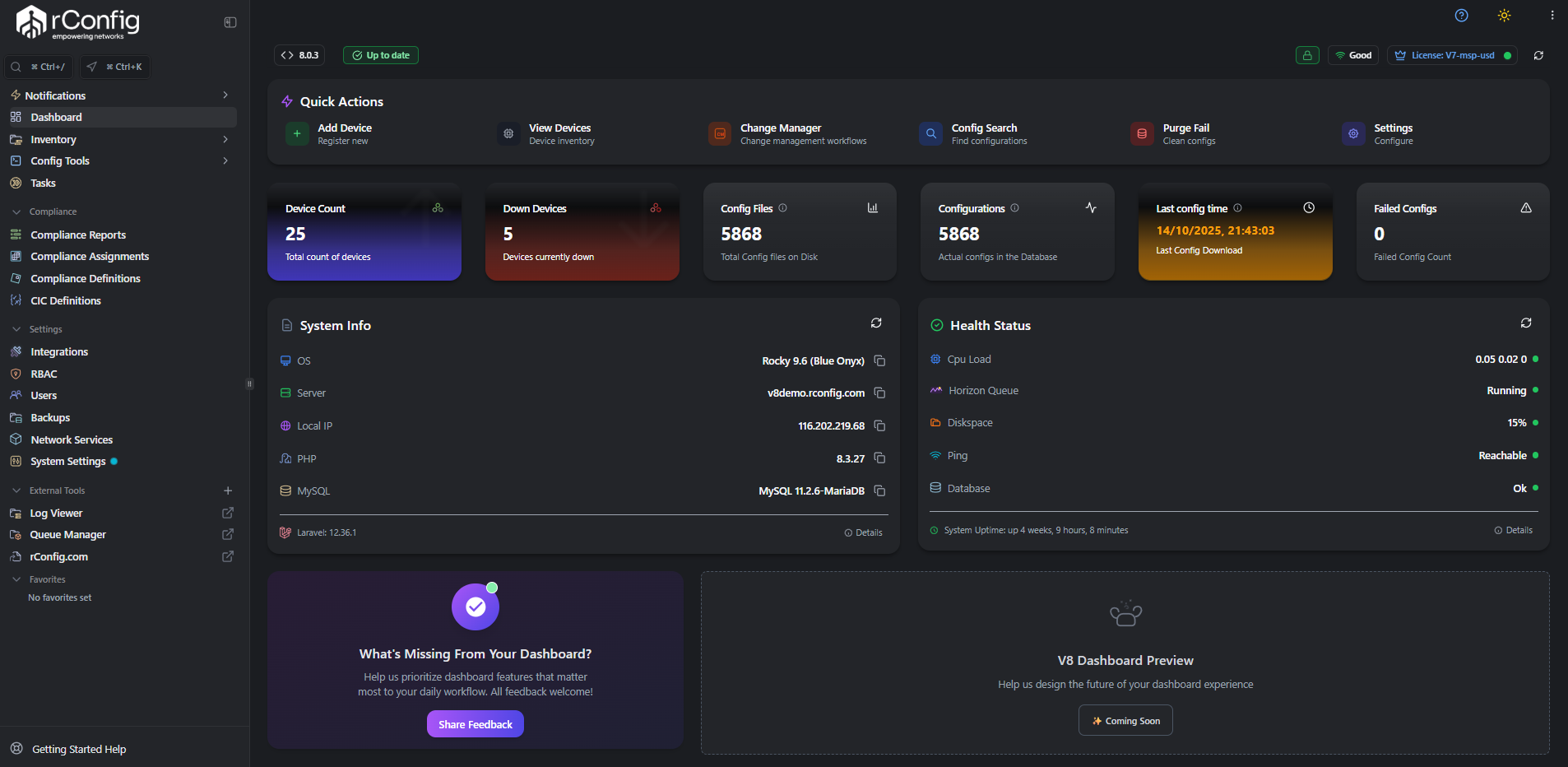 The redesigned dashboard featuring real-time status widgets, recent activity feeds, and quick-access navigation
We built the initial v8.0.0 dashboard to be pretty static, and as time moves forward and we get feedback, we expect the dashboard to become dynamic in nature, giving you flexibility over what you can see at an individual user level. The main components now are license and version info, some handy quick action shortcuts, a list of statistics such as number of devices, devices down, configuration count, and system info and system health.
Learn more about device management →
Contextual Help Icons
Section titled “Contextual Help Icons”Helper icons with in-app context appear throughout the app. Hover over a help icon to display extra information about the interface element next to it.
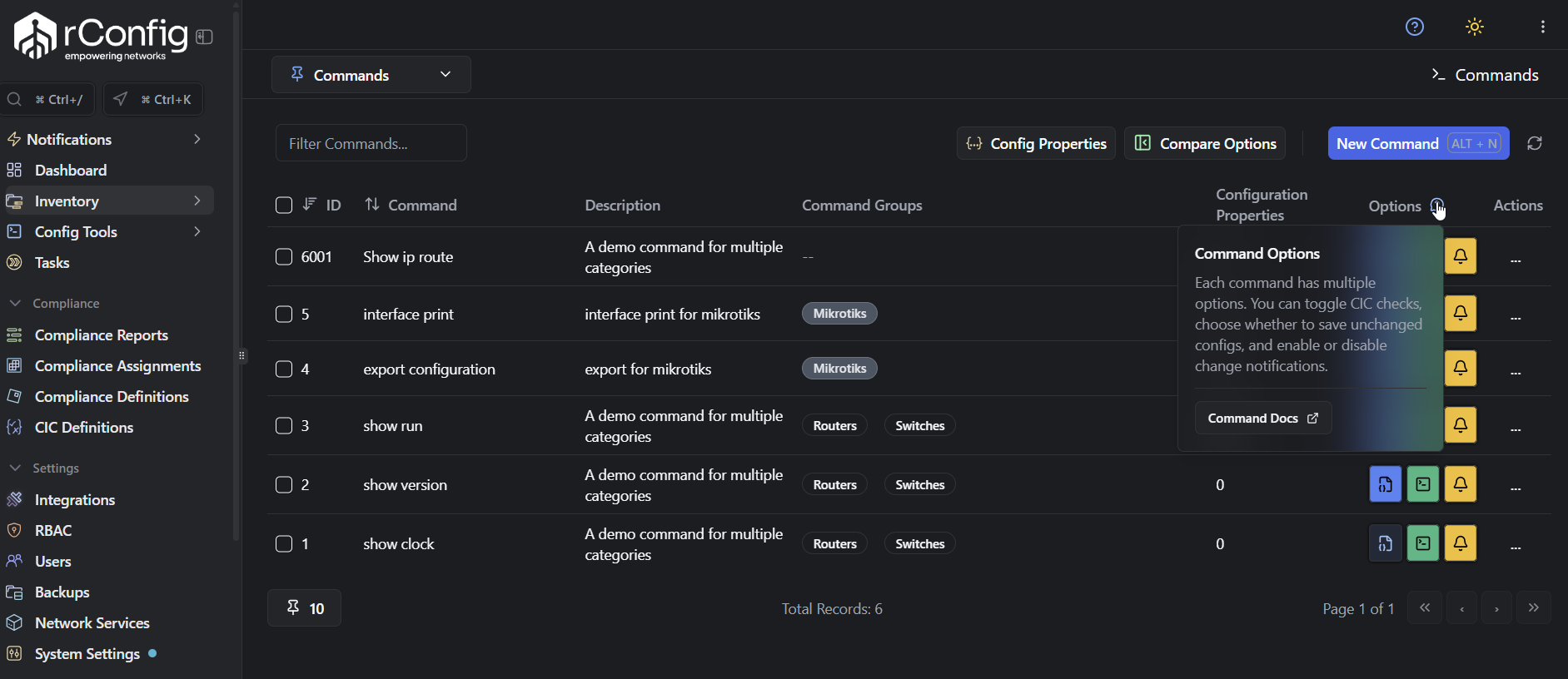 Contextual help tooltips provide instant guidance without leaving your current workflow
Redesigned Side Navigation
Section titled “Redesigned Side Navigation”The navigation has been significantly simplified and streamlined to take up less screen real estate while providing faster access to key functions. The main sections include Dashboard, Inventory, Config Tools, Tasks, Compliance, Settings, External Tools, and Favorites.
Key navigation features include:
- Collapsible Design: The sidebar can be minimized to maximize your workspace
- Flyout Menus: Hover over collapsed sections to reveal sub-navigation options
- Quick Navigation: Use
Ctrl+Kto open a command palette where you can type to instantly navigate to any item - Records Search: Press
Ctrl+/to open a quick search modal for filtering devices, configs, tasks, and more
The navigation adapts to your user role, showing only the sections and tools you have permission to access.
Keyboard Shortcuts
Section titled “Keyboard Shortcuts”To enhance productivity, rConfig V8 introduces several keyboard shortcuts for common actions and navigation. You will see these shortcuts listed in tooltips and next to menu items and buttons throughout the interface. Keep an eye out for them as you explore the new UI and learn to use them to speed up your workflow.
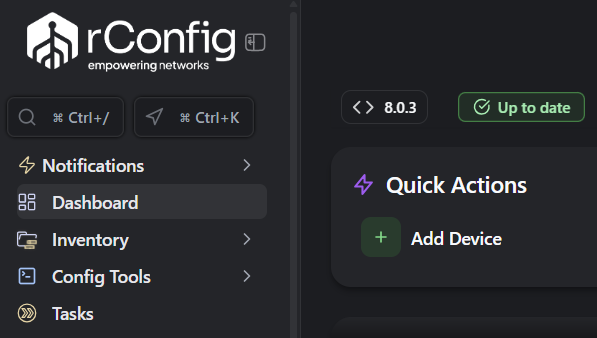 Keyboard shortcuts are displayed contextually to help you learn them as you go
The Ctrl+K and Ctrl+/ shortcuts are the fastest routes to quick navigation and search, and significantly reduce time spent clicking through menus.
Filters and Contextual Search
Section titled “Filters and Contextual Search”Most list views now include advanced filtering options and a contextual search bar at the top. This allows you to quickly narrow down large datasets based on criteria like status, type, tags, and more. The filters are dynamic and update the list in real-time as you adjust them.
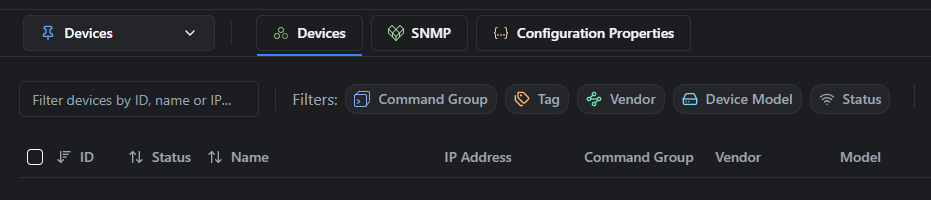 Dynamic filters and contextual search help you find what you need faster
Favorites Workspace
Section titled “Favorites Workspace”The new Favorites section allows you to bookmark frequently used pages, reports, and tools for quick access. Simply click the star icon next to any item to add it to your favorites list, which is accessible from the sidebar.
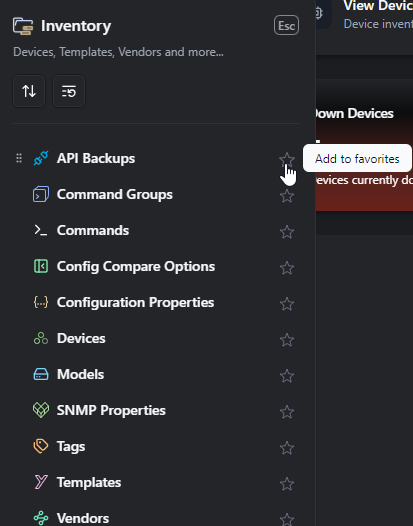 Easily access your most-used pages and tools from the Favorites section
Getting Started Sidebar
Section titled “Getting Started Sidebar”A collapsible “Getting Started” sidebar provides quick links to common tasks and resources for new users. This sidebar can be toggled on or off based on your preference.
You have direct links to support resources, documentation, and tutorials to help you get up to speed quickly.
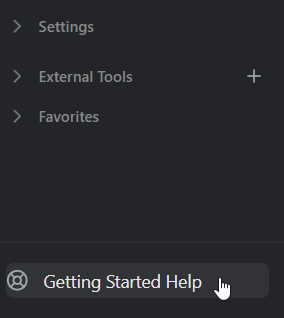 The Getting Started sidebar offers quick access to essential tasks and documentation for new users. It is located in the bottom-left corner of the side navigation.
User Profile & Localization
Section titled “User Profile & Localization”The user profile menu in the top-right corner provides access to account settings, preferences, and logout options. The profile settings are organized into three main sections:
Personal Details
Section titled “Personal Details”Update your personal information including your display name and optional username. Changes are saved manually using the “Save Changes” button.
Time & Locale
Section titled “Time & Locale”Customize your regional and time preferences with auto-save functionality:
Language (Experimental)
- Select your preferred interface language from available options including English (US)
- This feature is experimental and may not be fully complete
- We welcome community contributions to help expand and improve localization options
Timezone
- Choose your local timezone for accurate timestamp displays throughout the application
Display Formats
- Date Format: Customize how dates appear (e.g., MM/DD/YYYY displays as 12/25/2024)
- Time Format: Choose between 12-hour or 24-hour time display (e.g., 24 Hour shows as 14:30)
- Locale: Your locale settings (e.g., en_US) affect how dates, times, and numbers are displayed throughout the application
Notification Preferences
Section titled “Notification Preferences”Manage comprehensive notification settings across multiple channels and event types.
Notification Channels Configure how you receive notifications:
- In-App: Notifications shown in your dashboard
- Email: Sent to your registered email address
- Slack: Posted to configured Slack channels
Available Notification Types You can enable or disable notifications for the following events across any combination of channels:
System & Infrastructure:
- Notification System Error
- Device Connection Failure (SSH, Telnet, or API)
- Authentication System Changed (LDAP or authentication settings)
Configuration Management:
- Configuration Changed
- Configuration Download Completed
- Configuration Purge Completed
- Failed Configuration Purge Completed
- Snippet Sent
Operations:
- Backup Cleanup Completed
- Backup Run Completed
- Task Completed
- Download Task Report
- Bulk Import Completed
- Bulk Import Failed
Monitoring:
- SNMP Trap Received
Compliance:
- Compliance Report notifications and summaries
Digest Emails
Section titled “Digest Emails”Receive automated network intelligence reports delivered via email on your preferred schedule.
Configuration Options:
- Enable/Disable: Toggle digest emails on or off
- Frequency: Choose between daily or weekly delivery
- Delivery Day: Select which day to receive weekly digests (e.g., Monday)
- Delivery Time: Set your preferred time for email delivery (e.g., 08:00)
Available Metrics Categories:
- Infrastructure: Device management overview including devices added, removed, and fleet status
- Operations:
- Configuration Downloads: Backup and download activity
- Configuration Changes: Network configuration modifications and updates
- Security: Security Compliance including policy compliance checks and violations
You can select which specific metrics to include in your digest emails. A “Send Test” button allows you to preview your digest configuration before saving. Changes must be saved manually using the “Save Changes” button.
System Settings Hub
Section titled “System Settings Hub”The Settings section has been redesigned into a centralized hub for managing all system-wide configurations. It is organized into clear categories such as General, Network, Security, Integrations, and more. Browse the categories or use the search bar to quickly find specific settings.
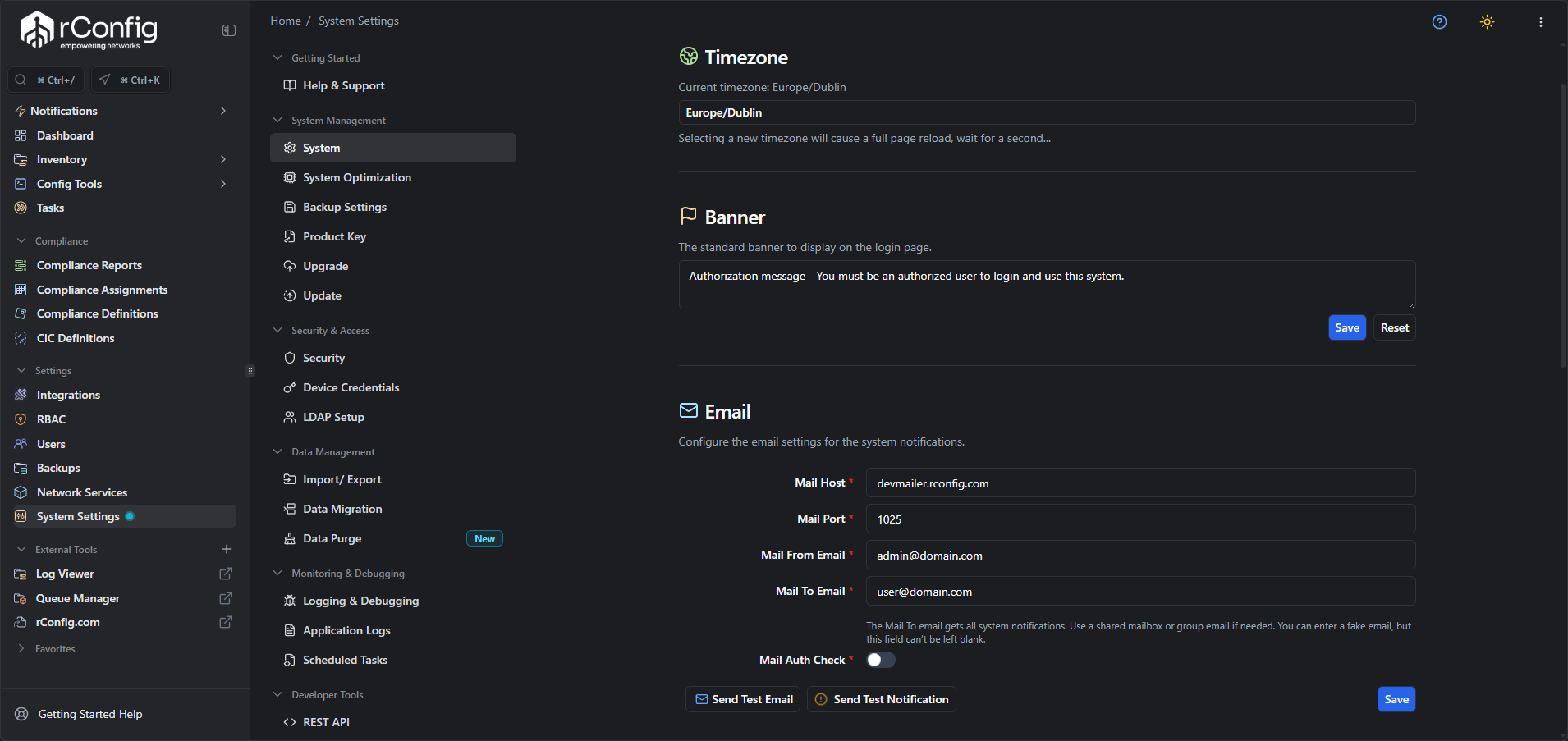 The centralized Settings hub makes it easy to find and manage system configurations
Theme Modes (Light vs Dark) (V8.1.2+)
Section titled “Theme Modes (Light vs Dark) (V8.1.2+)”A theme switcher in the top bar lets you toggle between light and dark mode. The interface defaults to dark mode, but you can switch to light mode for a brighter interface that is easier to read in well-lit environments. Your selection is remembered across sessions.
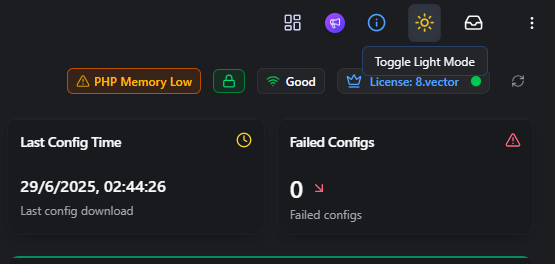 Click the sun icon in the top bar to toggle light mode