

How to use Config Analysis & Explain in rConfig V8
How to use Config Analysis & Explain in rConfig V8
Section titled “How to use Config Analysis & Explain in rConfig V8”After reading this page, you can open an AI chat against any device configuration in the config viewer, use the built-in explain/find-issues/security actions on a selected block of config, and know exactly what data gets sent to your AI provider when you do.
When to use this
Section titled “When to use this”Use Config Analysis & Explain when you’re looking at a device configuration and want a plain-English summary, a second opinion on whether a block of config looks risky, or a quick answer to “what does this do” without leaving the config viewer.
Prerequisites
Section titled “Prerequisites”AI_CENTER_ENABLED=trueset on the server (see Set up an AI provider)- An active AI provider
- Config Analysis & Explain turned on in AI Configuration. If it’s off, the entry points described below don’t appear
Two ways to start a conversation
Section titled “Two ways to start a conversation”1. The Ask AI toolbar button
Section titled “1. The Ask AI toolbar button”Open any device configuration in the config viewer and click the Ask AI icon in the toolbar. This opens the AI Assistant panel on the right side of the screen, with an input box prompting “Ask me about network configurations…”. The panel shows the config ID and how many lines were loaded, and greets you with a summary of what it can see. Use + New chat to start over, or the history icon next to it to reopen a previous conversation for the same config.
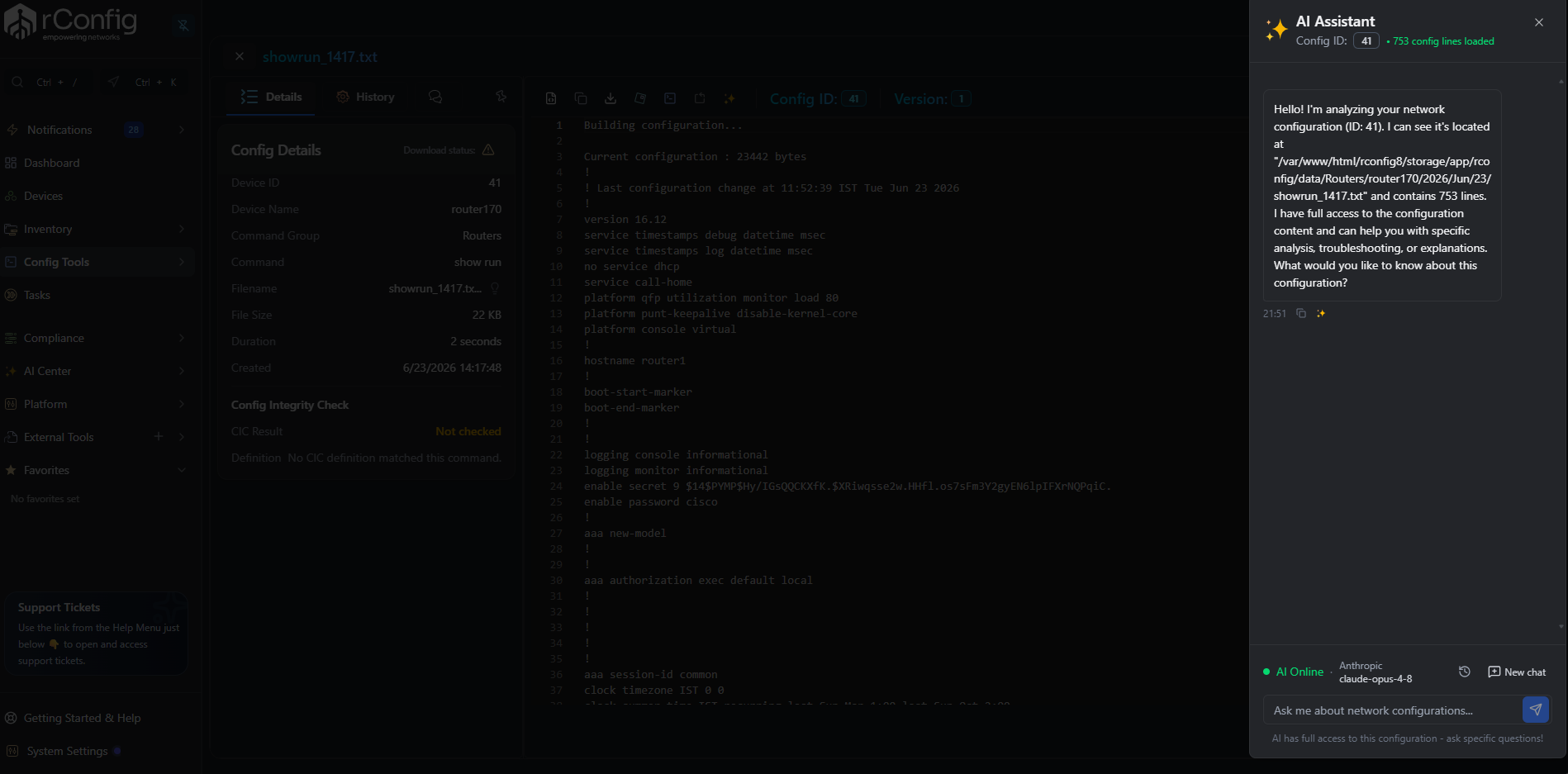
2. Inline actions from the Monaco editor
Section titled “2. Inline actions from the Monaco editor”Select a block of configuration in the editor, or hover over a line, and a lightbulb icon appears. Click it to open a menu of five actions:
| Action | What it sends |
|---|---|
| Explain configuration | Asks the AI to explain what the selected config does and how it works |
| Find issues | Asks the AI to flag problems in the selected config |
| Suggest improvements | Asks the AI for improvement suggestions |
| Security analysis | Asks the AI to review the selected config for security concerns |
| Ask custom question… | Lets you type your own question about the selection |
Choosing a predefined action sends a canned prompt plus the selected code straight into the AI Assistant panel. You don’t need to type anything for the first four options.
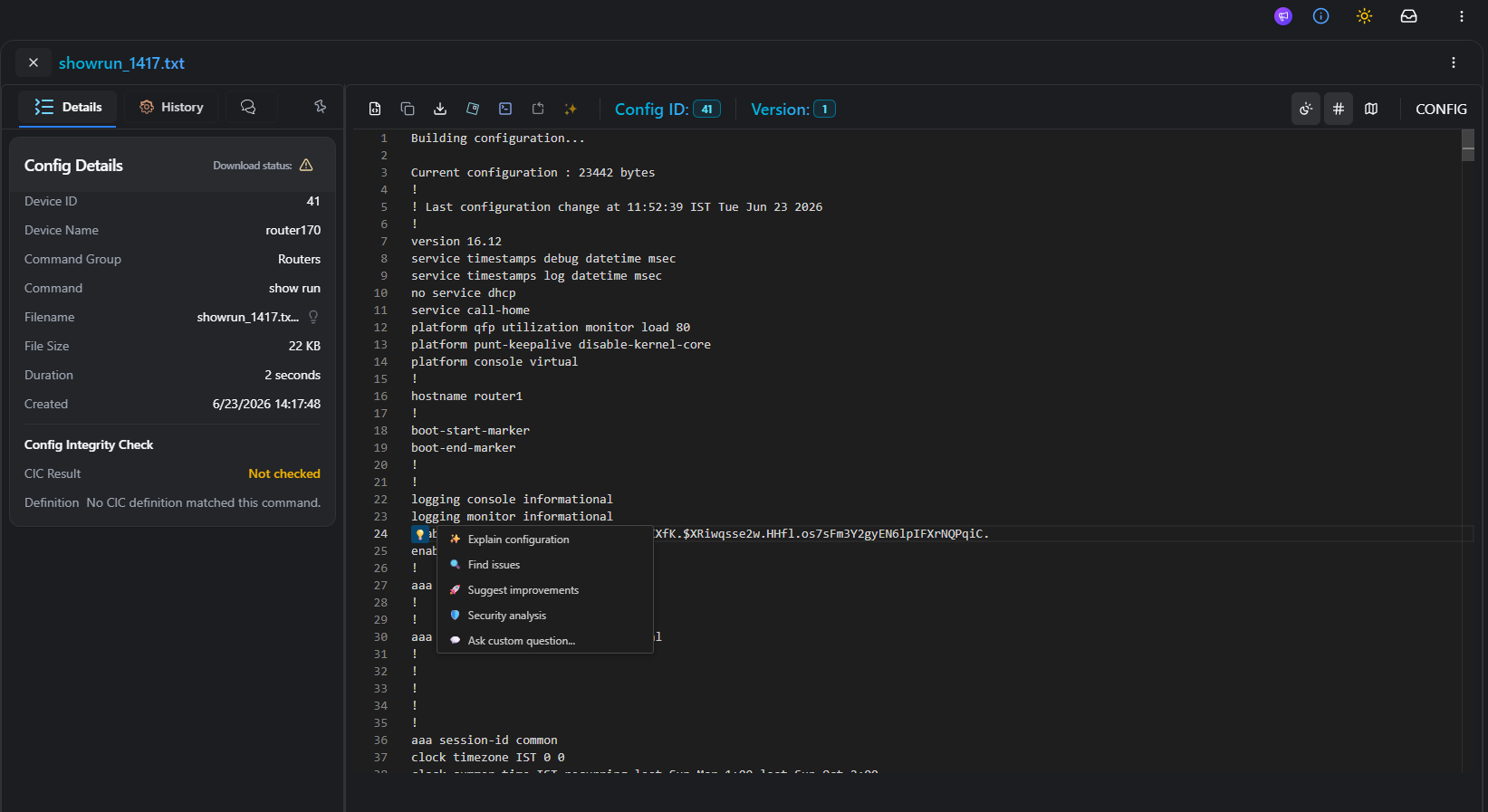
What gets sent to your provider
Section titled “What gets sent to your provider”The first message in a conversation includes the device config itself (sent in full when it’s under roughly 100 KB; for larger configs, rConfig extracts and sends only the most relevant sections) along with a config metadata fingerprint. Follow-up messages in the same conversation send only your new message. The config isn’t re-sent every turn. See Governance, audit & privacy for the full data-handling breakdown across all four capabilities.