

How to use AI Policy & Compliance Narration in rConfig V8
How to use Policy & Compliance Narration and AI rule generation in rConfig V8
Section titled “How to use Policy & Compliance Narration and AI rule generation in rConfig V8”After reading this page, you can generate a plain-English narration of a policy compliance result and draft new compliance rules with AI, and you’ll understand exactly why this is the one capability allowed to write anywhere at all.
When to use this
Section titled “When to use this”Use compliance narration when a policy compliance result shows a pass or fail and you want a plain-English explanation for a report or a handoff. Use AI rule generation when you’re starting a new policy definition from scratch and want a CIS/NIST-style first draft instead of writing rules line by line.
Prerequisites
Section titled “Prerequisites”- An active AI provider (see Set up an AI provider)
- Policy & Compliance Narration turned on in AI Configuration. This single toggle covers both narration and rule generation
- Permission to view compliance results, and permission to create policy definitions for the rule-generation flow
Why this capability is the one write exception
Section titled “Why this capability is the one write exception”Every other AI capability in rConfig is strictly read-only. AI-assisted rule generation is the deliberate exception: the AI drafts policy definition text, but that text only ever lands in rConfig’s own policy definition editor. It’s written to the policy store only after you review it and click Save. The AI never writes directly to the store, and nothing here ever reaches a device or the live network.
Narrating a compliance result
Section titled “Narrating a compliance result”1. Open a policy compliance result
Section titled “1. Open a policy compliance result”Navigate to a policy compliance result for a device.
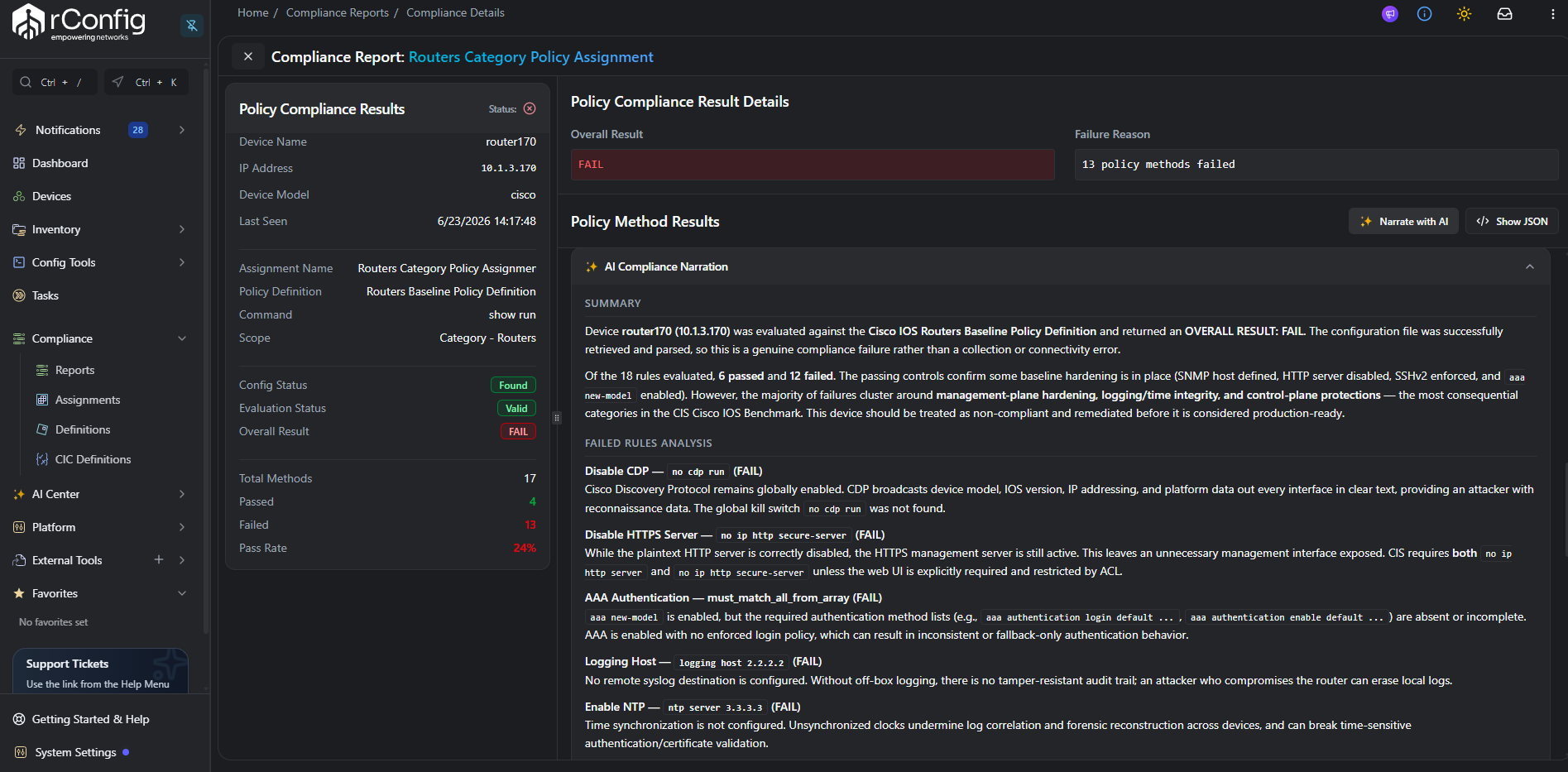
2. Click Narrate with AI
Section titled “2. Click Narrate with AI”Click Narrate with AI in the result detail panel. The button label changes to Analyzing… while the request is in flight. If the capability is turned off, the button doesn’t appear.
3. Read the result
Section titled “3. Read the result”The narration appears in a card titled AI Compliance Narration, explaining the overall result and the reasoning behind individual rule outcomes.
Compliance narration sends the device name, policy name, overall result (pass/fail), the stated reason, and per-rule results to your provider. It never sends configuration text.
Generating policy rules with AI
Section titled “Generating policy rules with AI”1. Open the policy definition editor
Section titled “1. Open the policy definition editor”Navigate to Policy Definitions and create a new definition, or open the policy definition editor for one you’re drafting.
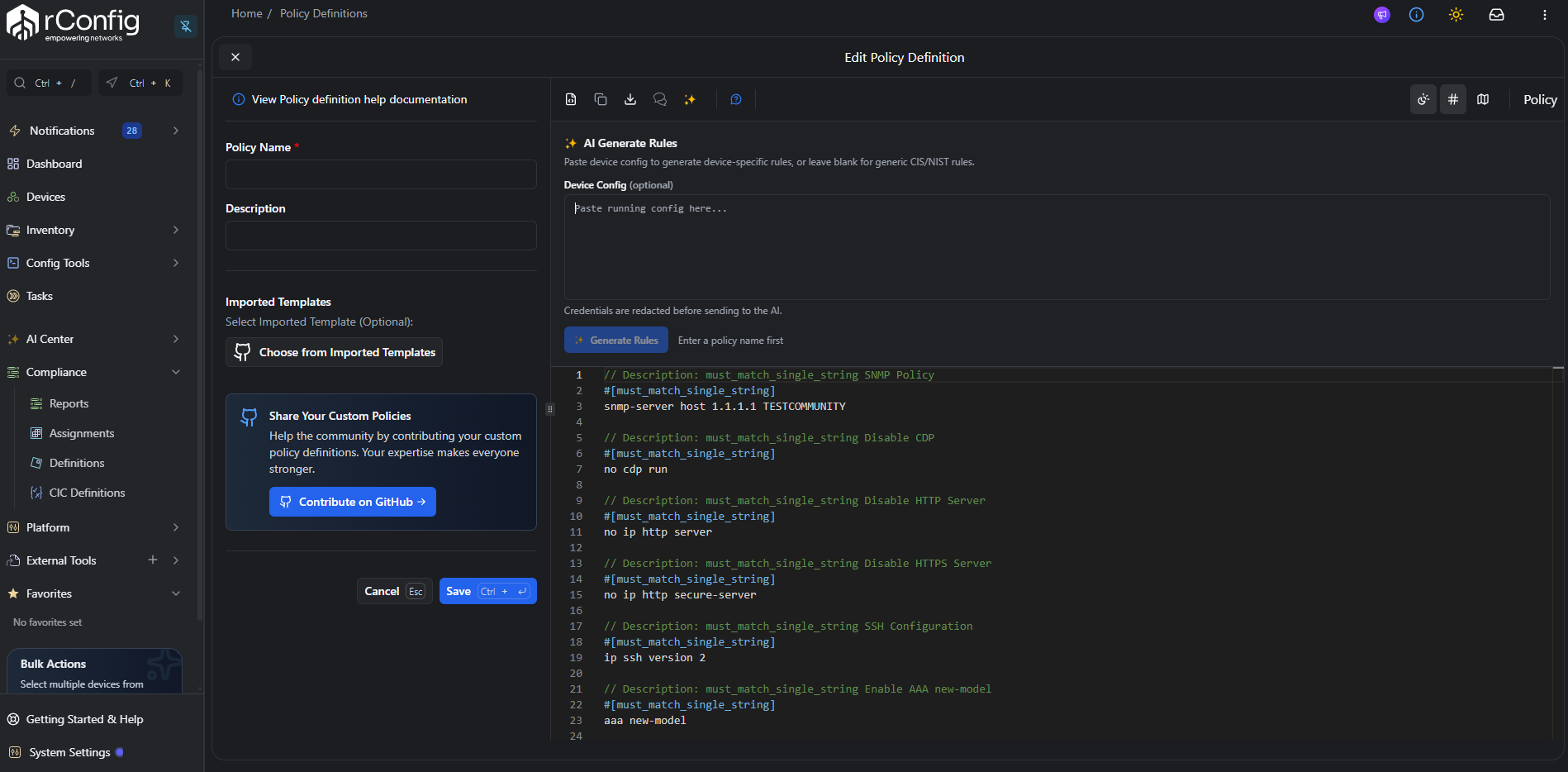
2. Click AI Generate Rules
Section titled “2. Click AI Generate Rules”Click the AI Generate Rules icon in the editor toolbar. A panel titled AI Generate Rules opens with the prompt: “Paste device config to generate device-specific rules, or leave blank for generic CIS/NIST rules.”
3. Optionally paste a reference config
Section titled “3. Optionally paste a reference config”Paste a device’s running configuration into the box to ground the generated rules in that config (up to 8 KB of it is sent to the provider). Leave it blank to generate generic CIS/NIST-style rules instead.
4. Click Generate Rules
Section titled “4. Click Generate Rules”Click Generate Rules (the button label changes to Generating… while in progress).
5. Confirm before it replaces your editor content
Section titled “5. Confirm before it replaces your editor content”Because the result replaces whatever is currently in the editor, rConfig asks you to confirm first: “The current editor content will be replaced with the AI-generated rules. Any unsaved changes will be lost.” Confirm to accept the AI draft into the editor.
6. Review and save
Section titled “6. Review and save”The generated rules land in the editor as a draft, not a saved definition. Review and edit them like any hand-written policy definition, then save as normal. Nothing is written to the policy store until you do.