

How to configure AI capabilities and context in rConfig V8
How to configure AI capabilities and context in rConfig V8
Section titled “How to configure AI capabilities and context in rConfig V8”After reading this page, you can explain how rConfig grounds AI responses in real context instead of generic model knowledge, and turn individual AI capabilities on or off.
When to use this
Section titled “When to use this”Use this page when deciding which AI capabilities your team should have access to, or when you need to turn a specific capability off, for example while evaluating a new provider, or in response to a support or compliance concern.
Prerequisites
Section titled “Prerequisites”- Admin role: the AI Configuration tab is hidden from non-admin users
- An active AI provider (see Set up an AI provider): capabilities can be toggled without one, but won’t produce a response until a provider is active
How rConfig grounds AI responses
Section titled “How rConfig grounds AI responses”A general-purpose model doesn’t know your naming conventions, your golden configs, or how rConfig itself works. rConfig closes that gap with two separate grounding mechanisms, used by different capabilities:
The context harness for config-work capabilities
Section titled “The context harness for config-work capabilities”Config Analysis, Drift Detection Narration, and Policy & Compliance Narration are grounded in the context harness: a layer of curated networking domain knowledge, composed with per-capability context assembly before the request reaches the model. This is what turns a general model into one that reasons like a network engineer familiar with your environment, rather than one guessing from generic training data.
The knowledge layer for product-knowledge capabilities
Section titled “The knowledge layer for product-knowledge capabilities”The Optimization Assistant is grounded differently. It doesn’t need networking domain knowledge. It needs to know how rConfig itself works. Its answers are retrieved per turn from an indexed copy of docs.rconfig.com content, pulling only the fragments relevant to your question rather than the whole site. This keeps it accurate even against a small local model with a limited context window.
The four capabilities
Section titled “The four capabilities”| Capability | What it does | Grounded by |
|---|---|---|
| Config Analysis & Explain | Plain-English summaries of device configurations | Context harness |
| Drift Detection & Narration | Detects and narrates configuration drift between versions, read-only | Context harness |
| Policy & Compliance Narration | AI-assisted compliance rule creation backed by CIS/NIST benchmark parsing; writes to the policy store only | Context harness |
| Optimization Assistant | Doc-grounded chat on the System Optimization settings page | Knowledge layer |
Step-by-step walkthrough
Section titled “Step-by-step walkthrough”1. Open AI Configuration
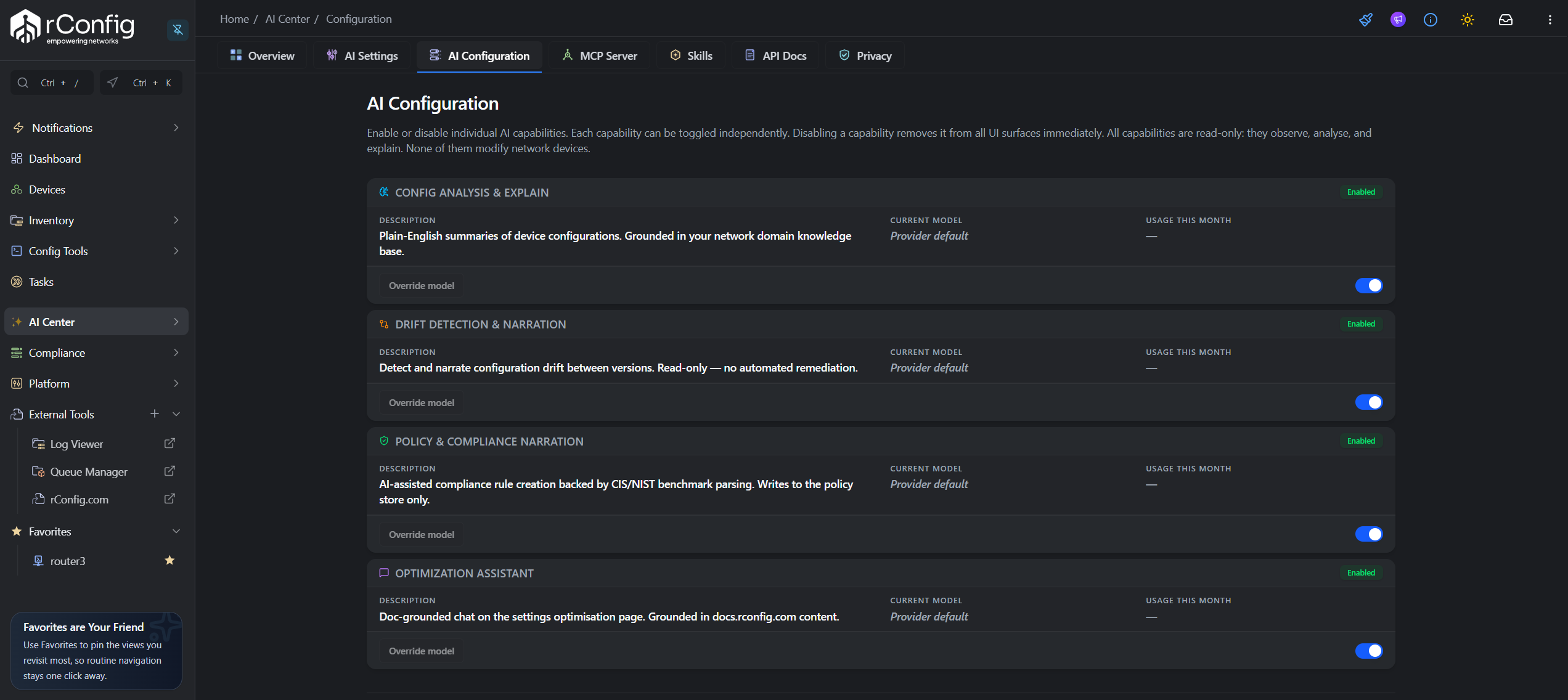
Section titled “1. Open AI Configuration”- Click AI Center in the left sidebar.
- Select the AI Configuration tab.
2. Turn a capability on or off
Section titled “2. Turn a capability on or off”Each capability is shown as a card. Alongside the enable/disable toggle, the card lists the capability’s description, its Current model (shown as “Provider default”), and Usage this month. Click the toggle to enable or disable the capability.
3. Confirm the change
Section titled “3. Confirm the change”The toggle updates immediately; there’s no separate save step for capability state.