

RADIUS Authentication - rConfig V8
RADIUS Authentication
Section titled “RADIUS Authentication”After reading this page, you can configure rConfig to authenticate users against one or more RADIUS servers such as Cisco ISE, test that configuration before enabling it, and understand what happens to sign-in when those servers stop answering.
When to use this
Section titled “When to use this”Use RADIUS when your organisation already authenticates network staff through a RADIUS server and you want rConfig to use the same credentials. If your directory is Active Directory or FreeIPA and you want rConfig to talk to it directly, use LDAP integration instead.
RADIUS and LDAP can both be enabled at once, though there is rarely a reason to. See Authentication order for what happens when they are.
Prerequisites
Section titled “Prerequisites”- A RADIUS server reachable from the rConfig server on UDP (port 1812 by default)
- The rConfig server registered on that RADIUS server as a network device, with a shared secret
- An authorisation policy on the RADIUS server that returns Access-Accept only for the users who should reach rConfig
- An rConfig administrator account with a local password, for the reason in the caution below
How authentication works
Section titled “How authentication works”When a user signs in, rConfig sends an Access-Request to the first server in your list and waits for an answer.
- Access-Accept. The user is authenticated. If this is their first sign-in, rConfig creates a local account for them and assigns the default role you chose.
- Access-Reject. The credentials were wrong, or your authorisation policy refused them. rConfig does not try the next server, because the server already answered. Sign-in falls through to local password authentication.
- No answer. The server timed out, refused the connection, or the shared secret did not match. rConfig retries according to your retry setting, then moves to the next server in the list.
If no server answers, rConfig falls through to local password authentication. This is what keeps administrators with a local password able to sign in during a RADIUS outage.
Authentication order
Section titled “Authentication order”rConfig tries LDAP first, then RADIUS, then local passwords. Enabling RADIUS changes nothing for an existing LDAP install.
The practical consequence of enabling both: a failed sign-in waits for LDAP to give up, then waits for RADIUS to give up, before the local password is checked. With default timeouts that is roughly 27 seconds. The RADIUS pane shows its own worst case underneath Retries per server so you can see what you are choosing.
Configuring RADIUS
Section titled “Configuring RADIUS”Navigate to Settings → Security & Access → RADIUS Setup.
Switch on Enable RADIUS to reveal the configuration fields. Nothing is sent to your servers until you save or run a connection test.
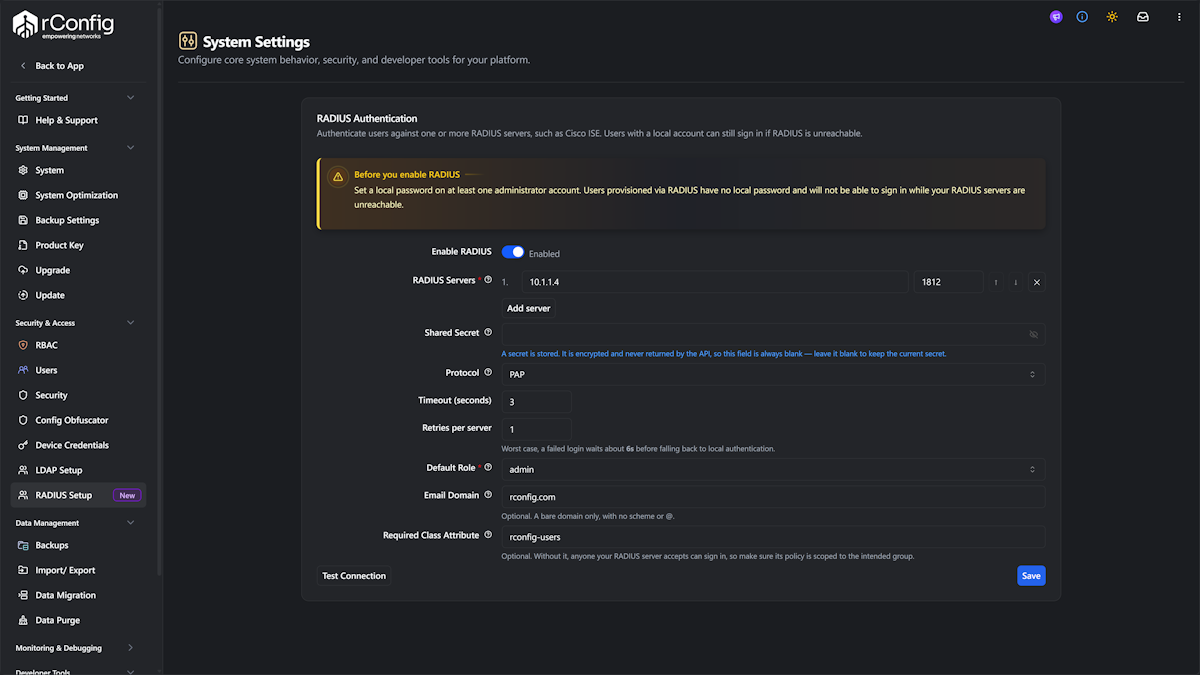
RADIUS Servers
Section titled “RADIUS Servers”Add one row per server, each with a host name or IP address and a port. Port 1812 is the RFC standard. Some older Cisco equipment uses 1645.
Servers are tried strictly in the order shown, top first. Use the arrows to reorder them. A server is only skipped if it fails to answer. A rejection is a real answer, so it stops the sequence rather than moving to the next server.
Shared Secret
Section titled “Shared Secret”The secret configured for this rConfig server as a network device on your RADIUS server. It is stored encrypted.
Once saved, the secret is never sent back to the browser. The field is always blank when you return to the page even though a secret is stored, and the note under the field tells you which state you are in. Leave it blank to keep the current secret. Type a new value only when you want to replace it.
Protocol
Section titled “Protocol”| Protocol | Notes |
|---|---|
| PAP | The default. Verified end to end against Cisco ISE. |
| MS-CHAPv2 | Challenge-response. Your RADIUS server must be configured to accept it. |
| EAP-MS-CHAPv2 | Multi-round EAP exchange. Your RADIUS server must be configured to accept it. |
Start with PAP unless you have a specific reason not to. If you switch protocol, run a connection test with real credentials before saving.
Timeout and retries
Section titled “Timeout and retries”Timeout (seconds) is how long rConfig waits for one server to answer. Retries per server is how many extra attempts it makes against a server that stayed silent.
These bound how long a failed sign-in takes. The worst case is timeout x (retries + 1) x number of servers, and the pane shows the current figure. Retries apply only to silence. A rejection is never retried, because repeating it would add failed attempts against the user’s account on your RADIUS server.
Default Role
Section titled “Default Role”The rConfig role given to users the first time they sign in through RADIUS. Only active roles appear in this list.
rConfig roles are managed in rConfig, not by your RADIUS server. RADIUS decides who may sign in. Your rConfig roles decide what they can do once they are in. To change an individual user’s role afterwards, edit them under Users.
Email Domain
Section titled “Email Domain”RADIUS gives rConfig a username, but every rConfig user needs a unique email address. This field supplies the domain half.
- Set it to something like
example.comand a user calledadm_stabarzgetsadm_stabarz@example.com. - Leave it blank and they get
adm_stabarz@radius.invalid. That address can never receive mail, so rConfig switches notifications off for those accounts rather than sending into a black hole.
Enter a bare domain. No scheme, no @, no path.
Required Class Attribute
Section titled “Required Class Attribute”Optional, and blank by default. Leave it blank and rConfig trusts your RADIUS server: anyone it accepts can sign in.
Set it and an accepted sign-in must also carry a matching Class (25) or Filter-Id (11) attribute from your server’s authorisation profile, or rConfig refuses the sign-in. This is a second lock for the case where your authorisation policy is broader than you intended.
You do not have to guess the value. Run Test Connection with real credentials and rConfig shows you the Class and Filter-Id values your server actually returned, ready to copy into this field.
Cisco ISE returns a Class beginning CACS: for accounting session correlation on top of anything your authorisation profile sets. That one changes on every session, so it is not the value you want. Pick the stable one.
Testing before you enable
Section titled “Testing before you enable”Test Connection checks the configuration currently on screen, saved or not, so you can validate before committing.
With no credentials filled in, rConfig sends a throwaway username. A rejection is a successful test. RADIUS has no anonymous check, and the reply is signed with your shared secret, so any reply that rConfig can read proves two things at once: the server is reachable, and the secret matches.
Supply a username and password in the test and rConfig reports whether that user was accepted, plus the attributes the server returned.
Testing from the command line
Section titled “Testing from the command line”# Reachability and shared secret onlyphp artisan rconfig:radius-check
# Test a real login, with per-server detail and returned attributesphp artisan rconfig:radius-check --username=adm_stabarz -vThe command exits 0 if at least one server answered and 1 if none did, so it works in a monitoring script. It never prints the shared secret. See CLI commands for the wider command set.
How user accounts are created
Section titled “How user accounts are created”The first time someone signs in through RADIUS, rConfig creates a local account for them with the default role, a name and username taken from the RADIUS username, and a generated email address.
Those accounts have no usable local password, and rConfig never stores the one your RADIUS server checked.
Linking an account that already exists
Section titled “Linking an account that already exists”An account created in rConfig before RADIUS was enabled is not picked up automatically, even if the username matches. That is deliberate. Matching on username alone would let anyone who can authenticate to your RADIUS server take over an existing rConfig administrator account with the same name.
To let an existing account sign in through RADIUS, switch on RADIUS for that user under Settings → Security & Access → Users. Linking changes nothing else about the account. It keeps its password, its roles, and its email address, so a linked administrator keeps working as a break-glass account.
What is not supported
Section titled “What is not supported”- Multi-factor authentication. rConfig treats an Access-Challenge as a failed sign-in and logs it clearly. Username and password only.
- RADIUS accounting. Authentication only. rConfig sends no accounting packets.
- RadSec. RADIUS over TLS is not supported. Traffic uses standard UDP.
- Roles from RADIUS. rConfig does not read roles or group membership from RADIUS attributes. Roles are assigned in rConfig.
Troubleshooting
Section titled “Troubleshooting”No RADIUS server responded
Section titled “No RADIUS server responded”Work through these in order. The first three cover most cases.
- Address and port. Confirm each server’s address, and whether it expects 1812 or 1645.
- Shared secret. A wrong secret looks identical to a dead server, because the reply fails its signature check and rConfig discards it. Re-enter the secret and test again.
- Network device registration. The rConfig server must be registered as a network device (a NAD, in Cisco ISE terms) on the RADIUS server, using the source IP that rConfig actually sends from. A server that does not recognise the client stays silent rather than replying.
- Firewall. Check UDP is open in both directions between rConfig and the server.
Run php artisan rconfig:radius-check -v from the rConfig server to see per-server timing and error detail.
The server responded but rejected the credentials
Section titled “The server responded but rejected the credentials”The connection is working. This is an authentication or authorisation result, not a configuration fault.
Check the user against your RADIUS server’s own logs. Common causes are a wrong password, the user not being in the group your authorisation policy allows, or the policy not matching because the request came from the rConfig network device rather than the one the rule expects.
A user signs in but cannot see anything
Section titled “A user signs in but cannot see anything”They authenticated, so RADIUS is fine. Their rConfig role is the issue.
Check the Default Role on the RADIUS pane, and check the user’s assigned role under Users. Role permissions are managed under Roles.
Sign-in became slow after enabling RADIUS
Section titled “Sign-in became slow after enabling RADIUS”A failed sign-in waits for every configured server before falling through to the local password. Reduce Timeout (seconds), reduce Retries per server, or remove servers that are no longer live. The pane shows the resulting worst case as you change the values.
If LDAP is also enabled, both are tried before local. Disable whichever you are not using.
Sign-in is refused with a “too many attempts” message
Section titled “Sign-in is refused with a “too many attempts” message”rConfig rate-limits sign-in after five failed attempts for the same username and address, and the limit applies before anything reaches your RADIUS server. Wait a minute and try again.
An accepted user is refused with a Class attribute message
Section titled “An accepted user is refused with a Class attribute message”Required Class Attribute is set and the value your server returned does not match it. The comparison is exact and case-sensitive.
Run Test Connection with that user’s credentials to see the values your server actually sends, and copy the correct one into the field. Remember that the CACS: prefixed value changes every session and is not the one to use. To remove the check entirely, clear the field.
Related documentation
Section titled “Related documentation”- LDAP integration for authenticating against Active Directory or FreeIPA instead
- Users for linking existing accounts to RADIUS and changing individual roles
- Roles for what each role can do once a user is signed in