

Map LDAP and AD groups to rConfig roles
Map LDAP and AD groups to rConfig roles
Section titled “Map LDAP and AD groups to rConfig roles”From V8.4.0, rConfig can set each LDAP user’s roles from their Active Directory or FreeIPA groups every time they sign in. After reading this page you can map directory groups to roles, choose a default role for everyone else, and switch it on without locking out your admins.
When to use this
Section titled “When to use this”Use role mapping when your directory team already manages who belongs where, and you want rConfig access to follow those groups instead of being set by hand in Users. Add someone to NetOps-Admins in Active Directory and they get the role you mapped to that group at their next sign-in. Take them out and the role goes at the sign-in after that.
Leave it off if you prefer to assign every LDAP user’s role yourself. Local, RADIUS and SSO logins are not affected either way.
Prerequisites
Section titled “Prerequisites”- LDAP sign-in already working, as described in LDAP Integration.
- The admin role, or a role with the LDAP Update permission that is at least as privileged as the default role you plan to choose.
- A local-password admin account that you have signed in with recently. This is your way back in if mapping is misconfigured.
How does rConfig decide a user’s roles?
Section titled “How does rConfig decide a user’s roles?”On every successful LDAP sign-in, after the password check and the LDAP Authorized Group check, rConfig:
- Looks up every group the user belongs to, including nested groups. A user in
Tier2, whereTier2is itself a member ofNetOps-Admins, counts as a member of both.- Active Directory: one directory search using the in-chain matching rule (
member:1.2.840.113556.1.4.1941:=<user DN>) under your Base DN. - FreeIPA: the user’s
memberOfvalues, which FreeIPA already expands for nested groups. Only entries undercn=groups,cn=accountscount, so FreeIPA roles, HBAC rules and sudo rules are ignored.
- Active Directory: one directory search using the in-chain matching rule (
- Compares each group with the LDAP Groups list on every active role.
- Replaces the user’s roles with every role that matched. Several matching groups give several roles.
- Gives the user the Default Role if nothing matched.
If the directory lookup itself fails, the LDAP sign-in fails and the user keeps the roles they already had. rConfig then falls back to RADIUS or local sign-in, as it does for any LDAP failure.
There is no matching on role names. A group called Admin or Users grants nothing unless it is listed in a role’s LDAP Groups, so the built-in Active Directory groups Users and Guests can never hand out the user or guest role by accident. This differs from SAML role mapping, which falls back to the role name.
Group name or full path?
Section titled “Group name or full path?”Each entry in a role’s LDAP Groups can be a plain group name or the group’s full path (its distinguished name). They match differently:
| Entry | Example | Matches |
|---|---|---|
| Group name | NetOps-Admins | Any group with that name, in any OU. Case-insensitive. |
| Full path (DN) | CN=NetOps-Admins,OU=Privileged,DC=corp,DC=local | Only that exact group. Case and spaces after commas are ignored. |
Each LDAP group can map to only one active role. Saving a role with a group another active role already uses is refused with LDAP group already maps to the role "<role name>". LDAP Groups and SSO Groups are separate lists, so the same name can appear in both without conflict.
How to turn on LDAP role mapping
Section titled “How to turn on LDAP role mapping”-
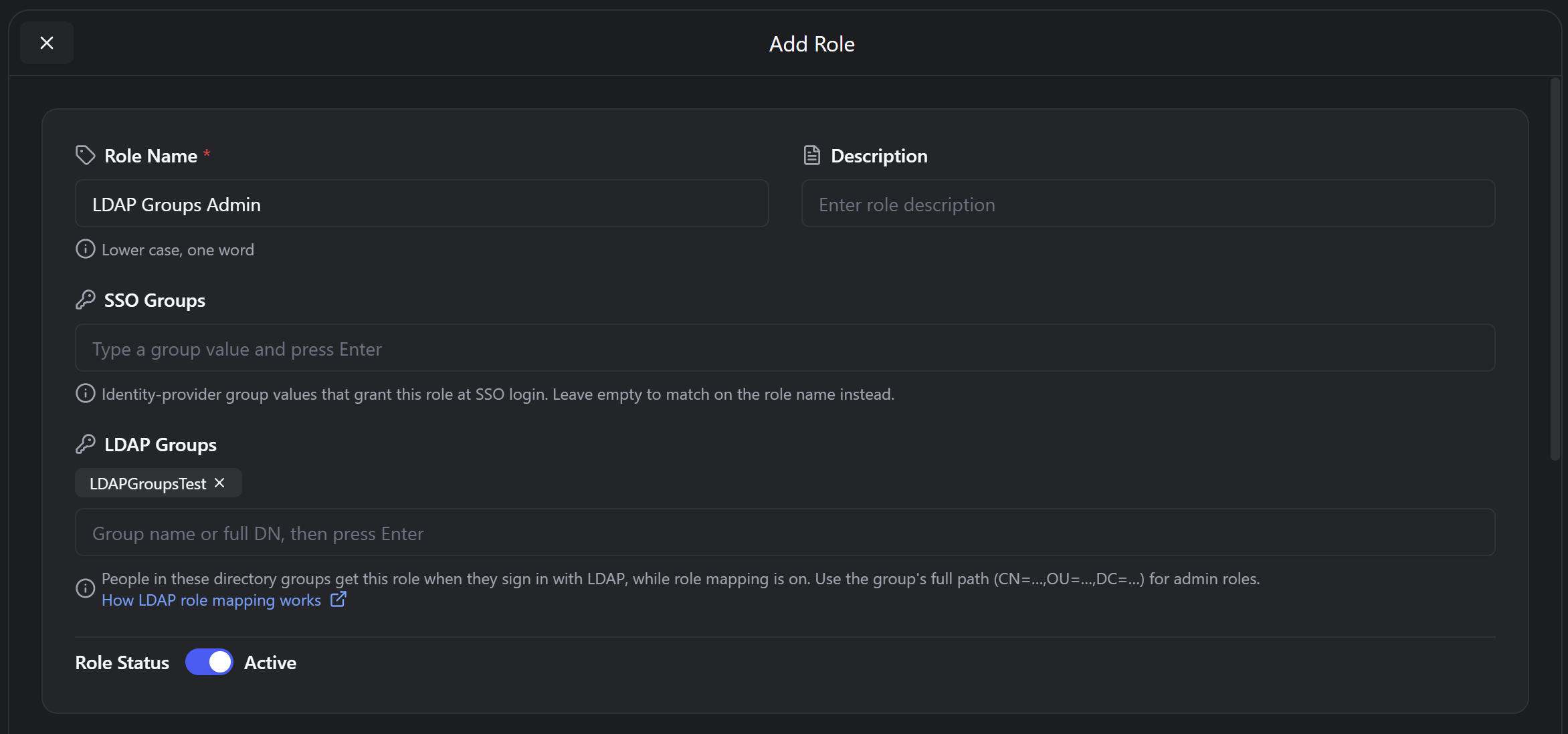
Click Settings › RBAC and edit the admin role.
-
Type your admin group’s full path into LDAP Groups and press Enter, then click Save.
-
Repeat for every other role you want mapped, using a group name or full path for each.
-
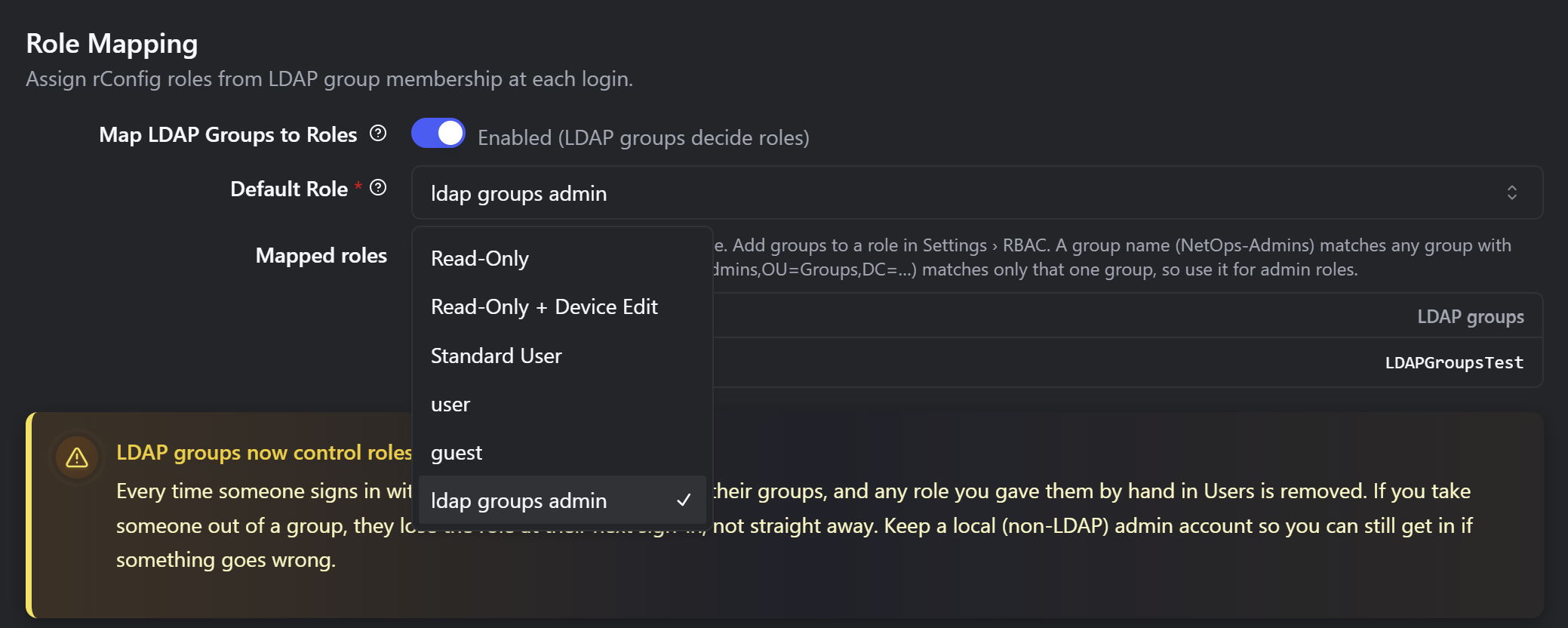
Click System Settings › LDAP Setup and scroll to Role Mapping.
-
Turn on Map LDAP Groups to Roles.
-
Select a Default Role for users whose groups match no role. A read-only role such as Read-Only is a sensible choice.
-
Check the Mapped roles table lists your admin role and its group.
-
Click Save, then click Enable and save in the confirmation dialog.
-
Sign in as a test LDAP user from the admin group in a private browser window, then confirm their roles in Users.
Saving is refused, with the reason shown under the field, when:
| Message | Fix |
|---|---|
Map an LDAP group to at least one active admin-level role before enabling role mapping, or every LDAP admin loses admin access at their next login. | Add a group to the admin role first (steps 1 and 2). |
Choose a default role for LDAP users whose groups match no role. | Select a Default Role. |
The selected default role is inactive, so unmatched LDAP users would have no permissions. | Activate the role in Settings › RBAC, or pick another. |
The default role cannot be an admin-level role, as every unmatched LDAP user would become an admin. | Pick a less privileged role. |
You cannot set a default role with more privilege than your own. | Pick a role at or below your own level, or ask an admin. |
While a role is the LDAP or RADIUS default role, it cannot be deleted or deactivated. Choose a different default role first.
How do I turn it off again?
Section titled “How do I turn it off again?”Switch off Map LDAP Groups to Roles in Settings › LDAP Setup and click Save. Users keep the roles they had at their last sign-in, and you manage them by hand in Users from then on. If you are locked out, sign in with your local admin account to do this.
Where are role changes logged?
Section titled “Where are role changes logged?”Each sign-in that changes a user’s roles writes one entry to the Application Log, with event type auth. The entry lists the roles before and after, whether they came from group mapping or the default role, and a trace of each group and the role it matched. Sign-ins that leave roles unchanged write nothing. Search the log for roles changed from when someone reports missing access.
Turning mapping on or off is also logged, with the email of the admin who changed it.
Troubleshooting
Section titled “Troubleshooting”Why did a user get the default role instead of the mapped one?
Section titled “Why did a user get the default role instead of the mapped one?”- Find the
roles changed fromentry for their sign-in and read the trace. Every group DN is listed with the role it matched, or none. - If the group is missing from the trace, check that it sits under the Base DN and is not the user’s primary group.
- If the group is listed but matched nothing, compare it with the role’s LDAP Groups. A full-path entry must match the whole DN, not just the name.
Why do roles I assign in Users keep disappearing?
Section titled “Why do roles I assign in Users keep disappearing?”That is expected with mapping on. Add the user to the right group in the directory instead.
Why can’t I delete or deactivate a role?
Section titled “Why can’t I delete or deactivate a role?”It is the LDAP or RADIUS default role. Pick a different Default Role in Settings › LDAP Setup (or the RADIUS default in Settings › RADIUS Setup), save, then try again.