

Web Terminal
Web Terminal
Section titled “Web Terminal”From V8.4.2, the web terminal lets you open an interactive SSH session to a device straight from its device page. rConfig logs in with the device’s stored credentials, so you land at the device prompt without looking up a password. Every session start and end goes to the activity log, and sessions can be recorded for audit.
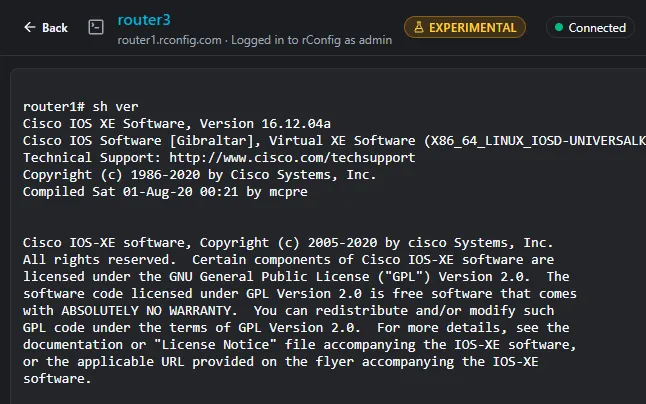 Connect to a device using the web terminal.
A backup failed overnight and you want to see what the device is doing? Open the device in rConfig, click the terminal button, and you’re at its prompt in a few seconds. You don’t need a jump host, a local SSH client, or the device password from a vault. Your engineers keep working in the tool that already holds the device inventory, credentials and history. You decide who can do it, and you can see afterwards exactly what they typed.
How it works
Section titled “How it works”A browser terminal that logs in to network devices has to keep credentials safe. It also has to fit into the server you already run. The web terminal does both: it reuses your existing Apache and HTTPS setup, and the device password never leaves the rConfig server.
graph LR
    A[Browser<br/>terminal tab] -->|wss:// /terminal/ws| B[Apache<br/>existing HTTPS]
    B -->|proxy to localhost| C[Terminal gateway<br/>127.0.0.1 only]
    C -->|one process<br/>per session| D[Session process<br/>loads credentials]
    D -->|SSH| E[Device]
- You click the terminal button on a device. rConfig checks your access and hands the browser a single-use token that expires after 30 seconds.
- The browser opens a WebSocket to
/terminal/wson your normal rConfig address. Your existing web server proxies it to the gateway, which only listens on127.0.0.1. You don’t need new ports, certificates or hostnames. - The gateway starts a separate session process for each terminal. That process loads the device’s credentials and connects over SSH with the same engine rConfig uses for backups.
Credentials never reach the browser or the gateway. Keystrokes and device output are never written to the application logs. They are only stored in a session recording, when recording is on.
Before you start
Section titled “Before you start”- rConfig V8.4.2 or later, installed on a server (not Docker, see Beta limits).
- Root access to the rConfig server to run setup.
- The PHP
pcntlandposixextensions, and a reachable Redis server. - Apache serving rConfig.
- Devices that connect over SSH.
Set up the web terminal
Section titled “Set up the web terminal”The terminal ships switched off. Nothing is reachable and no button appears until an admin turns it on on purpose. A single command does the whole job: it checks the server, installs the gateway, wires up Apache and turns the terminal on. You don’t need to edit config files by hand or open firewall ports.
Run the setup command as root on the rConfig server:
sudo php artisan rconfig:web-terminal setupSetup checks the server first and changes nothing if a check fails. It then:
- Shows the beta notice and asks you to accept the rConfig Web Terminal Addendum, the terms that cover the web terminal. For a plain-language summary first, read What Engineers Need to Know.
- Asks whether to record sessions, and whether users may turn recording off for their own sessions.
- Installs and starts the
rconfig-terminal-gatewaysystemd service, running as the web server user. - Adds the
/terminal/wsWebSocket proxy to the Apache vhost that serves rConfig, and loadsmod_proxy_wstunnelif needed. - Tests the WebSocket path and turns the terminal on.
If any step fails, setup puts back every change it made. See screenshot below for correct behavior.
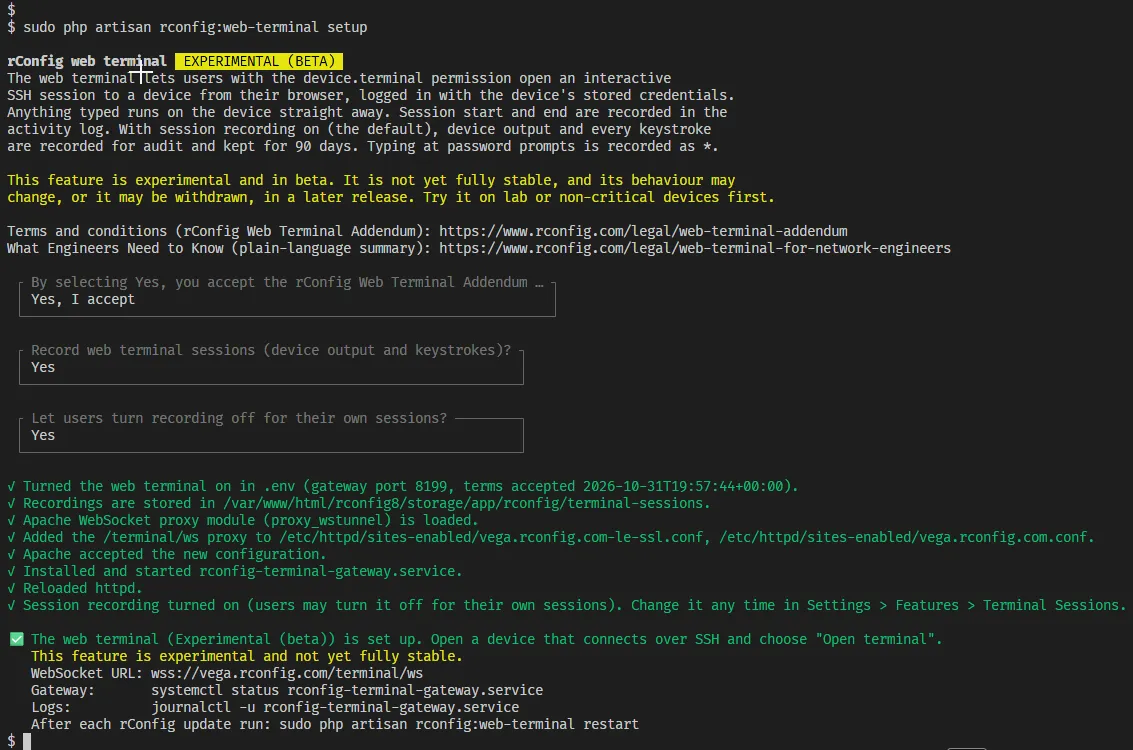 Remote web terminal setup screenshot showing the setup process and options.
Setup options
Section titled “Setup options”Run setup with no options and it asks you each question. Options are for when you already know the answers, for example when you build servers from a script or set up several rConfig installs the same way.
| Option | What it does |
|---|---|
--port=8199 | Loopback port for the gateway. The default is 8099. Use this when another program already holds that port. |
--accept-terms | Accept the terms without being asked, for scripted installs. Recording keeps its defaults unless you pass the flags below. |
--recording=on or --recording=off | Turn session recording on (the default) or off. |
--enforce-recording | Record every session. Users cannot turn it off. |
--allow-recording-opt-out | Let users turn recording off for their own sessions (the default). |
Apache proxy
Section titled “Apache proxy”The browser reaches the terminal through the same HTTPS address and certificate as the rest of rConfig. Apache passes the /terminal/ws path through to the gateway on the loopback interface, so the gateway is never exposed to the network. Setup adds this for you, and you shouldn’t need to touch it.
For reference, this is the block setup adds before </VirtualHost> in each vhost that serves rConfig. The port is yours, and the timeout is your maximum session length plus five minutes. Teardown removes the block and leaves the rest of the file as it was:
# BEGIN rconfig-terminal<IfModule proxy_wstunnel_module> ProxyPass /terminal/ws ws://127.0.0.1:8099/terminal/ws timeout=3900 ProxyPassReverse /terminal/ws ws://127.0.0.1:8099/terminal/ws</IfModule># END rconfig-terminalManage the gateway
Section titled “Manage the gateway”The gateway is a small background service that sits between the browsers and the device sessions. It runs under systemd like any other service on the server, so it starts at boot and restarts itself if it stops unexpectedly. Day to day you won’t need to think about it. When you do, one command covers the common jobs: checking health, restarting after an update, changing recording, or switching the terminal off entirely.
status is the first thing to run if users report the terminal won’t connect. It checks every piece in order (terminal on, terms accepted, gateway running, port listening, Apache proxy in place) and tells you which one is missing.
# Check the terminal, gateway, port and proxysudo php artisan rconfig:web-terminal status
# Restart the gateway. Open sessions are told the service is restarting.sudo php artisan rconfig:web-terminal restart
# Change session recording from the command linesudo php artisan rconfig:web-terminal recording
# Stop the gateway, remove the proxy and turn the terminal offsudo php artisan rconfig:web-terminal teardown
# Gateway service and logssystemctl status rconfig-terminal-gateway.servicejournalctl -u rconfig-terminal-gateway.service
Run the command without an action to choose from a menu.
A restart is safe while people are connected. Each open terminal shows a message saying the service is restarting, the session is closed cleanly, and its recording is saved before the gateway stops. Users click Reconnect to carry on. Teardown is the full off switch: it ends open sessions, stops the service and removes the Apache block, leaving the server as it was before setup. Existing recordings are kept.
Use the terminal
Section titled “Use the terminal”The terminal is built for the jobs network engineers do at a device prompt every day: checking state, running show commands, and making a quick fix. A few safeguards stop the common mistakes that happen when you work fast.
Open a device that connects over SSH and click the terminal button next to the device actions.
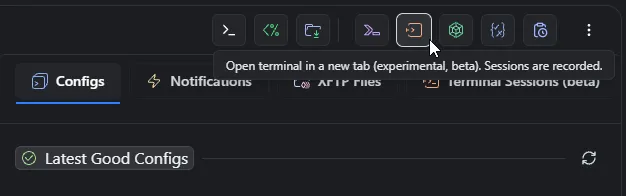 Remote web terminal screenshot showing the terminal button next to device actions.
The terminal opens in a new tab, already logged in. The button only shows when the terminal is on, you have access to the device, and the device uses SSH.
The header shows the device, its IP address, the user, and the connection status.
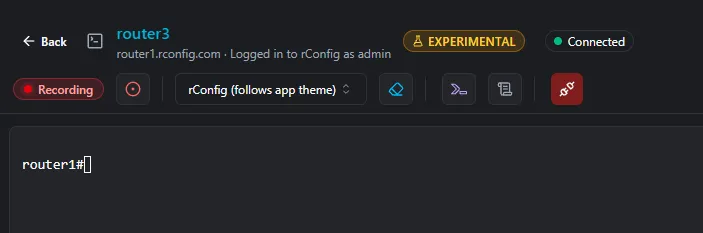 Web Terminal Actions Header Screenshot showing the device, IP address, user, and connection status.
From the header you can:
| Control | What it does |
|---|---|
| Back | Close the tab and go back to the device. |
| Snippets | Pick a snippet, edit it if you need to, and send it. rConfig always asks you to confirm first. |
| Paging | Turn device paging off or back on, using the paging commands from the device’s connection template. Hidden when the template has none. |
| Recording | Shows when the session is recorded. If recording isn’t enforced, you can stop recording your future sessions or start again. |
| Theme | Choose a terminal theme. The default follows rConfig’s light and dark mode. Your choice is saved for your user. |
| Clear | Clear the screen and scrollback. Nothing is sent to the device. |
| Disconnect / Reconnect | End the session, or start a new one after it ends. |
Pasting more than one line asks you to confirm first, because every pasted line runs on the device. That catches the classic slip of pasting a whole config block into the wrong window.
Long output such as show running-config scrolls in the terminal like any SSH client. If the device stops at a --More-- prompt, use Paging to turn paging off for the session.
Snippets in the terminal
Section titled “Snippets in the terminal”Snippets put your team’s approved command sets one click away, in the session where you need them. Engineers send the same tested block of commands every time, instead of retyping it from memory or copying it from a wiki.
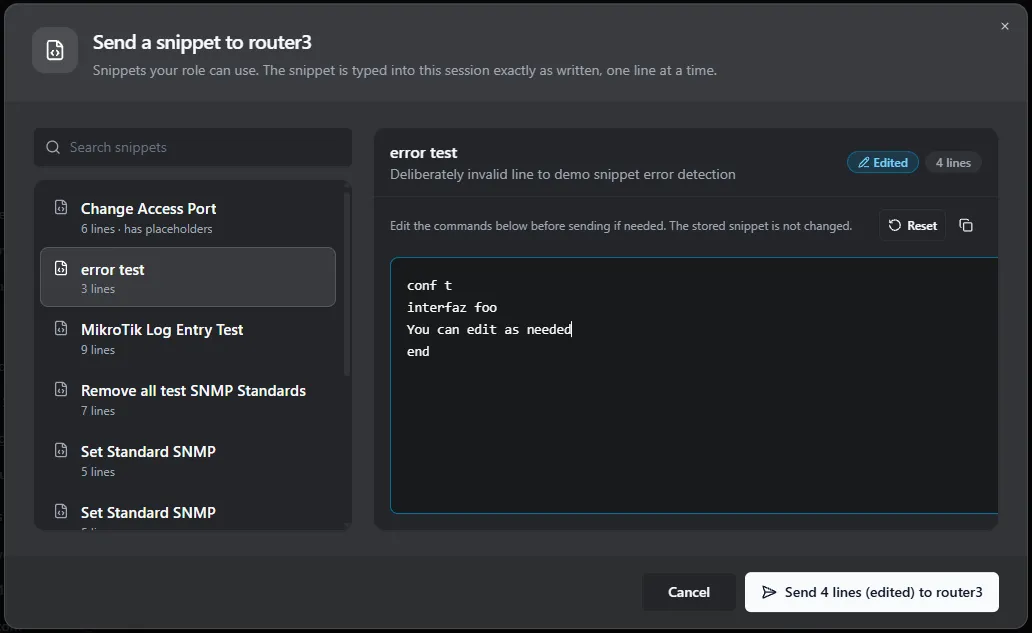 Web Terminal Snippets Picker Screenshot showing the available snippets for the user’s role.
The picker lists the snippets assigned to your role, and you need the snippet.view permission to see them. You can edit a snippet’s commands before sending, and reset back to the stored version. Placeholders are sent as written, so fill them in before you send. rConfig checks the snippet against your role again when you send it, so a snippet taken off your role after the picker loaded is refused.
When a session ends
Section titled “When a session ends”A session ends when you disconnect, when the device closes the connection, or when a limit is reached. It also ends within 30 seconds if your access is removed while you are connected, for example when your role loses device.terminal. Removing someone’s access takes effect on sessions that are already open, not only on new ones.
The reason shows in the terminal and in the device’s Terminal Sessions tab:
| Reason | Meaning |
|---|---|
| Closed by user | You clicked Disconnect or closed the tab. |
| Device closed the connection | You typed exit, or the device dropped the session. |
| Idle timeout | Nothing was typed for the idle timeout. Output from the device doesn’t count as activity. |
| Maximum duration | The session reached the maximum session length. |
| Terminal service restarted | An admin restarted the gateway, usually after an update. |
| Access removed | Your permission, role or device access was removed during the session. |
Terminal Sessions settings
Section titled “Terminal Sessions settings”Once the terminal is set up, you run it day to day from the rConfig UI, not the command line. The Terminal Sessions page puts everything in one place: is it working, how long can sessions last, what gets recorded, and who’s allowed in. Admins can answer an auditor’s questions, or tighten things up after an incident, without a shell on the server.
 Terminal Sessions Settings Screenshot showing the various cards for status, sessions, recording, and role access.
Go to Settings → Features → Terminal Sessions. Changes save automatically, and each card shows whether it is saved, saving or not saved.
| Card | What’s on it |
|---|---|
| Status | Whether the terminal is on, the beta label, when the terms were accepted (with links to the Addendum and What Engineers Need to Know), gateway state, the WebSocket address, recording retention, and the server commands. |
| Sessions | Session limits and timeouts. |
| Recording | Recording on or off, whether it is enforced, and the largest size a recording can reach. |
| Role access | Which roles can open the terminal and download recordings. |
Session limits
Section titled “Session limits”Each open terminal holds a live SSH session to a device and a process on the rConfig server. Limits keep that in check. A forgotten browser tab doesn’t sit logged in to a core router all weekend, one user can’t open dozens of sessions, and the server keeps capacity for backups and the rest of rConfig. The defaults suit most teams. Raise the totals for a large NOC, or shorten the timeouts if your security policy calls for it.
| Setting | Default | Range |
|---|---|---|
| Maximum open sessions (all users) | 10 | 1 to 500 |
| Maximum open sessions per user | 3 | 1 to 50 |
| Idle timeout (minutes) | 10 | 1 to 1440 |
| Maximum session length (minutes) | 60 | 1 to 1440 |
| Maximum recording size (MB) | 50 | 1 to 1024 |
The idle timeout can’t be longer than the maximum session length. New limits apply to sessions started after the change.
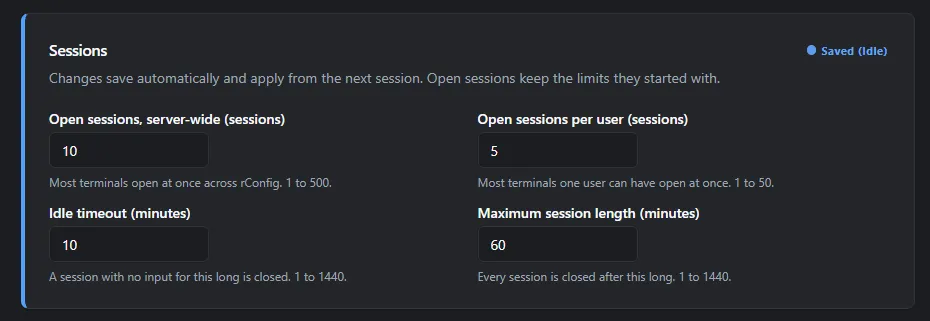 Terminal Sessions Limits Screenshot showing the session limits and timeouts settings.
Session recording
Section titled “Session recording”When a change goes wrong, the first question is “what was typed, and by whom?”. Session recording answers it. Configuration diffs show what changed on the device. A recording shows the whole session that led there: every command, every response, and the order they happened in. It’s also evidence for change reviews and compliance audits, and a teaching aid when you want to show a junior engineer how a fix was done.
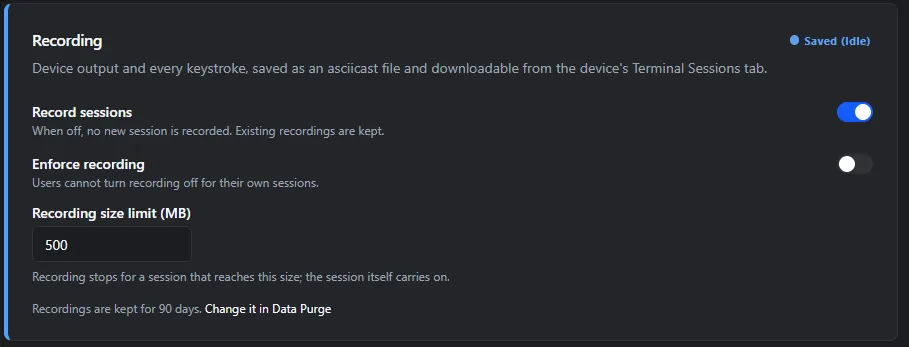 Web Terminal Recording Screenshot showing the session recording interface.
With recording on (the default), rConfig records device output and every keystroke for each session. Typing at a password, passphrase, secret or PIN prompt is recorded as *, so credentials typed during a session (an enable secret, for example) are not kept.
- Opt out or enforced: by default, users can turn recording off for their own sessions from the terminal header. Turn on Enforce recording to record every session with no way out.
- Size cap: when a recording reaches the maximum size, recording stops and the session carries on.
- Storage: recordings are compressed and saved on the rConfig server. They are encrypted on disk when file encryption is on.
- Retention: recordings are kept for 90 days. Change this with the
terminal_sessionsentry in Data Purge.
View and download recordings
Section titled “View and download recordings”Recordings live with the device they belong to, so a device’s history of who logged in and what they did sits alongside its configuration history. Recorded sessions show in the Terminal Sessions (beta) tab on the device page, with filters for user and date range. Each session shows who connected, when, for how long, and why it ended. You can download:
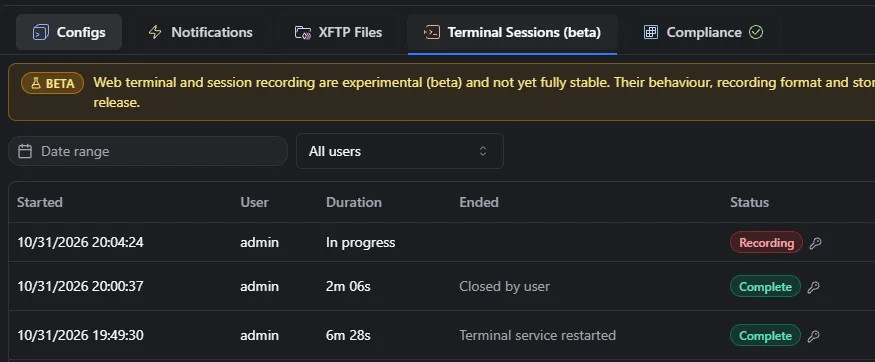 Web Terminal Recording List Screenshot showing the available recordings for a device.
- Transcript (.txt): readable text of the session. This is the safer file to share, because masking runs over the full output.
- Recording (.cast): the full session with timing, in asciicast v2 format, for replay.
Downloaded files are not encrypted, so store them with care.
Replay a recording
Section titled “Replay a recording”A transcript tells you what happened. A replay shows you how it happened: the pauses while someone read output, the command they started and deleted, the moment the prompt changed. When you’re reviewing an incident, watching the session at real speed often explains more than reading the log.
Install asciinema on the rConfig server, then replay a recording by the ID shown in the Terminal Sessions tab:
sudo dnf install -y epel-release && sudo dnf install -y asciinemasudo apt install -y asciinema# Replay recording 42 as it happenedcd /var/www/html/rconfig8 && php artisan rconfig:terminal-recording 42 --play
# Twice as fast, with long pauses cut to 2 secondscd /var/www/html/rconfig8 && php artisan rconfig:terminal-recording 42 --play --speed=2 --idle-limit=2--play writes a private plain copy, plays it, and deletes the copy afterwards, even if you stop playback with Ctrl+C. The help panel under the recordings table builds these commands for the selected session.
Role access
Section titled “Role access”Opening a shell on a production device is a privilege, not a default. The terminal plugs into rConfig’s existing role-based access, so you decide per role who can open one and who can watch recordings afterwards. For example, your senior engineers might get the terminal, your auditors might get recordings only, and your service desk might get neither. The two are separate on purpose: the people who review sessions don’t need to be able to run them.
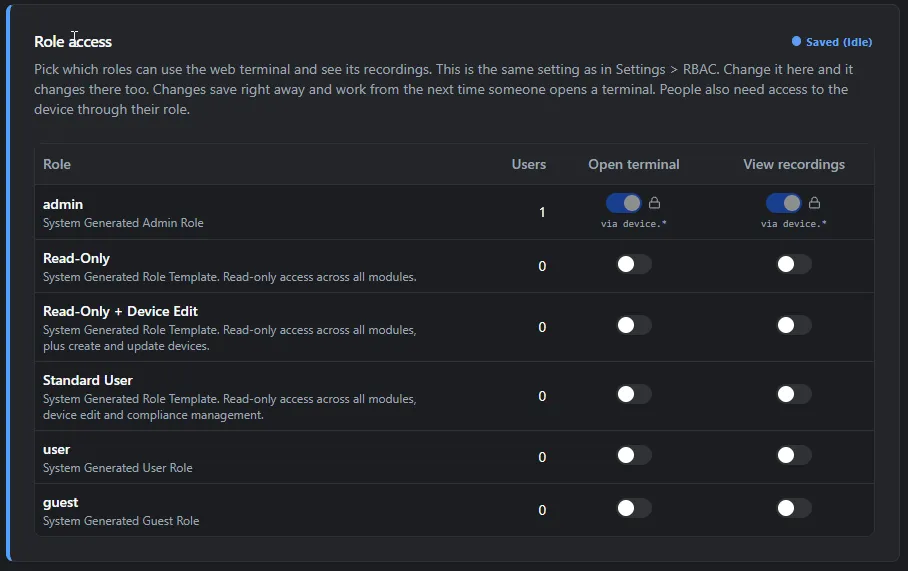 Web Terminal Role Access Screenshot showing the permissions for opening a terminal and viewing recordings.
Two permissions control the terminal. Grant them in Role access on the Terminal Sessions settings page, or in Roles.
| Permission | Allows |
|---|---|
device.terminal | Opening a terminal on devices the user can already access. |
device.terminal_recordings | Viewing and downloading recordings in the device’s Terminal Sessions tab. |
The Admin role has both through its device.* wildcard. Other roles have neither until you grant them.
- A role that gets a permission through a wildcard (
device.*or*) shows a locked switch. Change wildcards in Settings → RBAC. - You can only grant permissions you hold yourself, and only to roles you are allowed to manage.
- Inactive roles and disabled permissions don’t give access.
- Device access still applies. A user with
device.terminalcan only open a terminal on devices their role can see. - Every change in Role access goes to the activity log.
Beta limits
Section titled “Beta limits”We’re releasing the web terminal as a beta so you can try it on your own network and tell us what works and what doesn’t. The security model above is in place from day one. What’s still settling is breadth (more connection types and install methods) and polish. Plan for these limits in this release:
- Off by default. Nothing changes until an admin runs setup and accepts the terms.
- SSH only. Telnet devices and devices reached through Vector agents can’t use the terminal.
- Server installs only. Setup doesn’t support Docker yet.
- Host keys are not checked, the same as the existing SSH engine.
- Never on the demo site. The terminal can’t be turned on for a demo install.
- The gateway reads the on or off state at start. Restart it after turning the terminal on or off outside the setup command.