

V2 UI Reference — Match Devices Tab
V2 UI Reference: Match Devices Tab
Section titled “V2 UI Reference: Match Devices Tab”The Match Devices tab is an opt-in pass over the reconciliation pipeline that resolves a device NetBox reports under a different name than the matching device already has in rConfig, instead of leaving the pipeline to create a duplicate. It is scoped to NetBox only in V8.4.0.
When to Use This Tab
Section titled “When to Use This Tab”Use Match Devices when you’re migrating from manually-added devices to a NetBox-driven inventory. The normal reconciliation pipeline links a NetBox record to an rConfig device by exact hostname and IP match. If a device predates the NetBox import and NetBox’s name for it doesn’t match exactly (a short name vs an FQDN, a different case, a site prefix), the pipeline never links them and a Full Sync creates a second device on the same IP instead of recognising the existing one.
Match Devices lets you resolve that case deliberately: decide how a match should be found, what should happen to the old device, and review every affected device before anything is written.
Prerequisites
Section titled “Prerequisites”- A NetBox V2 integration instance with at least one completed Extract Preview or Sync Preview.
setting.viewpermission to view the tab,setting.updateto change its settings or run it.- The local rConfig device you expect to match must not already have an active link to the NetBox record: once a link exists, the pipeline reconciles that device by external ID on every run and Match Devices has nothing left to do for it.
Settings
Section titled “Settings”| Setting | Options | What it controls |
|---|---|---|
| Turn this on for the next sync | On / off | Enables the match pass. Off by default: existing syncs behave exactly as before until you turn this on. |
| How should we find the matching device? | Same IP address and same name / Same IP address (name can be different) | The narrower option requires an exact hostname match as well as the IP, same as the pipeline’s existing medium-tier match. The wider option matches on IP alone, which is what resolves the renamed-device case. |
| What should happen when we find a match? | Turn off the old device, add the new one / Update the old device with the new details | See What Each Action Does below. |
| Which passwords should we keep? | Keep the passwords already saved in rConfig / Use the passwords from the device profile instead | Only affects Update the old device: Turn off the old device never touches the old device’s credentials. |
Changing a setting doesn’t do anything on its own: it’s saved automatically the next time you click Show The List.
The Three-Step Flow
Section titled “The Three-Step Flow”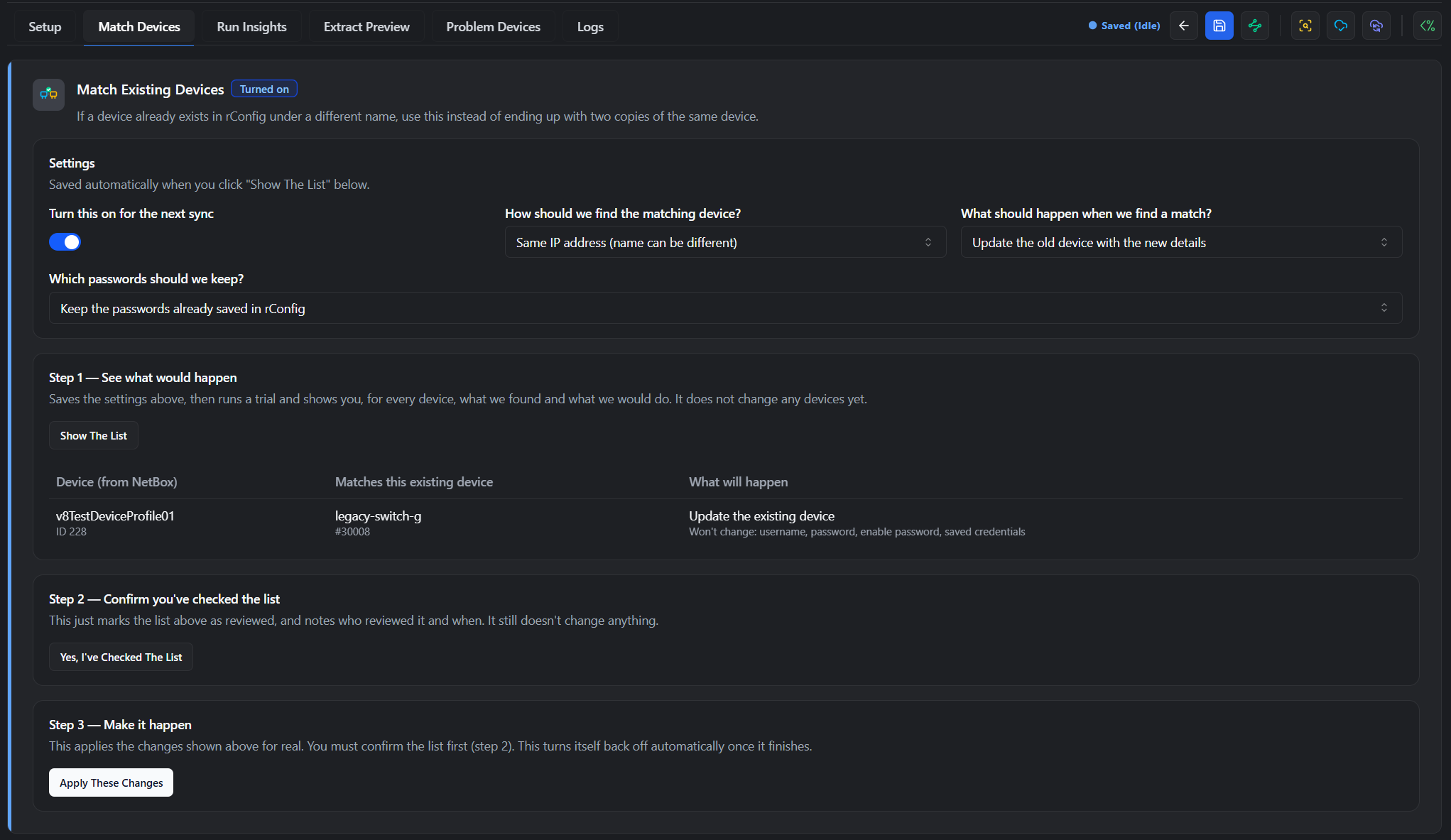
Step 1: Show The List
Section titled “Step 1: Show The List”Click Show The List. This saves the settings above, then runs a trial pass through the reconciliation pipeline with the match logic applied. Nothing is written to any device at this point: it’s the same guarantee a Sync Preview gives you, scoped to this feature.
The result table shows, per candidate:
| Column | What it shows |
|---|---|
| Device (from NetBox) | Incoming hostname and external ID from the NetBox record. |
| Matches this existing device | The rConfig device it matched, by name and ID. |
| What will happen | The action that would be applied, and, for Update the old device, which fields would be left untouched (credentials, or profile-derived fields if the device is profile-locked). |
If a NetBox record matches more than one existing device, the row reports that it needs a decision instead of showing an action: nothing gets guessed.
Step 2: Confirm you’ve checked the list
Section titled “Step 2: Confirm you’ve checked the list”Click Yes, I’ve Checked The List. This records who reviewed the list and when. It’s a checkpoint, not an action: it still doesn’t touch any device.
Step 3: Make it happen
Section titled “Step 3: Make it happen”Click Apply These Changes. This is only enabled once step 2 is confirmed. It queues a real run scoped to this specific action (arming is single-run: it can’t be left on and accidentally fire on an unrelated sync later), and applies the change for every row shown in step 1.
The run finishes in the background. The tab polls it automatically and updates itself once it’s done: you don’t need to reload the page or click Save. While it’s running, you can also switch to Run Insights to watch it stage by stage.
If the run fails partway through, the settings stay armed so you can retry without repeating steps 1 and 2.
What Each Action Does
Section titled “What Each Action Does”Turn off the old device, add the new one. Sets the old device’s status to disabled: its configuration history and schedules are left intact, and it’s reversible from Devices. A new device is created from the NetBox record and linked to it, the same as an ordinary create decision.
Update the old device with the new details. Updates the existing device in place under the NetBox record’s identity: no new device row is created. Fields you’ve chosen to keep (credentials by default, plus any profile-derived fields on a profile-locked device) are left untouched; everything else is updated from the incoming record.
Either way, the device link records which run made the change, which match mode found it, the device’s previous name and status, and who confirmed the run. This is written to integration_device_links.metadata for audit purposes.
Duplicate-IP Warnings
Section titled “Duplicate-IP Warnings”Match Devices is opt-in, so most instances will leave it off. On that default path, if a Full Sync creates a device on an IP already used by an existing one, it’s now reported as an informational warning on the Problem Devices tab instead of happening silently. This applies to every V2 driver, not just NetBox: it’s reporting only, and never blocks or changes what the sync does.
Common Gotchas
Section titled “Common Gotchas”Related Documentation
Section titled “Related Documentation”- NetBox Device Sync V2: where this feature fits into the full NetBox setup flow
- Run Insights Tab: watch an armed run while it applies
- Problem Devices Tab: duplicate-IP warnings and unresolved matches