
Get started with the AI Center in rConfig V8
Get started with the AI Center in rConfig V8
Section titled “Get started with the AI Center in rConfig V8”This page takes you from a fresh rConfig install to a working AI answer about one of your device configs, in about fifteen minutes. Each step links to a page with the full detail. Come back here if you get lost.
The AI Center is available from V8.3.0. The terms acceptance step was added in V8.3.3.
Before you start
Section titled “Before you start”You need:
- Shell access to the rConfig server, to set one environment variable.
- An account with the
aicenter.updatepermission, such as an Admin. Adding a provider and turning capabilities on need it. - Something to answer the questions. That’s either an API key for a cloud provider (Anthropic, OpenAI, Google Gemini, or Azure OpenAI), or a model server you run yourself (Ollama, or anything that speaks the OpenAI API).
- At least one device with a downloaded config, so you have something to ask about.
Setup at a glance
Section titled “Setup at a glance”flowchart LR
A["1 · Enable<br/>AI_CENTER_ENABLED"] --> B["2 · Accept<br/>terms"]
B --> C["3 · Add<br/>provider"]
C --> D["4 · Test and<br/>activate"]
D --> E["5 · Turn on<br/>capabilities"]
E --> F["6 · Ask your<br/>first question"]
-
Enable the AI Center on the server
The AI Center is off by default. Add this line to
/var/www/html/rconfig8/.env:AI_CENTER_ENABLED=trueThen clear rConfig’s caches so it picks up the change:
Terminal window cd /var/www/html/rconfig8php artisan rconfig:clear-allReload rConfig in your browser. AI Center now appears in the left sidebar.
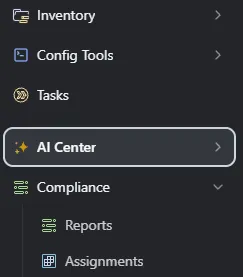 AI Center in the left sidebar after enabling the flag
-
Accept the AI Center terms
Click AI Center. The first time you open it, rConfig shows AI Center — Terms & Conditions instead of the Overview.
- Click Open Terms Portal and read the terms on the rConfig portal.
- Back in rConfig, tick I have read and agree to the AI Center terms and conditions. (the checkbox unlocks after you open the portal link).
- Click I Accept.
Acceptance is per user. Every person who uses AI features accepts once, under their own login. Until they do, AI buttons elsewhere in rConfig stay hidden for them. See Terms acceptance for details.
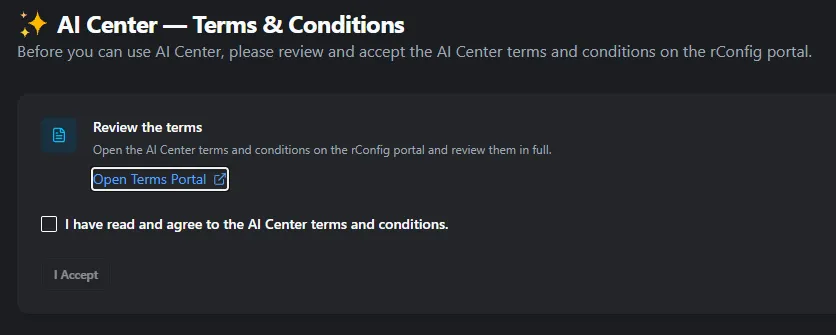 AI Center Terms and Conditions page
-
Add a provider
Go to AI Center → AI Settings and click Add Provider. Pick the provider type, give it a display name, and fill in the API key or base URL. Leave Model at its default for now. Click Add Provider to save.
Provider-by-provider field details are in Set up an AI provider.
-
Test and activate the provider
Saving a provider doesn’t switch it on. On the provider card:
- Click Test. A successful test shows Connection successful. with the model’s reply and the round-trip time.
- Click Activate. The card shows an Active badge.
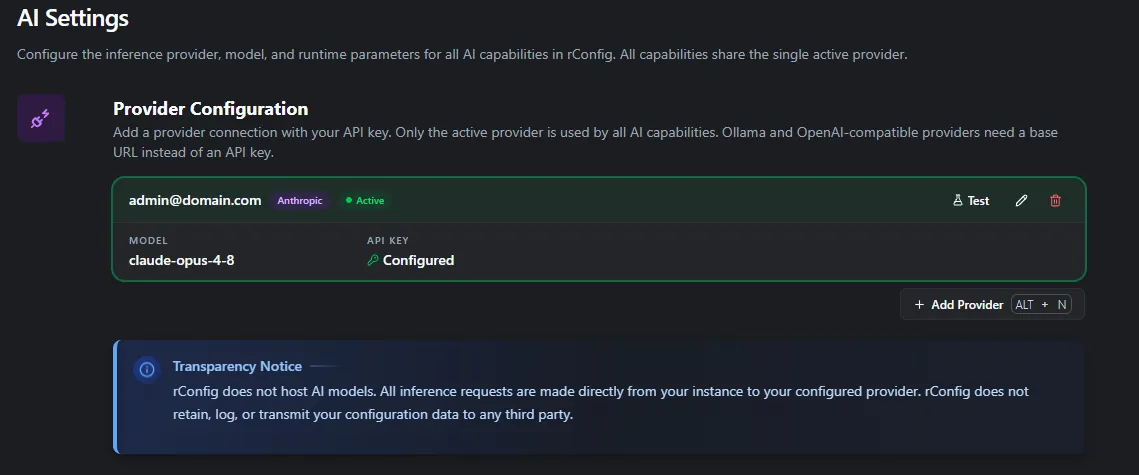 A tested, active provider
-
Turn on capabilities
Go to AI Center → AI Configuration and switch on the capabilities your team should use. Start with Config Analysis & Explain; it’s the quickest way to see the AI Center working. Changes apply immediately, with no save button. See AI Configuration.
-
Ask your first question
- Open any device with a downloaded config and view its latest configuration.
- Click Ask AI in the config viewer toolbar.
- Type “Summarise this configuration in five bullet points” and send it.
You should get a plain-English summary within a few seconds. If you don’t, go to Troubleshooting.
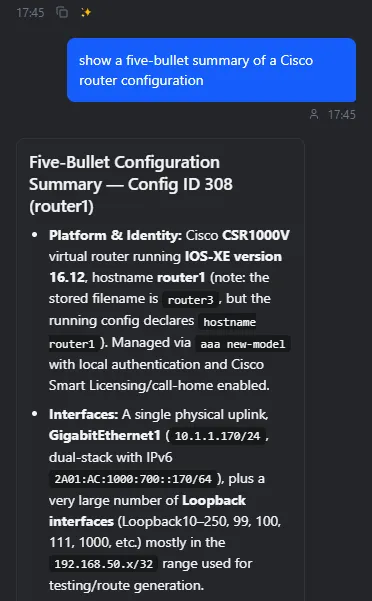 Load any device configuration to see the AI Assistant in action
Give other users access
Section titled “Give other users access”Once it works for you, let your team in:
- Who can see the AI Center is controlled by the
aicenter.viewpermission. Every role template includes it; check your custom roles in Roles. - Who can change providers and capabilities needs
aicenter.update, which the Admin role has. It also lets you manage other users’ MCP tokens. - Who can create their own MCP tokens needs
aicenter.mcptoken. Give it to engineers who connect agents; it doesn’t let them change AI settings. - Each user accepts the terms the first time they open the AI Center.
Where to go next
Section titled “Where to go next”- Use it day to day: Config Analysis & Explain, Drift Detection & Narration, Policy & Compliance Narration, and the Optimization Assistant.
- Connect Claude Code, Cursor, or another agent to your inventory with the MCP server.
- Check what data leaves your network before you roll it out: Governance, audit & privacy.