

Monaco Code Editor for Network Configuration Management
Monaco Code Editor for Network Configuration Management
Section titled “Monaco Code Editor for Network Configuration Management”rConfig V8 uses the Monaco Editor, the same editing component behind Visual Studio Code, for viewing and comparing device configurations and policy definitions. After reading this page, you can use the Config Editor, Compare Editor, and Policy Definition Editor, along with their toolbars and keyboard shortcuts.
Editor features
Section titled “Editor features”If you have used VS Code, the editor will feel familiar. Every variant in rConfig shares the same core features:
- Syntax highlighting and line numbers: useful for referencing specific configuration lines during troubleshooting or team collaboration
- Search and navigation: jump to a line or search across thousands of lines using standard keyboard shortcuts
- Dark and light themes: toggle to match your environment
- Minimap: get an overview of large configuration files and jump to any section
- Side-by-side comparison: view two configuration versions with line-level diff highlighting
Keyboard shortcuts
Section titled “Keyboard shortcuts”The standard VS Code shortcuts work in all rConfig editors:
Ctrl+D(orCmd+Don Mac): select the word at the cursor, or the next occurrenceCtrl+F(orCmd+F): open the find dialogCtrl+H(orCmd+H): find and replaceCtrl+L: select the entire lineAlt+Up/Alt+Down: move the current line up or down
See the VS Code keyboard shortcuts documentation for the full list.
Config Editor
Section titled “Config Editor”The Config Editor is the main interface for viewing and analyzing a device configuration. Its toolbar provides:
- Copy Config: copy the entire configuration to the clipboard
- Copy Path: copy the file path for scripts, automation, or audit trails
- Download: save the configuration locally
- Search (
Ctrl+F): find a string across the configuration - Full Screen: expand the editor to focus on the configuration
To open it, go to Dashboard → Inventory → Devices → select a device → Configurations → select a configuration.
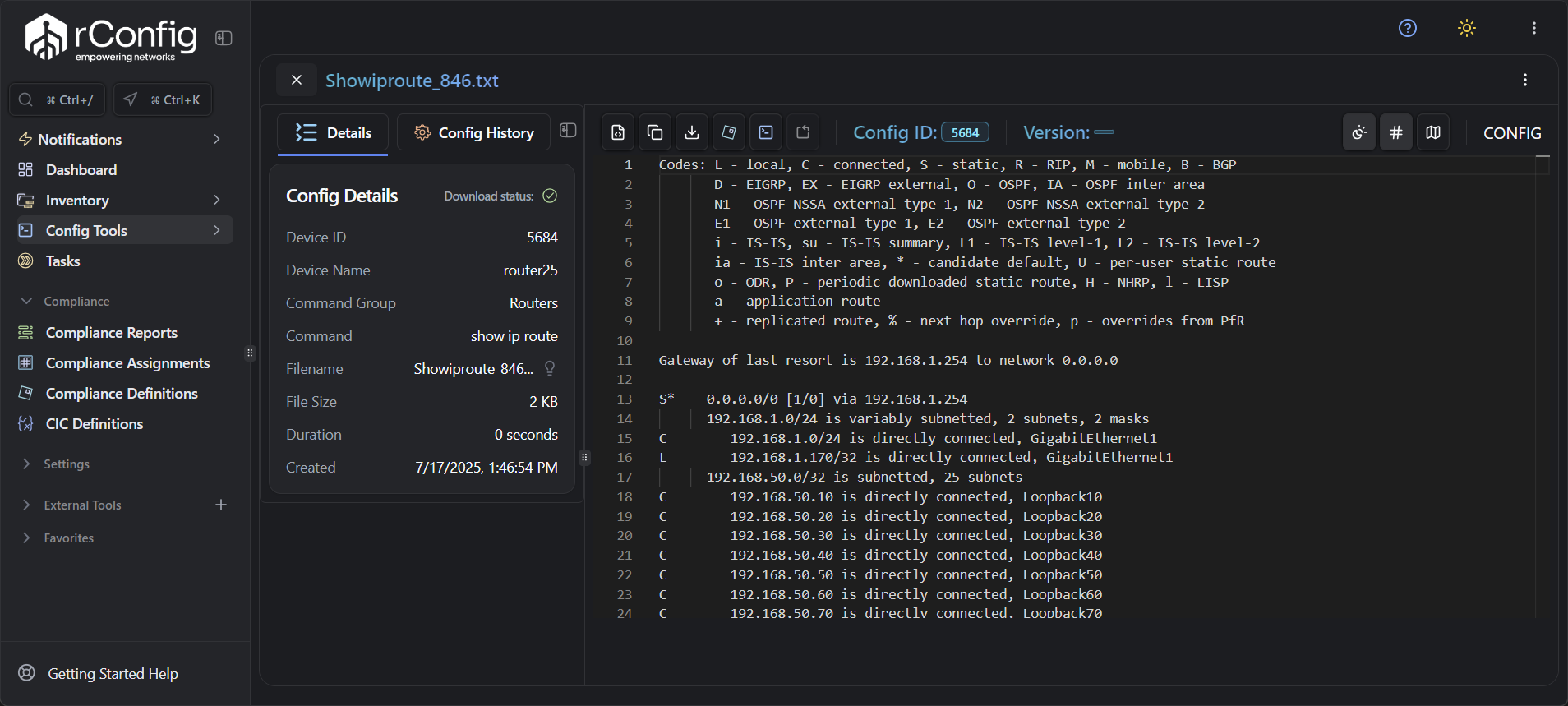 Config Editor with full toolbar access.
Compare Editor
Section titled “Compare Editor”The Compare Editor shows the difference between two configuration versions with line-level highlighting: added lines in green, removed lines in red, and modified lines in yellow. This makes drift detection, change validation, and troubleshooting easier to perform visually.
In addition to the standard Config Editor toolbar, the Compare Editor adds:
- Copy Left/Right: copy either side of the comparison independently
- Download Left/Right: save either configuration version
- Find Left/Right (
Ctrl+F): search within either pane independently - Full Screen: focus on the differences
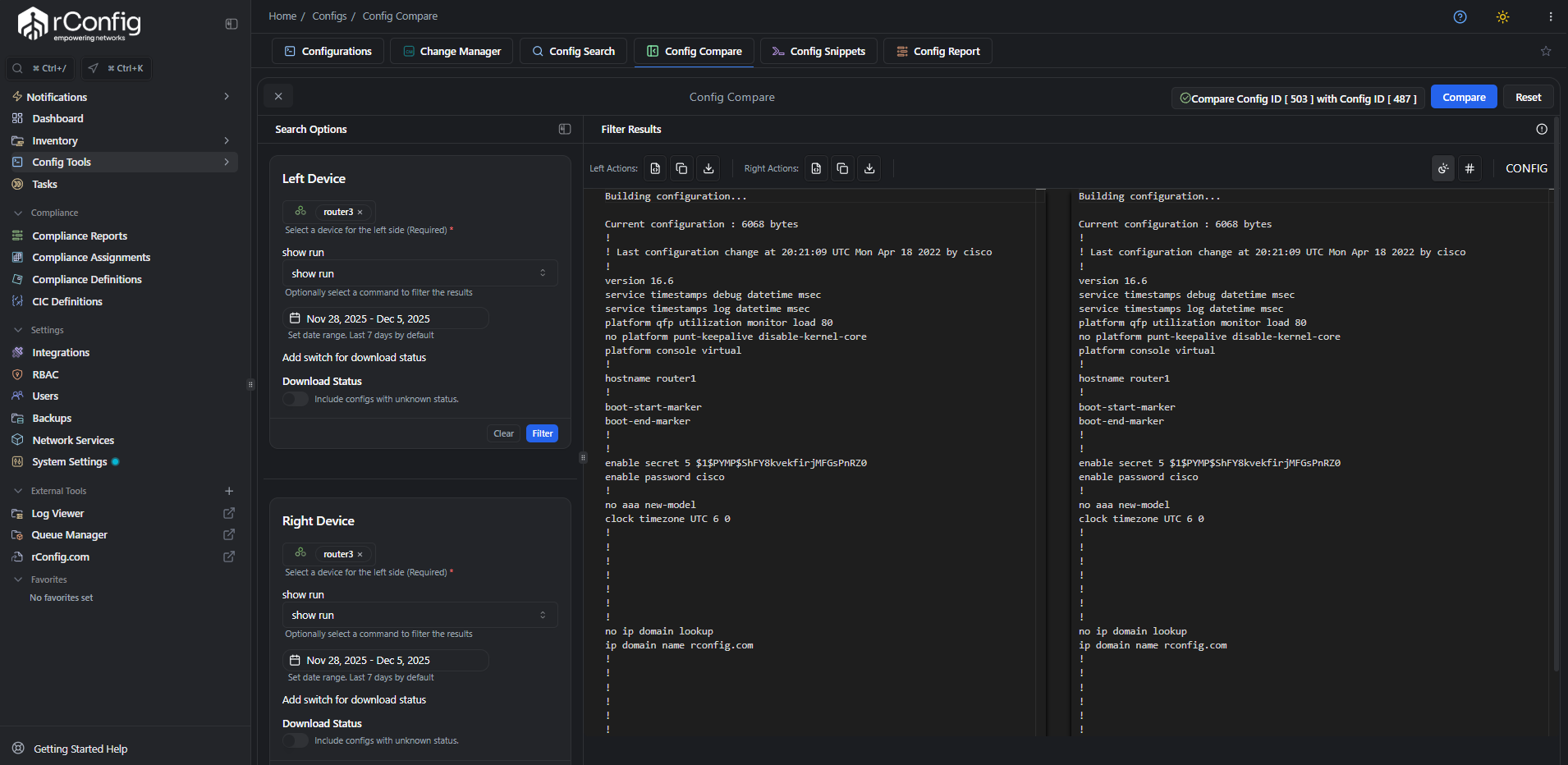 Compare Editor showing side-by-side configuration diff
Policy Definition Editor
Section titled “Policy Definition Editor”The Policy Definition Editor is used to write and edit compliance policies and configuration templates, including regex patterns and policy logic. Its toolbar provides:
- Copy: copy a policy definition for reuse across other policy assignments
- Download: export a policy definition for version control or sharing
- Full Screen: focus on complex policy logic
For example, when building a policy to detect unauthorized SNMP communities, the editor’s syntax highlighting and multi-cursor editing make it easier to write precise regex patterns.
 Policy Definition Editor for compliance rule creation