

SolarWinds NPM Device Sync

SolarWinds NPM Device Sync
Section titled “SolarWinds NPM Device Sync”Sync your SolarWinds inventory into rConfig. From V8.4.3, rConfig can import nodes from a self-hosted SolarWinds Platform server (Orion, including Network Performance Monitor) through the SolarWinds Information Service (SWIS) REST API. Each node becomes an rConfig device with the right template, credentials and category, and stays in step with SolarWinds on a schedule. The setup follows the same model as the OpenNMS V2 setup; only the Setup tab fields, the filters and the way devices get their profile are different.
| Platform | rConfig V8 Support | Auth supported | V2 Status |
|---|---|---|---|
| SolarWinds Platform (self-hosted) | V8.4.3+ (Pro only) | Orion username and password (HTTP basic) | Field tested |
SolarWinds Observability SaaS uses a different API and is not supported by this driver.
Mental Model: End Goal First
Section titled “Mental Model: End Goal First”The point of setting up a V2 integration is to land in a steady state where rConfig’s device inventory is continuously reconciled against SolarWinds on a schedule, with no operator in the loop. That end state looks like this:
A Scheduled Task of type Integration V2 Job runs the SolarWinds instance in Apply mode on a cron, for example nightly. It runs the same six-stage pipeline you’ll run interactively in this guide, writes any
createandupdatedecisions to rConfig, leaves any conflicts or ambiguous matches in Problem Devices for review, and notifies you on completion.
To get there, you walk a one-time setup and a sanity-check loop:
- Create the integration instance: SWIS connectivity and the Orion account in the Setup tab. Validate with Test Connection.
- Set up the Device Profiles the synced devices will inherit from, under Inventory → Device Profiles.
- Add Orion groups named
rconfig::device_profile::<slug>, so each node knows which profile to use. - Run an Extract Preview to confirm the filters return the right SolarWinds nodes.
- Run a Sync Preview to walk the full pipeline (canonicalise → reconcile → decide) without writing.
- Run a Full Sync (Apply) once the preview’s decisions look right.
- Schedule the integration to run on a cron from the rConfig scheduler.
%%{init: {'themeVariables': {'fontSize': '60px'}}}%%
flowchart LR
    A[Create instance<br/>Setup tab] --> B[Test Connection]
    B --> C[Device Profiles<br/>Inventory]
    C --> D[Extract Preview]
    D --> E[Sync Preview]
    E --> F[Full Sync · Apply]
    F --> G[Scheduled Task<br/>recurring sync]

  classDef step font-size:60px,stroke-width:2px;
  class A,B,C,D,E,F,G step;
Prerequisites
Section titled “Prerequisites”SolarWinds:
- A self-hosted SolarWinds Platform server (Orion) with the SolarWinds Information Service running. SWIS is part of every Orion install.
- A dedicated, read-only Orion account for rConfig (see below).
- HTTPS access from rConfig to the SWIS port on the SolarWinds server. SolarWinds Platform 2023.1 and later use port
17774. Older installs use17778, which SolarWinds has deprecated. SWIS listens on its own port, separate from the web console, so open it in any firewall between rConfig and SolarWinds.
rConfig V8.4.3+:
- rConfig V8 Pro. Device Sync is not part of rConfig Core.
- Administrator access.
- At least one Device Profile for the kinds of device you will import.
Create the Orion account
Section titled “Create the Orion account”In the SolarWinds web console, open Settings → All Settings → Manage Accounts and add an Orion individual account, for example rconfig-readonly, with a strong password.
rConfig only reads nodes, groups and custom properties, so the account needs no admin rights and no right to manage nodes. A local Orion account is the most reliable choice: Windows (Active Directory) accounts can be refused by the REST API even when they work in the web console.
Step 1: Create the Integration Instance (Setup Tab)
Section titled “Step 1: Create the Integration Instance (Setup Tab)”1.1 Open the V2 driver picker
Section titled “1.1 Open the V2 driver picker”Navigate to Platform → Integrations. Scroll to the Device Sync section and click + Add Driver under V2 Drivers. The picker shows every V2 driver split into Configured Drivers and Not Configured Yet.
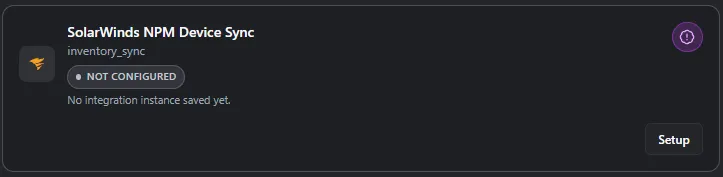 SolarWinds NPM driver card in the V2 driver picker
Each card carries the driver’s verification badge (Field tested for SolarWinds NPM), plus a link to its docs page. Click the SolarWinds NPM card. To sync more than one SolarWinds server, add one instance per server with Add another; each instance keeps its own links.
1.2 Fill in the Setup tab
Section titled “1.2 Fill in the Setup tab”The driver picker drops you straight into the instance Detail page on the Setup tab.
Connectivity
| Field | Default | Notes |
|---|---|---|
| SolarWinds Server | required | The SolarWinds Platform server, for example https://orion.example.com. rConfig adds the SWIS port unless the URL includes one. |
| SWIS Port | 17774 |
Use 17778 for installs older than SolarWinds Platform 2023.1. |
| Timeout (Seconds) | 60 |
Time allowed for each request. rConfig reads nodes 500 at a time. Range 1 to 600. |
| Web Console URL | blank | Optional. Used for the Open in SolarWinds link on imported devices. When blank, rConfig uses the server above on the standard HTTPS port. |
| Verify TLS | on |
SWIS uses a self-signed certificate by default. Install a trusted certificate on the SolarWinds server and keep this on where you can. Turn it off only if you accept the self-signed certificate. |
| Verify TLS Hostname | on |
Turn off only for controlled troubleshooting when the certificate name does not match the server URL. |
| Exclude Unmanaged Nodes | on |
Skips nodes that are unmanaged in SolarWinds. |
| Import Groups as Tags | off |
When on, the names of the Orion groups a node belongs to become rConfig tags on Apply. |
Authentication
| Field | Notes |
|---|---|
| Username | The Orion account. rConfig sends it with HTTP basic auth. |
| Password | Password for that account. Stored encrypted and never shown again. |
SolarWinds Platform 2026.4.1 adds per-user API tokens. The driver does not use them yet; use a username and password.
1.3 Test the connection
Section titled “1.3 Test the connection”Click Test Connection in the action bar at the top of the page.
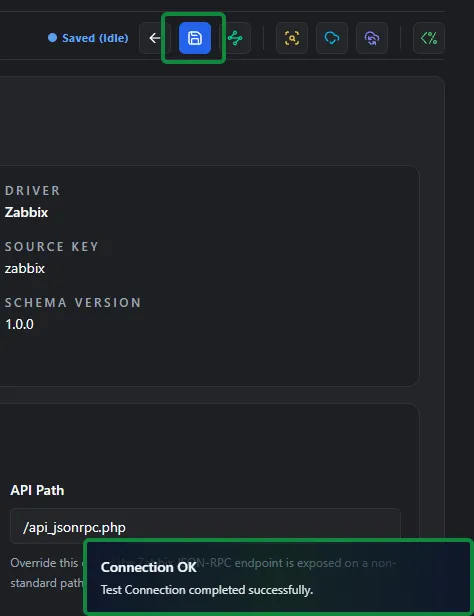 Setup tab after a successful Test Connection. Shown with the Zabbix driver. The SolarWinds NPM screen is the same.
rConfig runs a one-row SWQL query against Orion.Nodes, then counts the nodes the account can see, for example Connection successful (SolarWinds Information Service, 120 nodes visible). Failures are covered in Troubleshooting.
1.4 Save
Section titled “1.4 Save”Click Save. The save indicator in the action bar flips to Saved once persisted.
You now have a working SolarWinds integration instance, but no node has a Device Profile yet. Do not run a preview yet. Move to Step 2.
Step 2: Give Each Node a Device Profile
Section titled “Step 2: Give Each Node a Device Profile”Every imported device needs a Device Profile, which sets its vendor, category, template and credentials. Nodes without one go to Problem Devices instead of being created.
2.1 Open the Device Profiles page
Section titled “2.1 Open the Device Profiles page”Navigate to Inventory → Device Profiles.
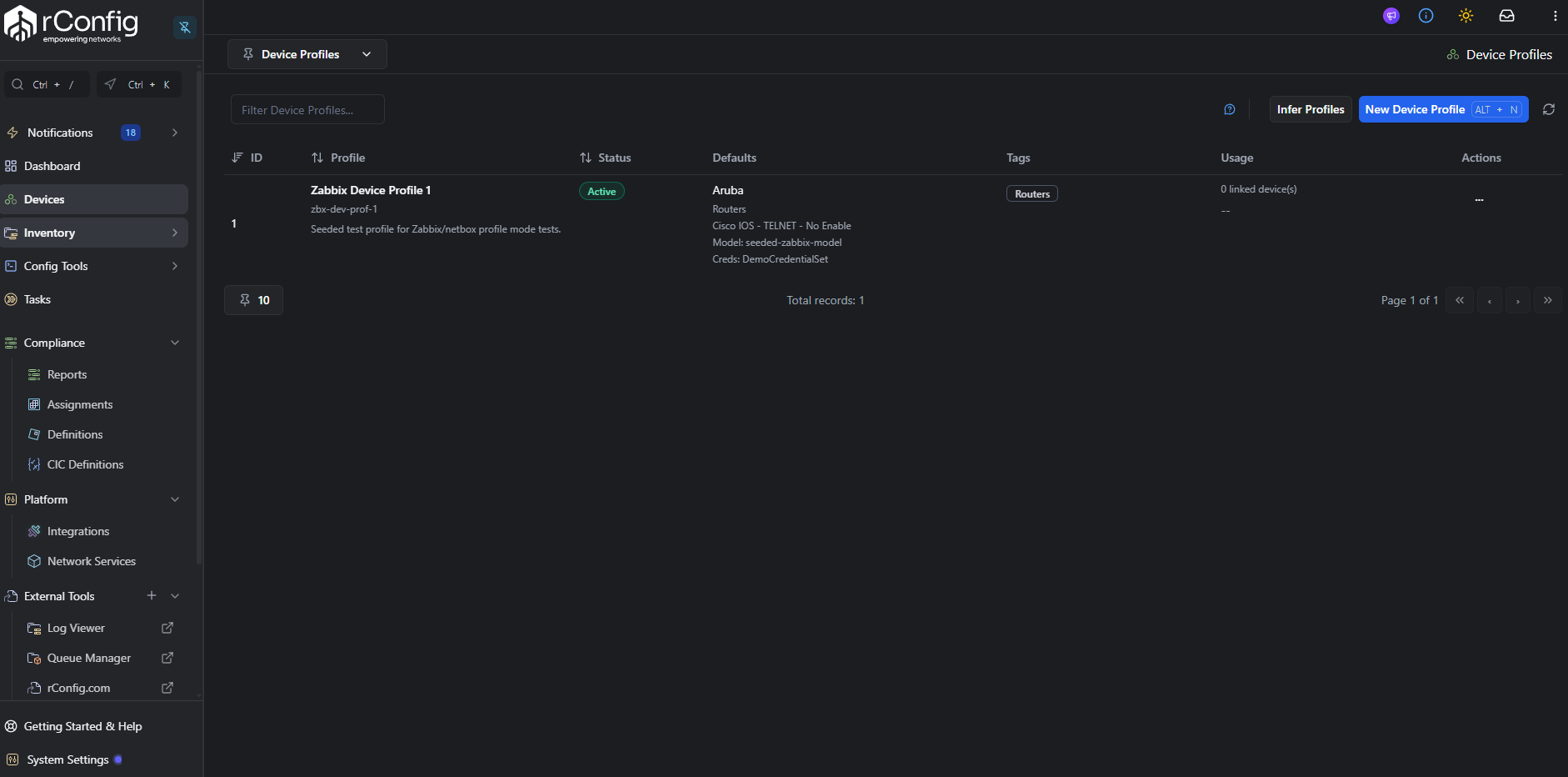
2.2 Create a Device Profile per device class
Section titled “2.2 Create a Device Profile per device class”For each device class you want to sync (for example Cisco IOS Core Switches, Juniper Edge Routers), click New Device Profile and fill in:
- Name: human-readable.
- Slug: the value your Orion group names will reference.
- Vendor, Category, Template, Credential set: standard rConfig device classification.
- SNMP group, Vector agent, default tags, default model / prompt patterns: optional.
2.3 Add profile groups in SolarWinds
Section titled “2.3 Add profile groups in SolarWinds”SolarWinds organises nodes into groups, so the driver uses them for profiles, the same way the LibreNMS driver uses device groups. In the web console, open Settings → All Settings → Manage Groups and create one group per profile, named with the rconfig::device_profile:: prefix and the profile slug:
rconfig::device_profile::cisco-ios-corerconfig::device_profile::juniper-junosAdd nodes to each group, either by hand or with a dynamic query (for example, every node whose Vendor is Cisco and Machine Type contains Catalyst).
A few rules:
- The prefix is not case-sensitive, but the slug after it must match the Device Profile slug in rConfig.
- Only direct membership counts for profiles. A node inside a subgroup of a profile group does not get that profile.
- If a node is in more than one profile group, the slug that sorts first wins.
- Other
rconfig::group names are ignored. Groups without the prefix only matter if Import Groups as Tags is on.
Step 3: Filters (Optional)
Section titled “Step 3: Filters (Optional)”The Filters card on the Setup tab limits which nodes are imported. Leave every field empty to import all nodes the account can see.
| Filter | Matches |
|---|---|
| Vendors | Nodes whose Vendor is any of the listed values, for example Cisco. |
| Machine Types | Nodes whose Machine Type is any of the listed values, for example Cisco Catalyst 9300. |
| Custom Property Equals | Nodes whose custom property has the given value, written Name=Value, for example Site=Dublin. |
| Orion Groups | Nodes in any of the listed groups, by name, including groups nested inside them. |
| Exclude Polling Methods | Leaves out nodes polled by any of the listed methods, for example ICMP for ping-only nodes. |
Values in one field are combined with OR, and different fields with AND. For custom properties, values for the same property are OR, and different properties are AND. The card shows the result in plain words, for example Import devices from vendor Cisco AND with custom property Site=Dublin.
Vendor, machine type, custom property and polling method filters are sent to SolarWinds as SWQL parameters, so a filtered sync transfers only the nodes you asked for. rConfig checks the result again on its side. Matching is not case-sensitive.
Unmanaged nodes are controlled by Exclude Unmanaged Nodes in Connectivity, not by a filter.
Step 4: Run an Extract Preview
Section titled “Step 4: Run an Extract Preview”Switch to the Extract Preview tab (amber download icon in the action bar).
Extract Preview hits SolarWinds exactly the way a real sync would, but stops the moment the nodes come back: no canonicalise, no reconcile, no writes.
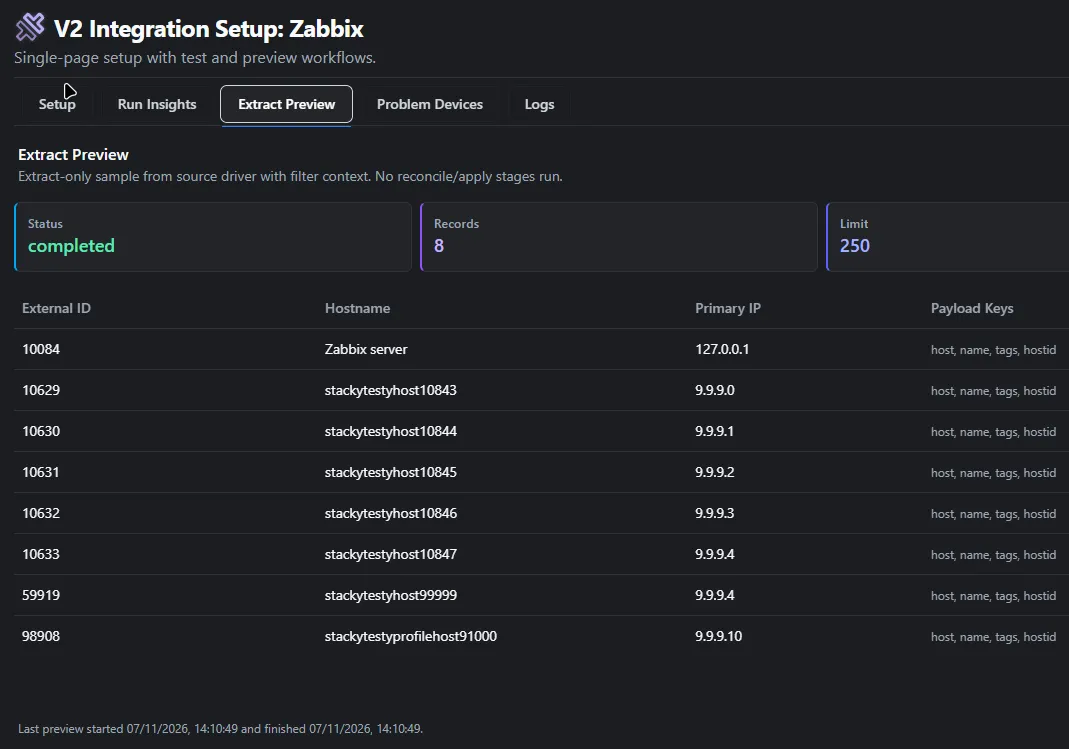 Extract Preview tab with summary cards and result table. Shown with the Zabbix driver. The SolarWinds NPM screen is the same.
Check the hostname and IP columns, and open a row’s Details hover to see the payload. Confirm the groups list contains the expected rconfig::device_profile:: group, and that IPAddress holds the address rConfig should connect to.
For the full anatomy of this tab, see the Extract Preview Tab reference.
Step 5: Run a Sync Preview
Section titled “Step 5: Run a Sync Preview”Click Preview Sync in the action bar (sky icon). Sync Preview runs the complete pipeline through decide and stops without writing. It never changes device links, even when a filter leaves devices out.
Switch to the Run Insights tab to inspect the result.
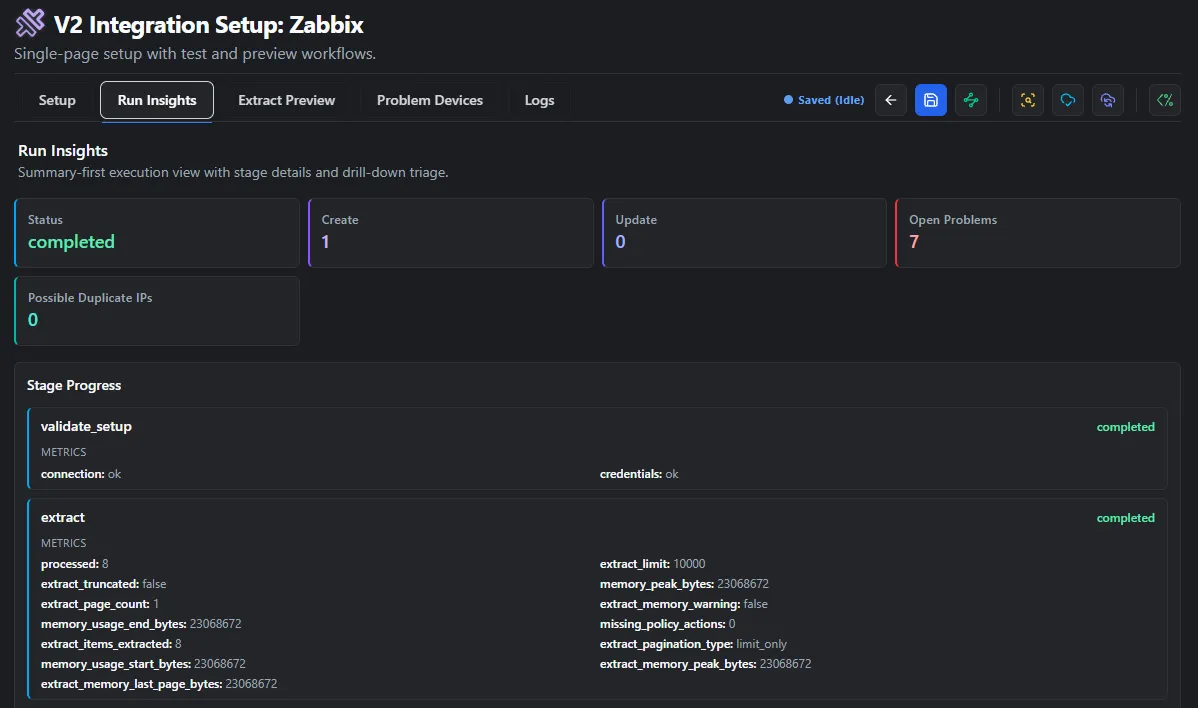 Run Insights tab populated after a Sync Preview. Shown with the Zabbix driver. The SolarWinds NPM screen is the same.
For SolarWinds the most-watched stage metrics are:
extract.items_extracted: should match the Extract Preview count.unmanaged_skippedandclient_filtered_out: nodes left out because they are unmanaged or failed a filter.profile_groups_found: how manyrconfig::device_profile::groups SolarWinds returned.missing_policy_skip_reason: set when rConfig held the links because the extract looked incomplete, for exampleextract_drop.canonicalize.invalid: a high count usually means nodes without a profile group.reconcile.ambiguous: non-zero means more than one rConfig device matches the same SolarWinds node.
If Open Problems is greater than zero, switch to the Problem Devices tab and triage the rows.
For the full anatomy of these tabs, see the Run Insights Tab reference and Problem Devices Tab reference.
Step 6: Run a Full Sync (Apply)
Section titled “Step 6: Run a Full Sync (Apply)”When the Sync Preview decisions look correct and Open Problems is at an acceptable level, click Full Sync in the action bar (indigo icon).
Full Sync re-runs the full pipeline and finishes by executing the apply stage:
- Creates new devices for each
decision = create. - Updates existing devices for each
decision = update. - Assigns the resolved Device Profile to each affected device.
- Adds Orion group names as tags when Import Groups as Tags is on.
- Updates
integration_device_links(first_seen,last_seen). - Schedules an initial configuration backup for newly created devices.
Run Insights tab after a Full Sync. Shown with the Zabbix driver. The SolarWinds NPM screen is the same.
Re-check Problem Devices after Apply: Apply does not auto-resolve ambiguous_match or conflict rows; those still need a human.
A device you added to rConfig by hand that matches a SolarWinds node by hostname and IP is not duplicated. It goes to Problem Devices as a medium match for you to confirm.
On a device imported from SolarWinds, the device page has an Open in SolarWinds button that goes to the node details page (/Orion/View.aspx?NetObject=N:<NodeID>) on your web console.
Step 7: The Debug Console
Section titled “Step 7: The Debug Console”For any of the runs above, you can swap the action-bar button for the Open Debug Console button (shimmer icon). The Debug Console runs the same Artisan command synchronously and streams its native stdout/stderr into a modal:
 Debug Console modal mid-run. Shown with the Zabbix driver. The SolarWinds NPM screen is the same.
For the full anatomy of the dialog, see the Debug Console reference.
Step 8: Schedule the Sync
Section titled “Step 8: Schedule the Sync”Once a manual Full Sync completes cleanly, schedule it. Navigate to Tasks and click New Task. Choose task type Integration V2 Job, pick the SolarWinds instance, choose Apply mode, and set the cron schedule.
A common production pattern:
- Hourly Preview: drift detection only, no writes. Surfaces new Problem Devices fast.
- Nightly Apply: commits real changes during the maintenance window.
CLI Reference
Section titled “CLI Reference”# Sync Preview (does not write)php artisan rconfig:integration-v2-run --driver=solarwinds --mode=preview
# Full Sync with debug outputphp artisan rconfig:integration-v2-run --driver=solarwinds --mode=apply --debug
# Queue an async run by explicit instance IDphp artisan rconfig:integration-v2-run 12 --mode=apply --queueWith more than one SolarWinds instance, pass the instance ID rather than --driver. See the V2 Overview for the full option list.
Driver Reference
Section titled “Driver Reference”Fields the driver reads
Section titled “Fields the driver reads”| rConfig field | SolarWinds field (Orion.Nodes) |
|---|---|
| External ID | NodeID |
| Hostname | Caption. When the caption is empty or an IP address, SysName, then DNS. |
| Primary IP | IPAddress. When that is empty and the caption is an IP address, the caption. |
| Vendor | Vendor. Shown in previews only; the device’s vendor comes from its Device Profile. |
| Model | MachineType |
| Serial | Not imported. Orion.Nodes has no serial number field. |
| Profile / Tags | Orion group membership, as described in Step 2. |
rConfig doesn’t store the node’s up or down status, so a status change in SolarWinds doesn’t mark the device as changed.
How rConfig reads SolarWinds
Section titled “How rConfig reads SolarWinds”- Every request is a SWQL query sent with
POSTto/SolarWinds/InformationService/v3/Json/Queryon the SWIS port. - Nodes are read 500 at a time in
NodeIDorder, each page starting after the lastNodeIDof the one before. Large installs never return one unbounded result. - Group membership is read for each page of nodes, so a sync makes a few requests per 500 nodes.
- Any failed request stops the sync, and rConfig changes no device links for that run.
Reconciliation and missing devices
Section titled “Reconciliation and missing devices”- Strong match: by the SolarWinds
NodeIDalready linked to this instance. - Medium match: hostname and primary IP both unique in rConfig; sent to Problem Devices for review.
- Missing upstream: the default is
disable_link_only. When a node disappears from SolarWinds, a Full Sync disables the link but leaves the device. A failed, partial or very short extract skips this step for that run.
If you delete a node in SolarWinds and add it again, it gets a new NodeID. rConfig then sees a new node and the old link goes missing. Expect a medium match in Problem Devices for that device.
Troubleshooting
Section titled “Troubleshooting”| What you see | Most likely fix |
|---|---|
rejected the username or password (HTTP 401) |
Wrong username or password. If it is a Windows (AD) account, try a local Orion account. |
refused access (HTTP 403) |
The account is disabled or not allowed to log in. Check it under Manage Accounts. |
Could not connect to ... or Timed out waiting for |
The SWIS port is blocked or wrong. Check 17774 (or 17778 on older installs) is open from rConfig to the SolarWinds server, not just the web console port. |
TLS check failed |
SWIS is using its default self-signed certificate. Install a trusted certificate on the SolarWinds server, or turn off Verify TLS. |
No SolarWinds Information Service at this URL (HTTP 404) |
The server URL or SWIS port points somewhere else, often the web console. Use the SolarWinds server address with the SWIS port. |
this account can see no nodes |
The login works but the account’s limitations hide every node. |
rejected the query (HTTP 400) |
Usually a custom property filter naming a property that doesn’t exist. Check the spelling in Custom Property Equals. |
Orion group [name] was not found |
A group in the Orion Groups filter was renamed or deleted. |
- Fewer nodes than expected. Check the filters, Exclude Unmanaged Nodes, the account’s limitations, and
unmanaged_skippedandclient_filtered_outin the extract stage metrics on Run Insights. - Nodes land in Problem Devices with no profile. The node is not directly in an
rconfig::device_profile::group, or the slug doesn’t match an active Device Profile. Open Details on the Extract Preview row and check itsgroupslist. - Reconciliation produces ambiguous matches. Two rConfig devices share the same hostname or primary IP. Resolve in Problem Devices by picking the correct target, or de-duplicate the device list.
SolarWinds, SolarWinds NPM and Orion are trademarks or registered trademarks of SolarWinds Worldwide, LLC and its affiliates. rConfig is not affiliated with, endorsed by or sponsored by SolarWinds.
Related Documentation
Section titled “Related Documentation”- Device Sync V2 Overview
- OpenNMS Device Sync: the closest sibling setup
- SolarWinds NCM Import Tool: a one-off move from SolarWinds NCM
- Extract Preview Tab
- Run Insights Tab
- Problem Devices Tab
- Scheduled Tasks